
QuickSync links one QuickBooks Online company to your shops and tills. Stock syncs both ways for Inventory items, and product details can flow into QuickBooks or out of it. When QuickBooks is your packing store, each order from your other stores arrives as a sales receipt or an invoice.
QuickBooks never sends us orders. Nothing ships from it either, so there’s no tracking to send back. Below: what to set up first, how to connect, what we write in your books, and what that does to stock.
Before you start
- A QuickBooks Online company. Each connection holds one. A second company connects as another store, and each counts toward your plan’s stores.
- Quantity tracking. Turn on inventory quantity tracking in the company’s product settings. It needs QuickBooks Online Plus or Advanced, or Intuit’s inventory add-on. Without it, we can’t send stock or create Inventory items.
- SKUs in the SKU field. We match by the item’s SKU field. A code in the item’s name doesn’t count.
- Accounts. Check you have the ones in Accounts we use.
- Your plan. Stock syncing works on every plan. Product syncing and orders into QuickBooks need Pro or above.
- How you signed up. QuickBooks takes orders only if you signed up on our website or pay through the Clover App Market. Accounts from other app stores, including the QuickSync-QuickBooks Connector app on Shopify, get stock and products only.
- Canada. Canadian companies get no orders for now. The Orders page shows them as Needs attention. Stock and products sync as usual.
Connect QuickBooks
- In QuickSync, open Settings, then Stores, and click Add a store.
- Click QuickBooks. We take you straight to its sign-in.
- Sign in as a company admin, pick the company and approve access.
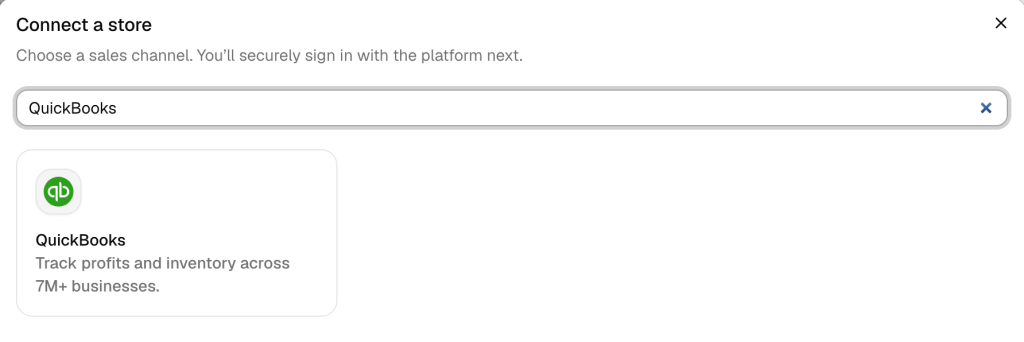
Back in QuickSync, the company shows under Stores with its QuickBooks name. We read its home currency and time zone, the chart of accounts, and every Inventory, Non-inventory and Service item. That’s all reading. Nothing changes in QuickBooks until you start syncing.
A company can belong to one QuickSync account. If another account has it, we stop and show that account’s email, partly hidden.
What syncs
| Capability | QuickBooks |
|---|---|
| Stock to QuickBooks | Yes, for Inventory items with quantity tracking. We set the item’s quantity on hand. |
| Stock from QuickBooks | Yes, for the same items, when QuickBooks tells us an item changed |
| Product details to QuickBooks | Yes: name, SKU, description, price, taxable setting and images |
| QuickBooks as the main store | Yes. We read item names, descriptions, SKUs, prices and images. |
| Orders from QuickBooks | No. We don’t read sales from QuickBooks. |
| Packing store | Yes, for website sign-ups and Clover App Market accounts. Orders arrive as sales receipts or invoices. |
| Tracking back to the selling store | No. Nothing ships from QuickBooks. |
| How fast | As it happens. QuickBooks notifies us of item changes, and orders go in as soon as we have them. |
Orders in your books
This starts once QuickBooks is your packing store. Turn on order syncing (Pro and above) and pick QuickBooks, in setup or from the Order route card on the Orders page, under Fulfillment store. Each new order from your other stores then becomes one document. The selling store’s payment status decides which.
| Payment status | What we create in QuickBooks |
|---|---|
| Paid | A sales receipt. It records the payment itself, so there’s no separate payment. |
| Unpaid | An invoice, left open with no payment. Orders from stores that copy only once paid, such as Shopify, become sales receipts later. |
| Part-paid | An invoice, left open with no payment. Shopify orders wait until they’re fully paid. |
| Refunded before it reaches us | An invoice paid in full, then a refund receipt (Clover orders). From other stores, nothing reaches QuickBooks. |
| Authorized or voided | Nothing. The order shows QuickBooks financial status unsupported. |
A later payment pays the open invoice, as long as nothing else on the order changed. We don’t turn invoices into sales receipts. We also never edit a sales receipt or invoice once it’s in QuickBooks: if the order changes afterwards, the QuickBooks copy keeps what it had.
New orders come across from the moment you turn on order syncing. Cancelled orders we haven’t sent never do. US orders that TikTok Shop ships itself still get a document, but Fulfilled by Amazon orders never do.
Customers. We create a QuickBooks customer the first time we send a buyer’s order, with their name, email, phone and billing address. Their later orders reuse it. We don’t look for an existing customer, even one with the same email. If the name’s taken, we add a number, as in Jane Doe 1. Orders with no name go to one shared customer per store type, such as Shopify Customer.
What each document holds
| Field | What we write |
|---|---|
| Date | The day the customer placed the order, in your company’s time zone |
| Number | The selling store’s order number, such as #1001, cut to 21 characters |
| Memo | “Order from” and the store’s name, then the order’s notes |
| Ship-to address | The order’s shipping address |
| Product lines | Name, quantity and unit price, linked to the QuickBooks item with the same SKU |
| Charges | One line each for Shipping, Tax, Tip, Service Charge, Additional Fees and Duties, when they aren’t zero, with no item attached |
| Discount | One discount line, named after the discount or Custom discount |
| Payment | Dated the day of the sale, with no deposit account set. Card orders use a credit card payment method with “card” in its name. |
Tax. We don’t use QuickBooks sales tax. The selling store’s tax goes on the Tax line. Every line, Tax included, uses the non-taxable code NON.
Unmatched lines. A line with no SKU, or one no QuickBooks item shares, goes in without an item. If two QuickBooks items share the SKU, the order fails with QuickBooks item mapping needs review.
Per-store reports. No setting maps stores to classes or locations. Use the store name in the memo instead.
Accounts we use
We pick an active account of each kind from your chart of accounts. You can’t choose them in QuickSync.
| What for | Account in QuickBooks |
|---|---|
| Stock value of Inventory items we create | Other Current Assets, detail type Inventory |
| Their cost of goods | Cost of Goods Sold, detail type Supplies & Materials – COGS |
| Sales of every item we create | Income, detail type Sales of Product Income |
| Order discounts | Income, detail type Discounts/Refunds Given, if you have one |
| Refund receipts | A bank account |
If one’s missing, the product shows Rejected by the other store, and its Activity tab names the account QuickBooks requires. Add it in QuickBooks, then sync the product again. Still failing? Contact support.
Refunds and cancellations
We add a refund receipt only for refunded Shopify and Clover orders. It has one line, such as #1001 Refund, for the total refunded so far. The line names no product and carries the code NON, so it doesn’t restock anything. We draw it from an active bank account and don’t set its date. A later refund updates the same receipt. Refunds from other stores don’t reach QuickBooks, so enter those yourself.
Cancellations made in Shopify reach QuickBooks right away. We keep the sales receipt or invoice, add no refund, and flag the order for review, for example as QuickBooks cancellation needs review. Email support@itsquick.co with the order number so we can reconcile it, and don’t re-enter the sale. A cancellation in any other store doesn’t change the QuickBooks document right away, so check that order there.
Cancellations and refunds has the rules for every store.
Stock and sales documents
Only Inventory items with quantity tracking carry stock. When a count changes in another store, we set the item’s quantity on hand to match, never below 0. When an item changes in QuickBooks, it notifies us and we pass the new count on.
The first sync sets every store to your starting store’s counts. If that isn’t QuickBooks, its quantities change.
Sales documents move stock as well. A line naming an Inventory item takes those units off it. If we sync that item’s stock, the sale has reached QuickBooks once before, as a stock update. So right after creating the document, we add the units back. The document still books the income and cost of goods, and the count ends where stock syncing set it.
When stock syncing doesn’t cover the item, for example with inventory syncing off, we leave the document’s stock change alone. If adding units back fails, the sale remains and the order shows QuickBooks stock adjustment needs review. Contact support, and don’t repeat the sale.
QuickBooks rules
Each product from your main store becomes a QuickBooks category with one item per variant, even if there’s only one.
| Rule | What happens |
|---|---|
| Item names | Up to 100 characters, without line breaks, tabs, colons or quote marks |
| Repeated names | QuickBooks won’t hold two items or categories with one name. If we can’t safely match yours, you’ll see QuickBooks item name conflict. Rename one, then run QuickFix again. |
| SKUs | Up to 100 characters. We cut a longer one, and that new item doesn’t link, so its stock won’t sync. We skip a variant with no SKU, or with a SKU another variant shares. |
| Item types | Physical products become Inventory items, unless they’re Wix or QuickBooks items that don’t track stock. The rest become Non-inventory or Service items, with no stock. |
| Status | Every item we send is active. An item you make inactive in QuickBooks shows as inactive in QuickSync. |
| Images | Attached to the item. Formats other than GIF, JPEG and PNG go as PNG. |
| Stock | 0 to 999,999,999 |
| Not sent | Compare-at price, cost, barcode, weight, vendor, product type and tags |
| Deleted products | With product syncing on, we make the items inactive and delete the category |
Reconnect or switch company
Reconnect. If the connection breaks, the QuickBooks card in Settings, Stores shows Reconnect. Click it, pick QuickBooks and sign in to the same company. We swap in the new sign-in and keep everything synced so far.
Switch company. Each company is its own store here. Keeping both? Connect the second as another store. To replace one, open the menu on its card, click Disconnect, then Disconnect store. Then connect the new company.
Disconnecting stops all syncing with that company and removes our access at once. We don’t delete anything in QuickBooks. If it was your packing store, order syncing turns off. If it was your main store, product syncing does.
Did you install QuickSync from the Shopify App Store, for example as the QuickSync-QuickBooks Connector app? Then don’t uninstall the app in Shopify to change companies. That deletes your whole QuickSync account: every store, product, order and login.
Common questions
How does QuickSync mark an order as paid in QuickBooks?
It follows the selling store’s payment status. A paid order becomes a sales receipt, which QuickBooks treats as paid when it’s created, so we add no separate payment. An unpaid or part-paid order becomes an open invoice with no payment. We hold Shopify orders until they’re fully paid, so they always arrive as sales receipts.
Can pay-later orders stay unpaid in QuickBooks?
Yes, when the selling store reports them unpaid. They become open invoices with no payment. Some stores, such as Shopify, copy an order only once it’s paid, so those orders reach QuickBooks later, as sales receipts. We go by the order’s payment status, not the tender, so if your till marks a pay-later order as paid, QuickBooks gets a sales receipt instead. Each invoice goes to a customer we create from the order, not to a QuickBooks customer you already have.
Why didn’t a stock change in QuickBooks reach my other store?
We don’t check QuickBooks on a timer. We act when QuickBooks tells us an item changed, then re-read it and send its count on. Only Inventory items with quantity tracking carry stock, so Non-inventory and Service items never send one. Check the item’s type and SKU, then open the product on the Products page to see the stock we hold. Still old? Contact support with the SKU.
Why can’t QuickSync find my QuickBooks items?
We match by the SKU field on each QuickBooks item, so a code typed into the item’s name doesn’t count. Copy it into the SKU field, then click Sync products on the Products page. We read Inventory, Non-inventory and Service items, but not bundles. An item without a SKU shows under Needs attention as No SKU found. Two items with the same SKU can’t match either.
Why is QuickBooks greyed out as my packing store?
QuickBooks takes orders only for accounts that signed up on the QuickSync website or pay through the Clover App Market. If you installed QuickSync from another app store, including the QuickSync-QuickBooks Connector app on Shopify, the Orders page lists QuickBooks as Not supported, and setup leaves it out. Stock and product syncing with QuickBooks still work.
Do I need a paid plan to connect QuickBooks?
You can start without a card: new accounts get a 14-day trial with Pro features. Stock syncing with QuickBooks works on every plan. Product syncing and sending orders into QuickBooks need Pro or above. QuickBooks counts as one of your connected stores, and each plan covers two, so QuickBooks and one shop fit in the base price.
Next step
To send orders into QuickBooks, read Choose your packing store. For how orders move between all your stores, read How order syncing works.