QuickSync syncs stock between Shopify and your other stores in both directions, at each Shopify location you connect. Shopify can be your main store, where product details start, or take its details from another one. It can also be your packing store, where orders from every store end up. Shopify tells us about each sale and edit itself, so nothing waits on a timer.
You’ll need a SKU on every variant. Product and order syncing need Pro or above. Below: what to check first, the steps, what syncs, Shopify’s limits, and what disconnecting or uninstalling does.
Before you start
- Your myshopify.com address. We ask for the address Shopify gave your store, like
your-store.myshopify.com, not your own domain. Shopify shows it under Settings, then Domains. - Permission to install apps. If you’re the store owner, you’re set. Anyone else needs a staff or collaborator account that’s allowed to install apps and can see the products, inventory, orders and customers we ask for. Give collaborator access on Shopify covers it.
- A SKU on every variant. We match products by SKU, one variant at a time, so a variant without one doesn’t sync.
- Track quantity, where Shopify holds the count. Shopify gives us no stock count for a variant it isn’t tracking. Turn on quantity tracking in Shopify says when you need to switch it on.
- The plan for what you’ll sync. Stock syncing works on every plan. Product syncing and order syncing need Pro or above. Product videos, SEO fields and order notes need Ultra or above.
Our website or the Shopify App Store
You can sign up on our website and connect Shopify from there, or install QuickSync from the Shopify App Store. An App Store install creates a QuickSync account for that Shopify store, and a few things work differently. Already have a QuickSync account? Connect Shopify from inside it. Installing from the App Store can start a second, separate account.
| Signed up on our website | Installed from the Shopify App Store, or signed up with Continue with Shopify | |
|---|---|---|
| How you pay | To QuickSync | On your Shopify bill |
| Trial | 14 days, less any days this email has used before | 14 days, less any days this shop has used before |
| How you sign in | Email and password, or Continue with Google | Through Shopify: open QuickSync in Shopify admin, or use Continue with Shopify on our sign-in page |
| Square, Clover and Lightspeed | In the store list | Not offered, unless support turns them on |
| Packing store | Any store that can take orders | Shopify. Square, WooCommerce, QuickBooks and Xero show as Not supported |
| Tracking written into Shopify | Yes, when Shopify, WooCommerce or Square packs the order | No |
| Uninstalling QuickSync from this Shopify store | Disconnects the store | Deletes the whole QuickSync account |
Connect Shopify
You can connect Shopify any time from Settings. During your first setup, the same window opens from Connect your first store or Connect another store on Overview.
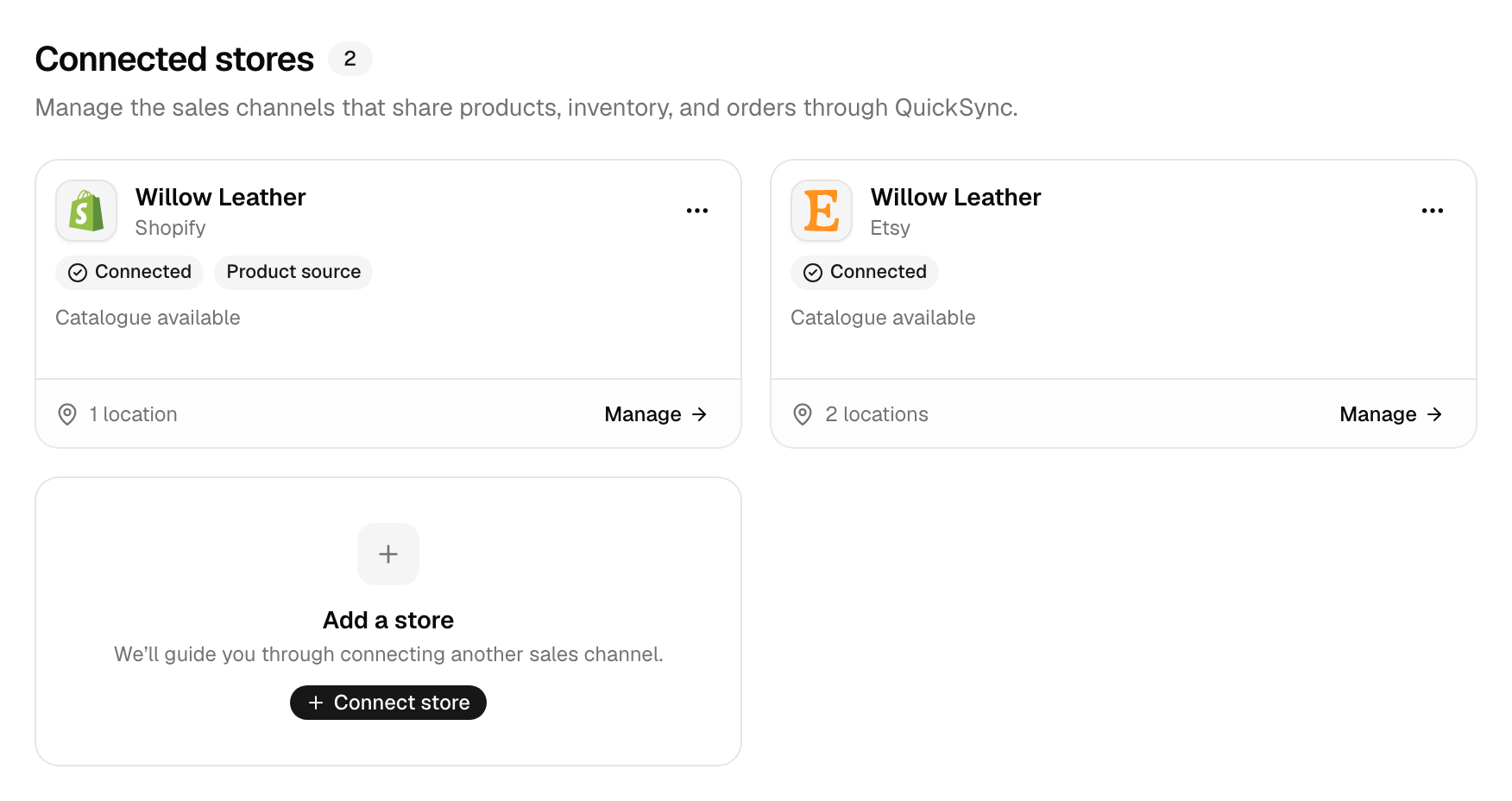
- In QuickSync, open Settings, then the Stores tab.
- Click the Add a store card.
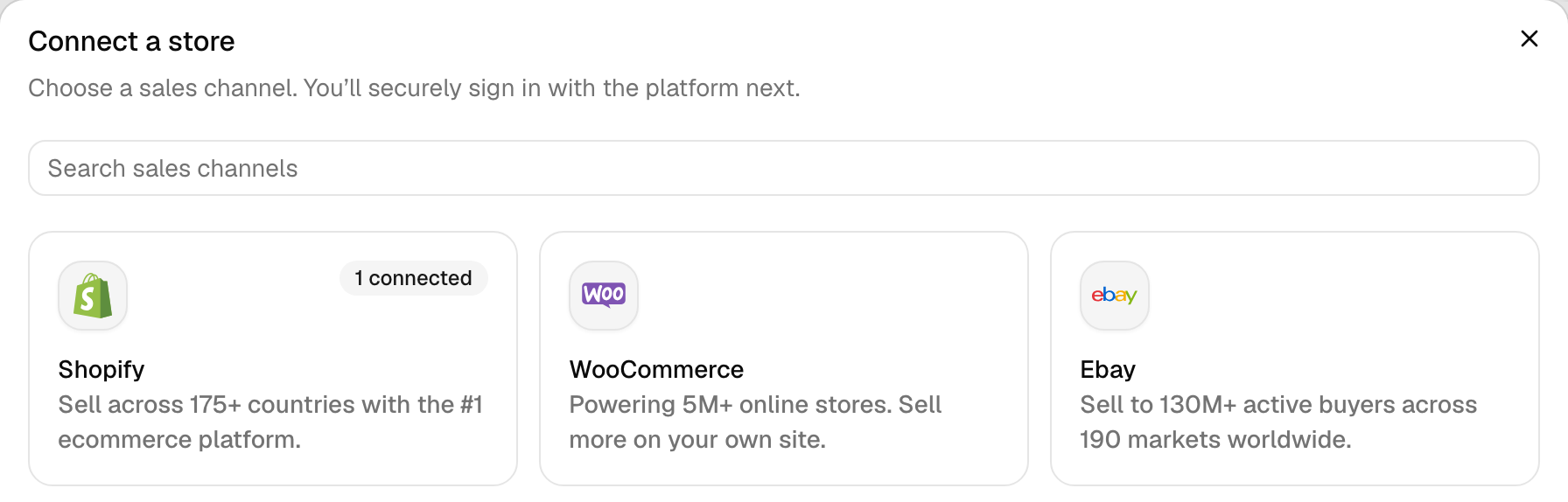
- In Connect a store, click Shopify.
- Type your address in Shopify URL, such as
your-store.myshopify.com, then click Continue to Shopify. - Shopify opens its own approval screen. Sign in if it asks, then approve QuickSync’s access.
Back in QuickSync, the store’s card says Connecting while we set up. We sign up for Shopify’s change notifications, then read your shop details, locations, collections and every product in every status, with its images, videos and stock at each location. The card says Waiting for catalogue until your products arrive, then Catalogue available. Reading doesn’t change anything in Shopify.
Orders you took before turning on order syncing don’t come across on their own. New ones do.
If it doesn’t connect
- Please provide a valid shop name: you typed your own domain, or the name has a space or a character other than letters, numbers and hyphens. Use the myshopify.com address.
- You land in a different QuickSync account: the store already belongs to it, so approving QuickSync signs you in there. To move the store, disconnect it there first.
- Integration limit reached or You’ve reached your integration limit: your plan covers two stores, and each extra one adds the plan price again, up to 8. Change plans from Your plan in Settings.
- Installation was cancelled, so nothing was connected: the approval screen closed before you approved. Start again from step 1.
- This store is still being disconnected: an earlier disconnect hasn’t finished. Wait a few minutes, then try again.
Other fixes are in A store won’t connect.
What syncs
Shopify reports each change as it happens. So a Shopify sale goes out to your other stores without waiting on a timer. Other apps differ, and How QuickSync works compares them.
| What | With Shopify |
|---|---|
| Stock into Shopify | Yes, at the Shopify locations you connect, or at your only location |
| Stock from Shopify | Yes, Shopify’s available count at each connected location, not what’s on hand |
| Product details into Shopify | Yes, from your main store: titles, descriptions, prices, images, variants and tags, including new products you add there. Pro and above |
| Shopify as your main store | Yes, and it’s the usual choice. Your Shopify edits go out to your other stores. Pro and above |
| Orders from Shopify | Yes, once Shopify marks them paid. Pro and above |
| Shopify as your packing store | Yes, on every account. Pro and above |
| Tracking into Shopify | Yes, when WooCommerce, Square or another Shopify store packs, on accounts that signed up on our website or pay through Clover. No for Shopify App Store installs |
| Tracking from Shopify | Yes, when Shopify packs and the shipment has a carrier and a tracking number: we send both to the store the order came from, if it accepts them |
| How fast | As it happens. Shopify tells us about every change |
Orders we create in Shopify come in marked as paid. Why Shopify then lists a payment as captured is in Orders show as Captured in Shopify, and each store’s tracking rules are in Tracking and shipping status.
Shopify rules
Shopify caps a few things on every product. We check them before we create or update a listing there.
| Limit | Shopify allows | What we do |
|---|---|---|
| SKU | 255 characters | Send up to 255 |
| Option groups, like Size or Colour | 3 | Stop a product with more until you cut it to 3 in your main store |
| Variants per product | 2,048 | Leave out the rest |
| Images per product | 250, counting videos and 3D models | Send the first 100, scaling down any image over 5000 × 5000 pixels first |
| New variants a day | 1,000, once a shop has 50,000 variants, except on Shopify Plus | Stop when Shopify refuses, with no retry the next day |
- Drafts. Shopify takes drafts. With Create as draft on in the Product syncing settings, or Yes to Add new products as drafts? in setup, products we create in Shopify start as drafts. Later updates keep the status from your main store.
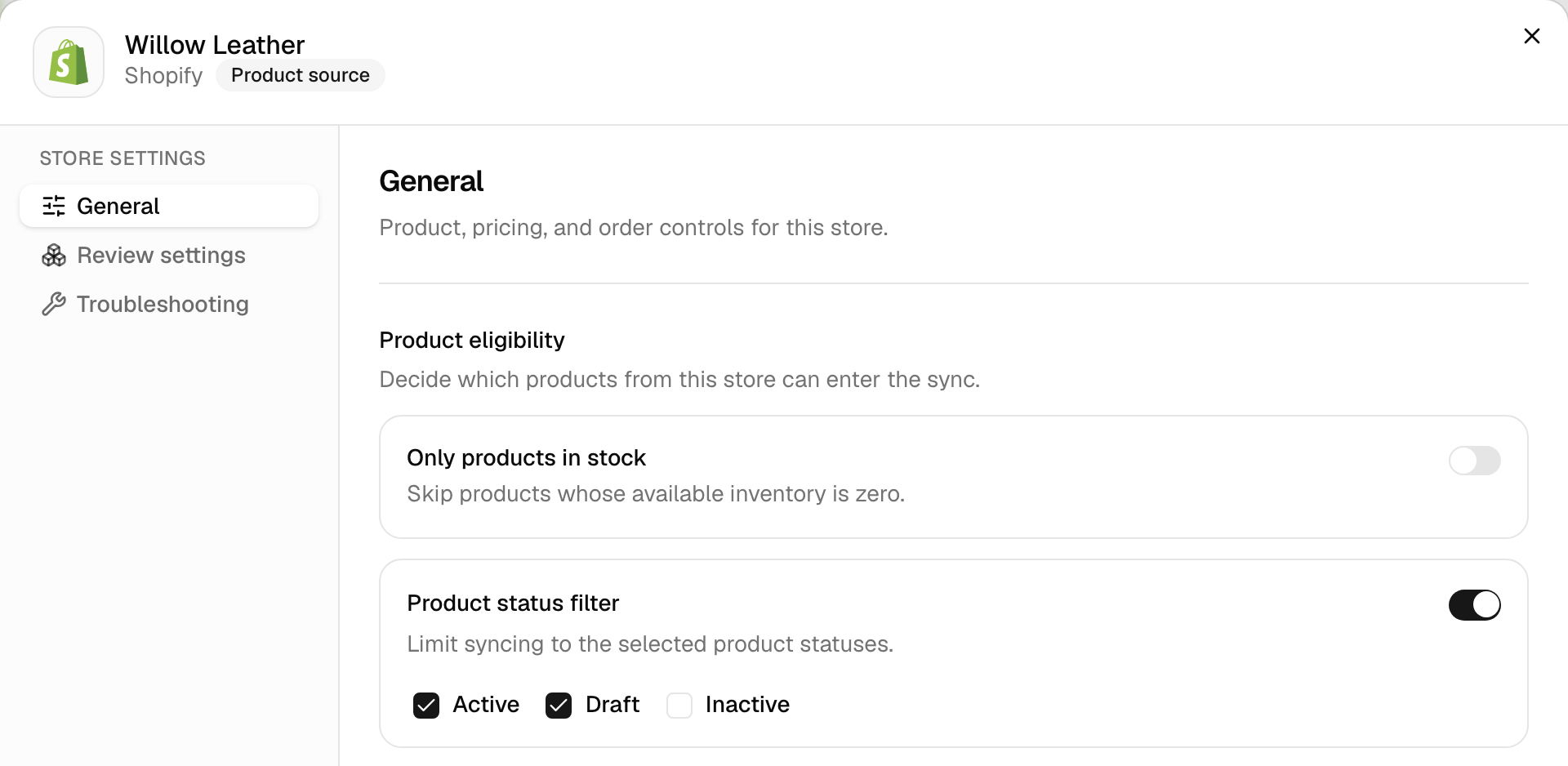
- Which products sync. Each store’s Product status filter limits syncing to the statuses you tick: Active, Draft and Inactive. Only products in stock skips products with none available.
- Track quantity. Shopify reports stock only for variants it tracks. We switch tracking on when we write stock to a variant. Turn on quantity tracking in Shopify says when to do it yourself.
- Locations. We sync each Shopify location you pair under Settings, Connect locations, and we don’t add locations together. If a dropshipping or fulfillment app runs a location, we may leave it out: turn on Dropshipping locations in the store’s Review settings to include it. More in Locations.
- Below zero. Shopify accepts negative counts, so an oversold variant can show -1. Stores that can’t go below zero don’t get the negative number. See When stock hits zero.
- Cancellations. Cancel an order you sold on Shopify, and we pass the cancellation to your packing store. A cancellation in another store doesn’t reach its copy in Shopify right away, so cancel that copy yourself. Cancellations and refunds has the details.
- What stays put. We don’t sync metafields. We read your collections to help you pick products, but we don’t create them in other stores. Edits to an order after it reaches your packing store, and refunds, stay in the store where you made them.
Reconnect or switch account
When a store’s access stops working, its card in Settings, Stores shows Needs attention and a Reconnect button.
- Click Reconnect.
- In Connect a store, click Shopify, type the same address in Shopify URL and click Continue to Shopify.
- Approve QuickSync in Shopify.
We swap in the new access and sign up for Shopify’s notifications again. Your products, matches and settings stay as they were, and we don’t read the catalogue again. To refresh product details, click Fetch latest products at the top of Settings and pick Syncing products or Not syncing.
Uninstalling QuickSync can delete your whole account. If you installed QuickSync from the Shopify App Store, or signed up with Continue with Shopify, that Shopify store is your account’s install store. Uninstalling QuickSync from it in Shopify deletes your QuickSync account: every connected store, product, order and login. That’s why its card has no Disconnect. Talk to support before you remove it.
Disconnecting removes QuickSync from that Shopify store. Any other Shopify store has Disconnect in its card’s menu, and Disconnect store under Troubleshooting in its settings. Disconnecting deletes our copy of the store’s products, locations and matches. It turns off product syncing if it was your main store, order syncing if it was your packing store, and both if only one store remains. Then it uninstalls QuickSync from the Shopify store. Your products in Shopify don’t change.
To switch to another Shopify store, disconnect the old one, then connect the new one with its own address. A Shopify store belongs to one QuickSync account at a time, so if the new one is in another account, disconnect it there first.
Common questions
What Shopify store URL do I enter in QuickSync?
Enter the address Shopify gave your store when you opened it, like your-store.myshopify.com. You can type the whole address, or only the part before .myshopify.com and we’ll add the rest. Your own domain, such as yourbrand.com, won’t work, because Shopify’s approval screen lives on the myshopify.com address. To find it, open Settings in Shopify admin, then Domains, and look for the address ending in myshopify.com.
Why can’t I see Square or Clover in QuickSync for Shopify?
Accounts created by installing QuickSync from the Shopify App Store, or with Continue with Shopify, don’t offer Square, Clover or Lightspeed in the store list, and some of our Shopify listings offer only the pair they’re named for. The switch that shows them is on our side, so contact support and ask. Don’t uninstall to start again on our website: uninstalling QuickSync from your install store deletes your QuickSync account.
Why did QuickSync change my Shopify stock?
Stock syncs both ways. The first sync sets every store to your starting store’s counts, so if that was your other store, Shopify took its numbers. After that, a sale or restock in your other stores changes Shopify too, except Amazon’s, and Lightspeed’s while another store packs your orders. We sync Shopify’s available count, so stock that open orders hold isn’t in it. Open the product on the Products page to see what we hold for each store and location.
Can I use Shopify as my fulfillment store?
Yes. Shopify can be your packing store, which older guides call the fulfillment store, and it needs Pro or above. On the Orders page, click the Order route card, pick your Shopify store and start syncing. Orders from your other stores then arrive in Shopify with the customer details the selling store shares. Ship one with a carrier and tracking number, and we send both back to the store the order came from.
How do I cancel QuickSync if I pay through Shopify?
Shopify runs the charge, so you end it by uninstalling QuickSync in your Shopify admin. In QuickSync inside Shopify admin, open Settings, then Billing: Cancel subscription sits under Current plan. In our web app, click Manage next to Your plan in Settings, then Manage subscription. Switch to Free, if you see it, ends the charge and keeps your account, syncing stock for up to 100 items. Shopify decides the last billing date. Uninstalling also deletes your QuickSync account and everything in it, so do it only when you’re done.
What happens when I hit Shopify’s daily variant limit?
Once a shop has 50,000 variants, Shopify lets apps create 1,000 new variants a day, unless the shop is on Shopify Plus. When we reach that, Shopify refuses the rest, and we don’t retry them by ourselves the next day. The day after, open each product that’s missing variants on the Products page and click Sync product to send it again. Variants that already exist aren’t affected.
Next step
If some Shopify products show No inventory found, read Turn on quantity tracking in Shopify. Connecting a store you don’t own? Give collaborator access on Shopify lists the permissions to ask for. Then pick what syncs with Set up your first sync.