QuickSync keeps your TikTok Shop stock matched with your other stores, in both directions and warehouse by warehouse. On Pro and above, we can also create and update your TikTok listings from your main store. We can copy TikTok orders into the store you pack from, too. TikTok can’t be that packing store itself.
Connecting has two parts. You sign in to TikTok Shop, then save the defaults TikTok needs for every new listing: a category and a package size. Below: what to have ready, the steps, what syncs, the rules that stop a listing, and how to reconnect or change shops.
Before you start
- A TikTok Shop seller account. You sign in on TikTok Shop’s seller authorization page, with the account that runs your shop in Seller Center. A personal TikTok account has no shop for us to read.
- Your shop’s region. We ask for United States or Rest of the world. We read the exact market from TikTok.
- A warehouse in Seller Center. We sync stock per warehouse. We can’t create TikTok listings for a shop with none, and we’ll email you “No warehouse detected”.
- A SKU on every product. We match products by SKU. A SKU can’t repeat within a store.
- The right plan. Stock syncing works on every plan. Product and order syncing need Pro or above. Videos need Ultra or above.
- Orders you ship yourself. Orders TikTok ships for you don’t copy to Shopify or any other shop. See fulfilled by seller vs by TikTok.
Connect TikTok Shop
- Open Settings, go to the Stores tab and click Add a store. In setup, use Connect another store on the first screen.
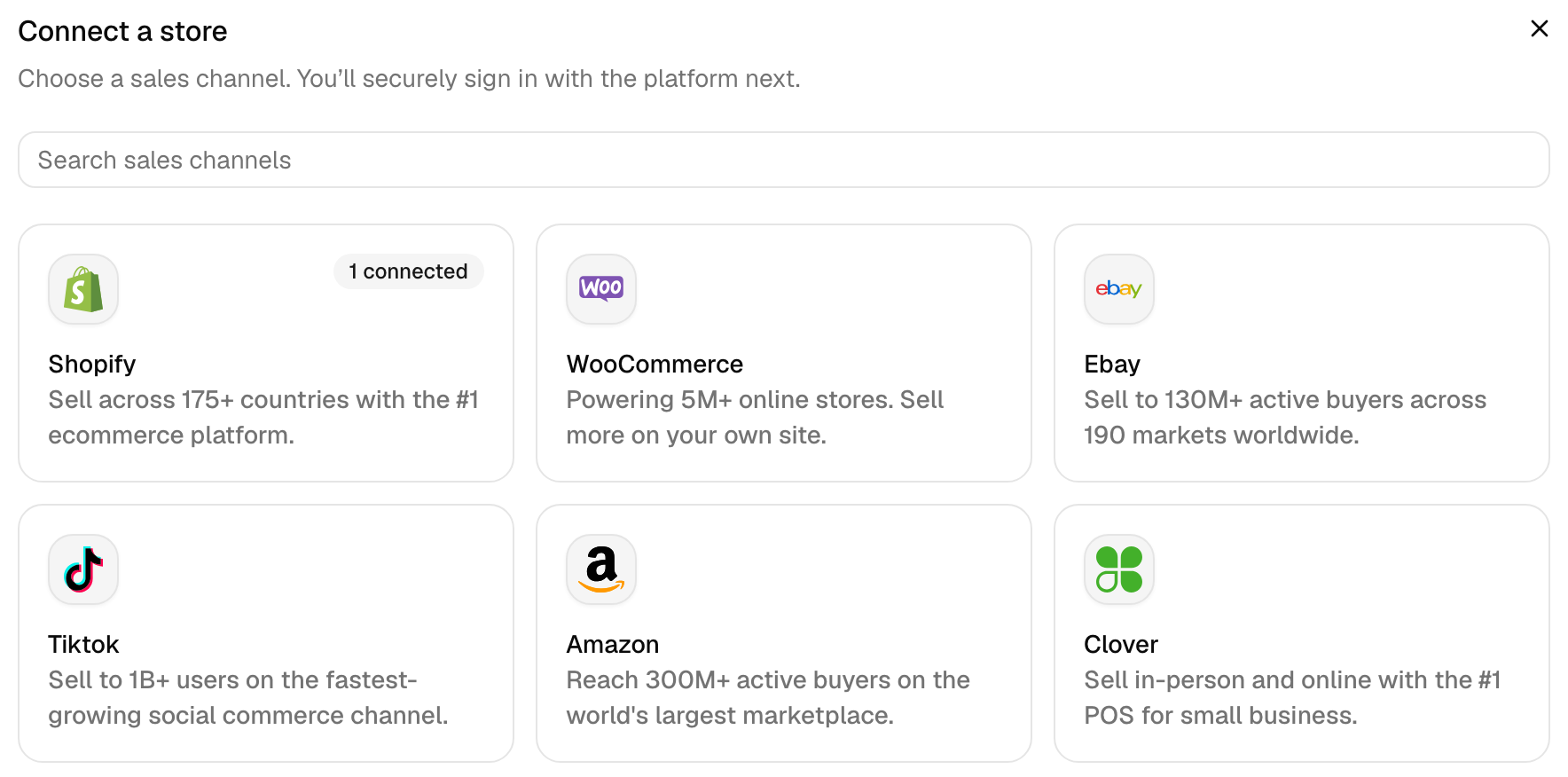
- In Connect a store, pick Tiktok.
- Choose a Region. Pick United States for a US shop, or Rest of the world for any other market.
- Click Continue to Tiktok. Sign in to TikTok Shop with the account that runs your shop. Approve access for QuickSync.
Back in QuickSync, we read your shop: its name, region and time zone, its warehouses, TikTok’s category list and your shipping options. Then we read every product with its stock. Setup shows Fetching store data while we read, then Store data ready.
Set your TikTok defaults
Every new TikTok listing needs a category and a package size. We ask for both before your first sync. In setup, click Review settings next to your TikTok store. You can’t continue setup without them. Later, you’ll find them under Settings, Stores, Manage on the TikTok card, then Review settings.
- Default category (Required). We use it when TikTok can’t choose a category for a new listing. How we pick one is in TikTok categories and attributes.
- Default package. Choose a Package preset or Custom package, and enter a Default weight (lb). The presets run from Small parcel (8 × 6 × 4 in) to XL box (24 × 24 × 24 in). We use them when a product has no package details of its own.
- Continue after listing limits. We switch this on ourselves when TikTok’s daily cap stops an export. See TikTok’s daily listing limit.
- Default size chart. A PNG or JPG, up to 10 MB. We attach it to every new listing. See TikTok size charts.
Click Save changes. It won’t save without a default category. A zero weight or size won’t save either.
If it won’t connect
- “This TikTok connection attempt expired or could not be verified.” We lost track of the sign-in. Start again from Add a store.
- “This Tiktok store is already connected with an account”, then a masked email. Another QuickSync account owns that shop. Sign in to that account, or disconnect the shop there first.
- The wrong shop connected. We connect the shop you approve in TikTok. Disconnect it and connect again, as in Reconnect or switch shop.
What syncs
| What | With TikTok Shop |
|---|---|
| Stock | Both ways, per SKU and per warehouse, as whole numbers from 0 to 999,999 |
| Product details to TikTok | Yes, from your main store (Pro and above): title, description, price, up to 9 images, variants, SKUs, barcodes and package size. Video needs Ultra and above. |
| Not sent to TikTok | Brand, compare-at price, product type, tags and SEO fields |
| New products | With product syncing on, a product you add to your main store goes to TikTok by itself. A sync list limits that to the products you choose. |
| TikTok as the main store | Yes. We take the title, description, brand, category, price, barcode, options, images and package size from TikTok. |
| Orders from TikTok | Yes (Pro and above), for orders you ship yourself, from Awaiting shipment on |
| Packing store | No. TikTok orders go to the store you pack from. |
| Tracking back to TikTok | Only when Shopify, WooCommerce or Square packs the order, with a carrier TikTok offers for it |
| How fast | Orders as they happen, and we check for new ones every 5 minutes. We check stock and product changes every 2 minutes. |
The timings for every app are in How QuickSync works.
Orders and tracking
To copy TikTok orders, open the Orders page and click the Order route card. Pick your packing store under Choose fulfillment store, then click Start syncing. It needs Pro or above. If you answered Yes to orders in setup, it’s already on.
We copy each TikTok order to your packing store once TikTok marks it Awaiting shipment. Orders still Unpaid or On hold wait. Orders placed before you turned on order syncing don’t copy.
Orders TikTok ships for you, known as Fulfilled by TikTok, work differently:
- US shops. We bring the order in without the buyer’s name, address or email. It can go to QuickBooks or Xero for your books. A copy to Shopify or any other shop fails with Platform Fulfillment Copy Unsupported. TikTok keeps the shipping.
- Every other region. We don’t sync the order. Its timeline says fulfillment by TikTok is on. We email you “Fulfillment by TikTok detected” at most once a week.
We send tracking to TikTok only when Shopify, WooCommerce or Square packs the order. The shipment needs both a carrier and a tracking number. And the carrier has to be one TikTok offers for that order’s shipping option. If it isn’t, the order’s timeline says so. We also email you once about that order. TikTok can refuse the number itself too, with errors such as Tracking Number Not Found or Tracking Number Not Unique. Fix those in your packing store.
Cancelled on TikTok? We mark the order cancelled in QuickSync, but that doesn’t reach its copy in your packing store right away. Cancel that copy yourself, so nobody ships it. We send no tracking for a cancelled TikTok order. See Cancellations and refunds.
TikTok rules
TikTok checks more on a new listing than most stores do. These are the limits we apply, and what we do when a product doesn’t fit.
| Rule | The limit, and what we do |
|---|---|
| SKU | Up to 50 characters. We cut a longer SKU to 50 without warning, and the new TikTok listing then won’t link, so its stock won’t sync. |
| Title | Up to 255 characters. We cut anything longer. Some markets also need at least 25. |
| Description | Up to 10,000 characters. An empty description becomes the product name. |
| Images | Up to 9, and a new listing needs at least 1. We enlarge images under 300 × 300, shrink files over 5 MB and crop shapes outside 3:4 to 4:3. |
| Video | 1 per product, on Ultra and above |
| Variants | Up to 100. A product with more doesn’t export. |
| Options | Up to 3 option groups. Names stop at 20 characters and values at 50. With 4 or more groups, we send one option called Title that holds each variant’s name. |
| Price | US shops: $0.01 to $7,600. UK shops: £0.01 to £5,600. A price outside that stops the export. |
| Barcode | TikTok takes 8, 12, 13 or 14 digits, or 9 digits ending in X. We leave out barcodes of other lengths and send a 10-digit ISBN as its 13-digit form. Once a listing leaves draft, TikTok won’t accept a new barcode, so keep the original. |
| Package | Every new listing needs a weight and three dimensions, from the product or your Default package. Updates never change the dimensions. |
| Category and attributes | Set once, when we create the listing. See TikTok categories and attributes. |
| Drafts | New listings start as drafts if you chose drafts in setup or turned on Create as draft. Products that aren’t active in your main store go as drafts. |
| Zero stock | We send 0, never a negative number. If the store the change came from keeps selling when out of stock, we send 1. |
| Removed variants | Deleting a variant in your main store also deletes it on TikTok, the next time we update that product. |
| Listings under review | We don’t edit a listing TikTok is reviewing or has frozen, or one with an unpublished draft. Updates resume once TikTok clears it. |
| More than one warehouse | Your shop needs TikTok’s multi-warehouse mode on first. If you can’t turn it on, ask your TikTok account manager. Until then, we email “Multiple warehouse detected” and pause exports for 2 days. |
| Cross-border shops | We create listings, but we don’t edit existing ones. Edit those in Seller Center. |
TikTok also caps how many listings a shop can add in a day. See TikTok’s daily listing limit. Bans on new listings until a date are in TikTok listing restrictions.
Reconnect or switch shop
If TikTok stops accepting our connection, your TikTok card under Settings, Stores shows Reconnect. Click it, pick Tiktok and the same region, and sign in to the same shop. We keep your products, matches and settings. The app then says “This Tiktok store is already connected!”
There’s no button to swap one TikTok shop for another. Disconnect the old shop, then connect the new one.
Before you disconnect: we delete the TikTok store’s products and orders from QuickSync. Your listings on TikTok stay. If TikTok was your main store, product syncing turns off. With only one store left, product and order syncing both turn off.
- In TikTok Seller Center, sign in to the shop you want to connect.
- In QuickSync, open Settings, then Stores. Open the three-dot menu on the TikTok card and click Disconnect.
- Confirm with Disconnect store.
- Connect the new shop from Add a store, as in Connect TikTok Shop.
Disconnecting inside QuickSync leaves QuickSync authorized in TikTok Seller Center. Remove it there too to end our access.
If you signed up through TikTok Shop’s app store, TikTok is your account’s sign-up store. QuickSync has no Disconnect option for it. Removing QuickSync’s access in TikTok Seller Center deletes your whole QuickSync account: every store, product, order and login. Talk to support before you change shops.
Common questions
Do I need a TikTok Shop seller account to connect?
Yes. QuickSync connects through TikTok Shop’s seller authorization page. You sign in with the account that runs your shop in Seller Center, and a personal TikTok account has no shop for us to read. Pick United States for a US shop, or Rest of the world for any other market. One TikTok shop can belong to one QuickSync account at a time.
Why did TikTok reject my product?
Open the product on the Products page, and its Sync verdict tab names the reason. The usual ones are no image, no package weight or size, a price outside TikTok’s range, or more than 100 variants. Some categories also need a detail we couldn’t find in your product. We email you about those as “TikTok needs a product detail”. The daily listing limit stops new listings too. Fix the cause in your main store, then sync the product again.
Do I need SKUs to sync with TikTok Shop?
Yes. We match products across stores by SKU. A product without one doesn’t sync to or from TikTok, and each SKU has to be unique within each store. TikTok takes up to 50 characters. We cut a longer one, and the new listing then won’t link or sync stock, so keep SKUs to 50. If some products have none, answer Yes to Create missing products and Create missing SKUs in setup. We’ll add codes in your main store.
Why aren’t my TikTok orders syncing?
Check four things. Order syncing has to be on, which needs Pro or above. You have to ship the order yourself: orders TikTok ships don’t copy to a shop. TikTok has to show it as Awaiting shipment, so unpaid orders wait. And it has to be placed after you turned on order syncing. We hear about orders as they happen. We also check TikTok for new ones every 5 minutes.
Why did my product go to TikTok as a draft?
New TikTok listings start as drafts if you answered Yes to Add new products as drafts in setup. Turning on Create as draft in the Product syncing settings does the same. A product that’s a draft, inactive or archived in your main store goes as a draft too. Publish it in TikTok Seller Center. We don’t publish an existing TikTok draft for you. Changing the setting doesn’t change that.
What happens on TikTok when a product sells out?
We set its TikTok stock to 0. TikTok doesn’t take negative numbers, so it still gets 0 if another store goes below zero. The exception is a product that keeps selling when out of stock in the store the change came from, such as Shopify’s continue selling option. Then we send 1. When you restock, we send TikTok the new count.
Next step
Before your first export, read how we choose TikTok categories and attributes. The other TikTok pages:
- TikTok’s daily listing limit
- TikTok listing restrictions
- TikTok size charts
- TikTok warehouses
- Fulfilled by seller vs by TikTok
Setting up for the first time? Set up your first sync goes through every setup screen.