QuickSync links one Xero organisation to your shops and tills. Product details go out to Xero as items, and stock syncs both ways for items Xero tracks, once you’ve chosen three inventory accounts. When Xero is your packing store, each order from your other stores arrives as a draft invoice.
Xero never sends us orders, and we check it for changes on a timer. Below: what to set up first, the accounts we post to, what each invoice holds, and what stock syncing does to your books.
Before you start
- A Xero organisation. Each connection holds one. A second organisation connects as another store, and each counts toward your plan’s stores.
- The accounts. We read your chart of accounts when you connect, so create these first: an Inventory account, a Direct Costs account, an Expense account for stock adjustments and a Revenue account for sales. A Current Liability account for tax is optional. Choose your accounts explains each one.
- SKUs of 30 characters or fewer. We match by SKU, and we cut SKUs to 30 characters for Xero with no warning. Keep yours to 30.
- Your plan. Stock syncing works on every plan. Product syncing and invoices from your orders need Pro or above.
- How you signed up. Xero takes orders only if you signed up on our website or pay through the Clover App Market. Accounts from other app stores, such as Shopify’s, get items and stock only.
- Currencies. Invoices use the order’s currency. Add each currency you sell in to Xero, which needs a Xero plan with multi-currency, or turn on currency conversion (Ultra and above) to invoice in your base currency.
Connect Xero
- In QuickSync, open Settings, then Stores, and click Add a store.
- Click Xero. We take you straight to its sign-in.
- Sign in, pick one organisation and allow access.
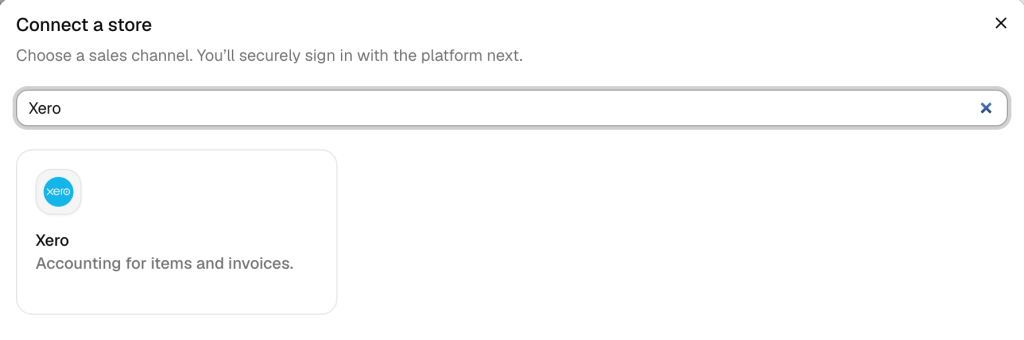
Back in QuickSync, the organisation shows under Stores. We read its name, base currency and time zone, your chart of accounts, and every item that has a code. That’s all reading. Nothing changes in Xero until you start syncing.
Authorise two organisations at once and we’ll stop with Connect one Xero company at a time. Sign in again and pick one.
Choose your accounts
On the Xero card under Settings, Stores, click Manage, then Review settings. If your chart has exactly one active account of a type, we’ve picked it for you. Check the rest and click Save changes.
| Setting | Xero account type | What it’s for |
|---|---|---|
| Track inventory | A switch, on at first | Items we export become tracked inventory in Xero |
| Inventory asset | Inventory | The value of tracked items |
| Cost of goods sold | Direct Costs | The cost of goods account on each tracked item |
| Inventory adjustment | Expense | The other side of our stock adjustments |
| Sales account | Revenue | Invoice lines. Required. |
| Tax account | Current Liability | The Tax line. Optional: if it’s empty, we code tax to the Sales account. |
Each list shows active accounts of its one type, so an account of type Sales or Overhead never appears there. Save changes stays greyed out until you pick a sales account.
Stock syncs only while Track inventory is on and all three inventory accounts have a value. Until then, we don’t read or write Xero stock at all.
What syncs
| Capability | Xero |
|---|---|
| Stock to Xero | Yes, for items Xero tracks, once you’ve set the three inventory accounts. We post approved $0 bills and credit notes. |
| Stock from Xero | Yes, with the same settings |
| Product details to Xero | Yes: one item per variant, with code, name, description and sale price, plus cost while stock syncs |
| Xero as the main store | Use a shop instead. We read only each item’s code, name, description, price and status. |
| Orders from Xero | No. We don’t read sales from Xero. |
| Packing store | Yes, for website sign-ups and Clover App Market accounts. Orders arrive as draft invoices. |
| Tracking back to the selling store | No. Nothing ships from Xero. |
| How fast | We check Xero every 2 minutes. Invoices and stock changes go out as soon as we have them. |
Invoices in your books
This starts once Xero is your packing store. Turn on order syncing (Pro and above) and pick Xero, in setup or from the Order route card on the Orders page, under Fulfillment store. Each new order from your other stores then becomes one sales invoice, and it’s a draft.
We never approve an invoice, pay it or credit it. That’s yours to do in Xero. Refunds don’t reach Xero either, so record those there. US orders that TikTok Shop ships itself still get an invoice, but Fulfilled by Amazon orders never do.
| Field | What we write |
|---|---|
| Status | Draft |
| Contact | Matched by email, then by exact name, or created. The name is the buyer’s, else their email, else a contact such as Shopify Customer. |
| Date | The day the customer placed the order, on your organisation’s calendar |
| Reference | The selling store’s order number |
| Invoice number, due date | Left for Xero and you |
| Currency | The order’s currency, or your base currency with currency conversion on |
| Product lines | Name, quantity and unit price, coded to your Sales account, with the SKU as item code unless we sync that item’s stock |
| Charges | One line each for Shipping, Tip, Service charge, Additional fees and Duties, when they aren’t zero, coded to Sales |
| Tax | One line named Tax, coded to your Tax account, or to Sales if that’s empty |
| Discount | One negative line, named after the discount or Discount, coded to Sales |
Tax. Xero’s own tax calculation is off on our invoices. Every line carries no tax rate, and the selling store’s tax sits on its own Tax line.
Dates. We use the time zone set on your organisation in Xero. If we can’t map that zone, we use the date in UTC.
Changes and cancellations. If the order changes in the selling store, we’ll send the change to the same invoice. Only cancellations made in Shopify reach Xero: we delete the invoice while it’s a draft, or void it once someone’s approved it. Delete or void the invoice yourself when an order’s cancelled anywhere else. Voiding or deleting an invoice in Xero changes nothing in your stores. Cancellations and refunds has the rules for every store.
Stock and adjustments
We don’t set a quantity on Xero items. Each stock change becomes a $0 document from a contact named QuickSync Inventory Adjustment, approved and dated the day of the change in UTC. More stock means a bill. Less stock means a purchase credit note.
Each document has two lines. QuickSync inventory adjustment names the item and shifts the units at its average cost in Xero, or its purchase price when an increase has no cost to go on. Inventory adjustment offset puts the same amount the other way, against your Inventory adjustment account. So the document nets to $0, and the change in stock value lands in that account.
That’s also how sales reach Xero’s stock. When something sells in another store, our stock update takes the units off with one of these credit notes. So invoice lines for items we sync stock for carry no item code, and approving the invoice doesn’t take the units off again. Drafts we created up to 5 October 2026 may still name the item, so approving one of those can. The invoice books the income. The cost of those units ends up in your Inventory adjustment account, not cost of goods sold.
Lines for items outside stock syncing keep their item code. Approving the invoice then moves Xero’s stock as Xero normally does.
When stock changes in Xero, for example through a document you approve, we’ll see it at our next check and send the new count to your other stores. Xero won’t take tracked stock below zero, and it refuses a sale beyond that unless you accept it as a backorder. At zero or below, we send Xero 0, or 1 when the product keeps selling at zero in your other store.
Xero rules
Each variant in your main store becomes its own Xero item. There’s no parent product and no options.
| Rule | What happens |
|---|---|
| SKUs | Become the item code, cut to 30 characters with no warning. We skip a variant with no SKU, or with a SKU another variant shares. |
| Names | Up to 50 characters: the variant name, else the product name |
| Descriptions | Up to 4,000 characters |
| Prices | The sale price, after any price rule. We send cost too while stock syncs. |
| Draft products | Exported as items you sell, so they show as active |
| Inactive or archived products | Marked as not sold |
| Images, options, tags, categories | Not sent |
| Stock | 0 to 999,999, never negative |
| Deleted products | With product syncing on, we ask Xero to delete the item |
| Xero items with no code | Ignored |
Reconnect or switch organisation
Reconnect. If the connection breaks, the Xero card in Settings, Stores shows Reconnect. Click it, pick Xero and sign in to the same organisation. If the card still shows Needs attention afterwards, contact support.
Switch organisation. Each organisation is its own store here. Keeping both? Connect the second as another store. To replace one, open the menu on its card, click Disconnect, then Disconnect store. Then connect the new organisation.
Disconnecting stops all syncing with that organisation and removes our access. We don’t delete anything in Xero: items, invoices, contacts and adjustment documents stay. If Xero was your packing store, order syncing turns off. If it was your main store, product syncing does.
If you installed QuickSync from another platform’s app store, don’t uninstall it there to change organisations. That deletes your whole QuickSync account, Xero connection included.
Common questions
Does QuickSync approve or pay invoices in Xero?
No. Every invoice we create from an order is a draft, and approving it is up to you or your bookkeeper. We don’t add payments, so an approved invoice stays unpaid until you record the payment in Xero. We don’t create credit notes for refunds either. The only documents we approve ourselves are the $0 bills and credit notes that move stock.
What are the bills from QuickSync Inventory Adjustment?
They’re how we change stock in Xero. We don’t set a quantity on items, so each stock change becomes an approved document from the contact QuickSync Inventory Adjustment: a bill when stock rises, a purchase credit note when it falls. One line shifts the units at average cost, and an offset line to your Inventory adjustment account brings the total to $0.
Why isn’t stock syncing with Xero?
Open the Xero card’s Review settings. Track inventory must be on, and Inventory asset, Cost of goods sold and Inventory adjustment all need an account. Until they do, we don’t read or write Xero stock. Then check the item tracks inventory in Xero and has your SKU as its code. We check Xero every 2 minutes, so a change made there can take that long to reach your other stores.
Will approving an invoice take stock off twice?
No, for items we sync stock for. Their invoice lines carry no item code, so approving the invoice doesn’t move Xero stock: our stock update already took the units off when the sale happened. The invoice books the income, and the cost of those units sits in your Inventory adjustment account. Lines for other items keep their code, and approving them moves stock as usual. Drafts we created up to 5 October 2026 may still carry codes, and approving one of those can take the units off twice.
Why can’t I find my account in the Xero settings?
Each list in Review settings shows active accounts of one Xero type: Inventory, Direct Costs, Expense, Revenue or Current Liability. An account of another type, such as Sales or Overhead, never appears. We read your chart of accounts when you connect, so create the accounts in Xero first. If one you added later still doesn’t show, contact support.
Can I connect more than one Xero organisation?
Yes, one at a time. Pick a single organisation on Xero’s screen each time you connect. If you authorise two at once, we stop and ask you to pick one. Each organisation then counts as one of your connected stores, and only one store at a time can be your packing store, so only one organisation gets your orders.
Next step
To send orders into Xero, read Choose your packing store. For how stock travels between all your stores, read How stock syncs.