QuickSync connects Square to your other stores and matches the same item in each one by SKU. Stock syncs both ways at the Square locations you connect. Product details come from your main store, which can be Square, and completed Square orders go to the store you pack from.
Square can be that packing store if you signed up on our website or pay through the Clover App Market. Then we pass the tracking you add in Square back to the store the order came from, where that store accepts it. We never write tracking into Square.
Below: what to check first, the connect steps, what syncs which way, the Square rules that trip sellers up, and how to reconnect.
Before you start
- Check where your account started. Square shows up in the store list for almost every QuickSync account, except those that started by installing QuickSync in Shopify. If yours did, contact support to turn on point-of-sale stores. Don’t uninstall QuickSync from Shopify to start over: uninstalling deletes your QuickSync account.
- Check your plan. Stock syncing works on every plan. Product syncing and order syncing need Pro or above.
- Check your SKUs. We match by SKU, so each Square variation you want synced needs one. Square lets two items share a SKU. We can’t tell them apart, so neither syncs.
- Map your locations. If Square or your other store has more than one location, decide which goes with which. We only sync connected locations.
Connect Square
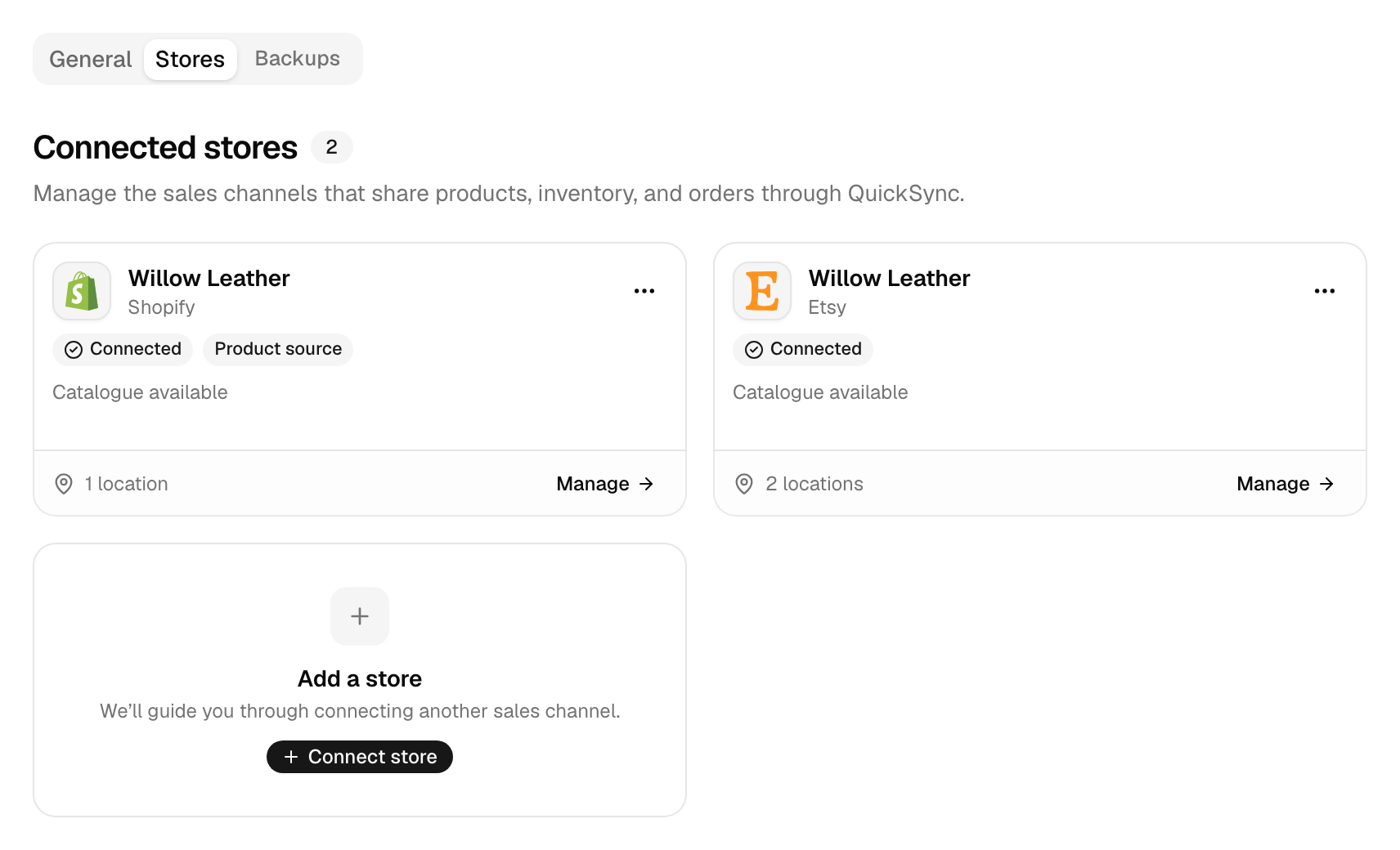
- In QuickSync, open Settings, then the Stores tab, and click Add a store. During setup, Connect another store on the Overview page opens the same window.
- In Connect a store, click Square. Square doesn’t need a store address, so this takes you straight to Square’s sign-in.
- Sign in to the Square account you want to connect, and approve the access QuickSync asks for.
- Square sends you back to QuickSync. The Square card says Connecting while we read your catalogue, then Connected.
We read your business name and currency, your locations, categories and taxes, and every item with its variations, images and in-stock counts. A big catalogue takes a while. We don’t bring in past orders or your customer list.
Connecting changes one thing in Square. Some items may have no stock count at a location, and we give them a count of 0 there, because Square needs one before we can update it. If Square is your starting store, the first sync copies those zeros to the matching products elsewhere. Add real counts in Square before you press Start syncing.
What syncs
Square tells us about each change as it happens, so a Square sale goes out to your other stores without waiting for a timer. How QuickSync works compares the timing for every app.
| What | With Square |
|---|---|
| Stock into Square | Yes, at the Square locations you connect, or at your only location |
| Stock from Square | Yes, the in-stock count at each connected location |
| Product details into Square | Yes, from your main store. Pro and above |
| Square as your main store | Yes. Your Square edits go out to your other stores. Pro and above |
| Orders from Square | Yes, once Square marks them completed. Pro and above |
| Square as your packing store | Yes, if you signed up on our website or pay through the Clover App Market. Other accounts see it marked Not supported. Pro and above |
| Tracking into Square | No |
| Tracking from Square | Yes, when Square packs: the tracking number and carrier go to the store the order came from, except eBay, WooCommerce and Clover. Lightspeed gets the shipped status only |
| How fast | As it happens. A daily check at 05:00 UTC also picks up any order from the last 3 days that didn’t arrive |
Square rules
Products
| Rule | What happens |
|---|---|
| SKU | Up to 80 characters, and a longer one is cut. If a product’s SKUs already sit on more than one Square item, we skip it rather than guess. |
| Variants | Up to 250 per product. A product with more doesn’t go to Square. |
| Options | Up to 6 option groups. With more, the item still goes to Square without its option groups, and each variation keeps its name. |
| Images | The first 100, oldest first. |
| Name and description | Name up to 512 characters, description up to 4,096. Longer text is cut. |
| Drafts | Square has no drafts. A draft in your main store goes to Square as active. Archived and inactive products go over archived. |
| Category | Your main store’s product type becomes the Square category, and we create the category if it’s missing. A Square category comes back as the product type. |
| Tax | The Default tax rate in the Square store’s Review settings goes on every taxable product we create or update. |
| Not sent to Square | Tags, SEO fields, compare-at prices, vendors and unit costs. Vendor and unit cost do come in from Square. |
| Locations | A product we create in Square is listed at every Square location. Its stock syncs only at connected ones. |
| Services | We don’t import Square appointment services. |
| Quick edits | Change the same item twice within 5 minutes and we may miss the second change. We also check Square’s catalogue at most 11 times in 10 minutes and 101 times an hour. If an edit didn’t arrive, use Fetch latest products in Settings and pick Syncing products or Not syncing. |
Stock and locations
- The in-stock count. We read and write the quantity Square holds as in stock at each location. Other stock states in Square don’t sync.
- One location to one. Link each Square location to a location in your other store under Settings, General, Connect locations. With one location in each store, they link on their own. We copy counts between linked locations and never add two together. More in Locations.
- Unconnected locations sit out. A sale at a Square location you haven’t connected doesn’t change your other stores. We don’t send stock to it either.
Orders and tracking
- Completed orders. We copy a Square order to your packing store once Square marks it completed. Till sales and online sales both count. Open orders show on the Orders page and wait.
- No refunds from Square. We don’t read Square refunds or returns. Stock goes back only when the item goes back into stock in Square.
- When Square packs. Orders from your other stores arrive as open Square orders at your first connected location, with a shipment when there’s a shipping address. We record an external payment for the amount due and add the buyer as a Square customer.
- Cancelling. When Square packs, a Shopify cancellation reaches the Square copy: we refund the payment we recorded on it, then cancel it. A cancellation anywhere else, including an order you cancel in Square, shows as cancelled in QuickSync but doesn’t reach the copy right away. Cancel the copy in your packing store yourself. Cancellations and refunds has the details.
- Tracking out of Square. We pass on a Square shipment’s tracking only when it has both a tracking number and a carrier. eBay, WooCommerce and Clover orders don’t take it, and Tracking and shipping status has each store’s rule.
- Tracking into Square. When another store ships a Square order, the Square order doesn’t get the tracking number.
Reconnect or switch account
The Square card says Needs attention. We couldn’t renew our access to Square. Click Reconnect on the card, pick Square and sign in to the same Square account. We swap in the new login. Nothing else changes. If the card still says Needs attention after that, contact support.
A permission is missing. That isn’t a disconnect. Your Square connection may be older than a permission we now ask for. Then the card still says Connected, and whatever the old permissions cover keeps working. Only the work that needs the new one fails: older connections, for example, don’t bring vendor names over from Square. To grant it, run the connect steps again with the same Square account. We’ll keep the store and take the fresh login. If the store list says Integration limit reached, contact support.
The Square store has gone. If Square refuses our access outright, or someone removes QuickSync in Square, we disconnect the Square store. Connect it again with the steps above. A store disconnected has the details.
Switch Square accounts. Each Square account is its own store. Disconnect the old one: open the menu on its card under Settings, Stores, pick Disconnect, then Disconnect store. Then connect the new account.
Know what stops before you disconnect. If Square is your packing store, order syncing turns off. If it’s your main store, product syncing turns off. With only two stores, both turn off. We remove QuickSync’s access in Square, but we don’t delete anything there.
One warning. If the Square card has no Disconnect in its menu, Square is the store your QuickSync account started from. Then removing QuickSync in Square, or Square refusing our access outright, deletes the whole QuickSync account: every store, product, order and login.
Common questions
Why can’t I see Square when I connect a store?
Your QuickSync account probably started by installing QuickSync in Shopify. Those accounts don’t see Square, Clover or Lightspeed in the store list. Contact support to turn on point-of-sale stores for your account, and you’ll keep everything you’ve set up. Don’t uninstall QuickSync from Shopify to start again, because uninstalling deletes your QuickSync account. Once it’s on, Square syncs stock, products and orders, but it can’t be your packing store.
Why didn’t a Square sale update my stock in Shopify?
Most often the sale was at a Square location that isn’t connected. We only sync connected locations, so check Settings, General, Connect locations. Next, open the product on the Products page in QuickSync. If it isn’t matched, its status names the reason, often a missing SKU or one shared by two items. To see whether the change reached us, search the SKU under Inventory in the activity table on the Overview page.
Why aren’t my products showing up in Square?
Product syncing has to be on, which needs Pro or above. Then a new product in your main store goes to Square on its own, and QuickFix can copy the ones that were there before. If you sync only some products, they also need to be on your sync list. After that, the usual blocks are a missing SKU, a SKU two variants share, and more than 250 variants. The product’s status on the Products page names the problem, and Products aren’t syncing has the full list.
Can QuickSync add up stock from two Square locations?
No. We link locations one to one and copy counts between them, so two Square locations never add up to one total. If both link to the same Shopify location, they end up sharing one count instead. To sell online from both, give each Square location its own location in your other store and link them in pairs. Your other store then holds both counts.
Do in-store Square sales sync as orders?
Yes, when order syncing is on. Every completed Square order goes to your packing store, whether you rang it up at the till or sold it online. There’s no setting for online orders only. Stock doesn’t depend on it: a Square sale changes the in-stock count, and we sync that on every plan. To stop copying orders, open the Order route card on the Orders page and click Pause syncing in the Order routing window.
Why does QuickSync count more products than Square?
Square counts items, and we count variants. An item with small, medium and large variations is one item in Square but three variants to us. Your plan’s limit counts variants too: Lite holds 1,000, Pro 2,500, Ultra 10,000 and Ultra+ 20,000. Check the plan usage on the Products page before you choose a plan. It’s the number your plan measures.
Next step
If your Square store has more than one location, set up Locations next. If Square will pack your orders, read Choose your packing store.