QuickSync connects your eBay store with all your other sales channels and keeps your listings, images, videos, inventory, and orders in sync automatically. Once your eBay store is connected, everything stays aligned across your connected platforms without any manual work needed. Updates we send to eBay are written within seconds; eBay does not notify us of its own changes, so a sale or edit made on eBay is picked up on a two-minute check. QuickSync also follows eBay’s Business Policies and listing limits in the background, so your listings always stay compliant and go live without any issues
How to Sync eBay Account with QuickSync? #
If you do not have a QuickSync account yet, visit quicksync.pro and click Sign Up to create one. Once your account is ready, follow these steps to connect your eBay store:
1. Setup & Authentication #
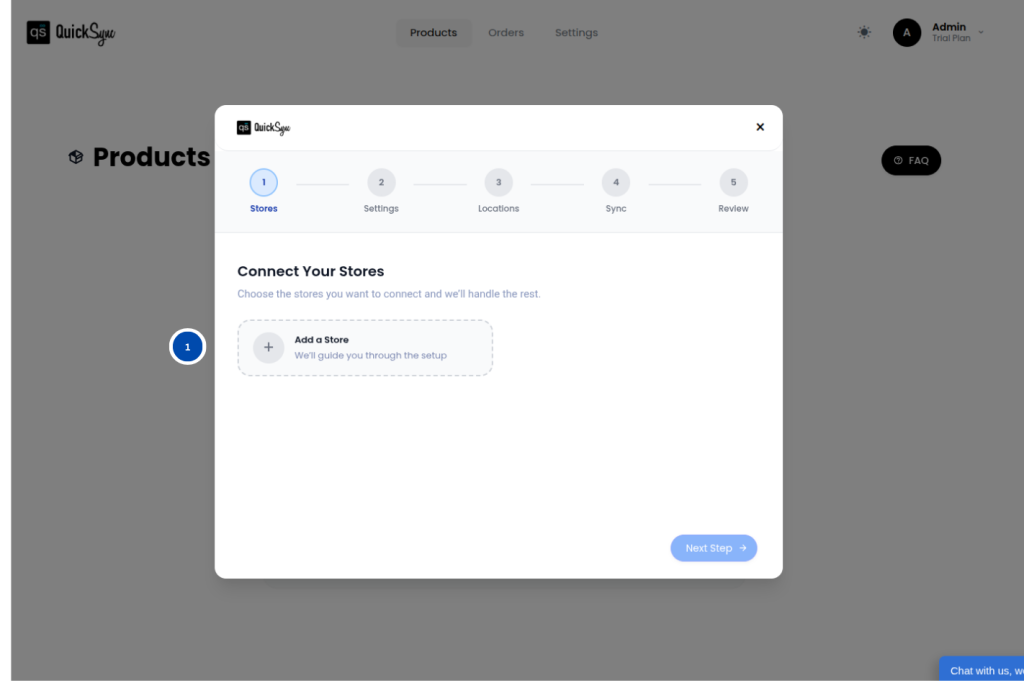
- Log in to your QuickSync Dashboard and go to Sync Products.
- Go to Store→ Add a store
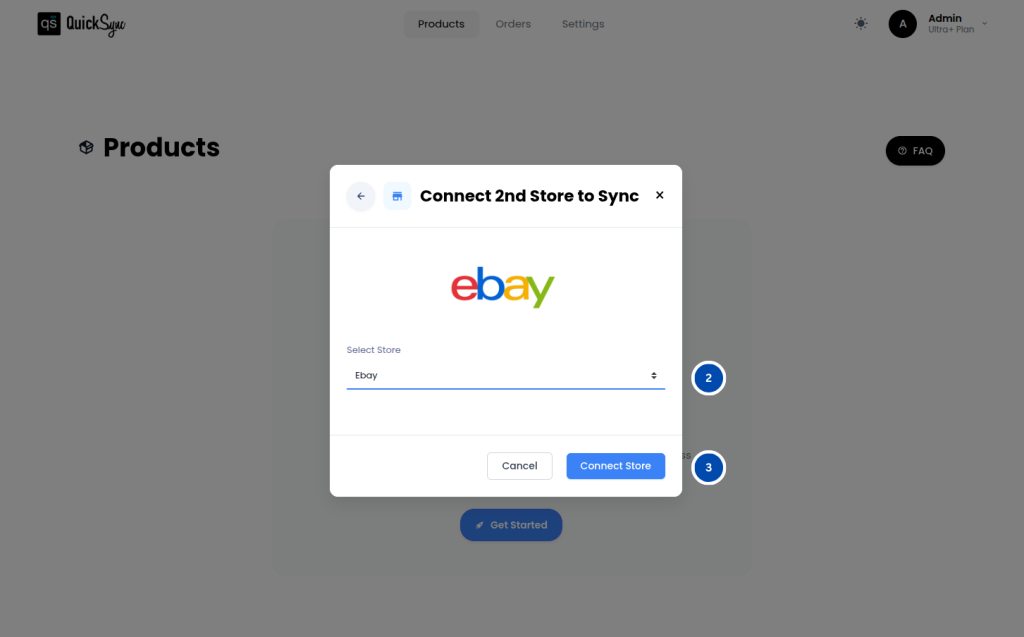
- Select eBay.
- Click Connect a Store and log in to your eBay account.
- Approve access for listings, media, inventory, and orders.
- After authorising, QuickSync auto-imports your site/marketplace, category tree (taxonomy & aspects), Business Policies (Payment / Shipping / Return), shipping carriers & packages, and catalog. You’ll see a progress bar in the dashboard while this runs.
2. Review Settings #
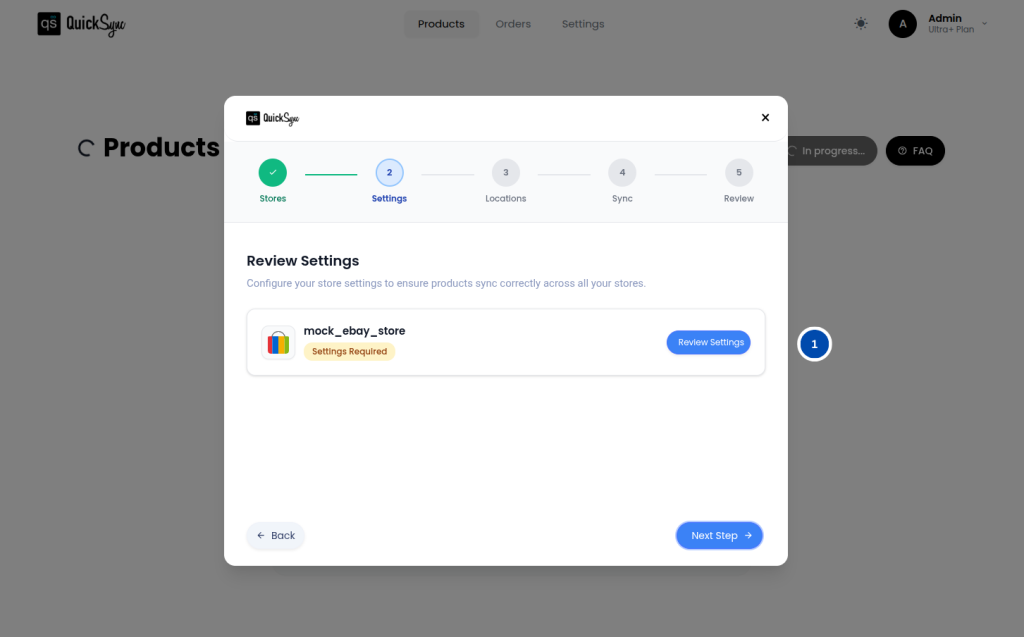
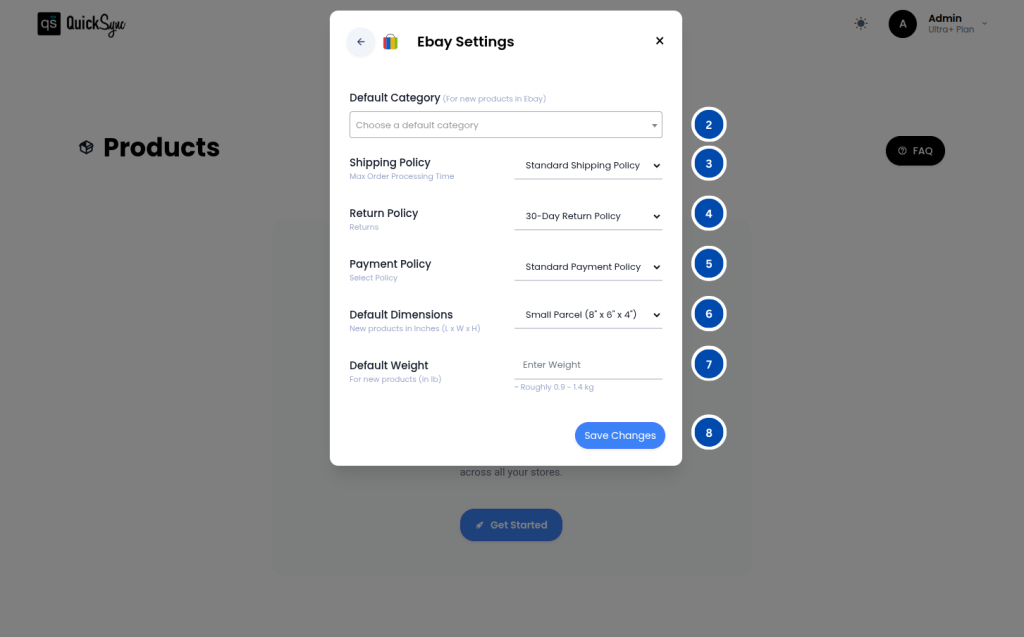
After your initial eBay import is complete, QuickSync will display a Review Settings popup automatically. Take a moment to fill in each section carefully as these settings will be applied to all new listings you export to eBay.
- After the initial eBay import, you’ll see a “Review Settings” popup.
- Default Category
- Choose a default eBay category for new listings.If automatic category detection can’t find a match, we’ll use this until you update it.
- Default Item Condition
- Shipping Policy — services + Handling Time (a.k.a. dispatch time).
- Return Policy — return window & options.
- Allow returns — On/Off.
- Return window — No returns, 30-day, 60-day.
- Return shipping paid by — Buyer (default) or Seller.
- Refund option — “Money Back” or “Money Back or Replacement”.
- Payment Policy — default payment setup.
- Default Package Dimensions(in inches, L × W × H)
-
- Small Parcel – 8″ × 6″ × 4″
- Medium Box – 12″ × 12″ × 8″
- Large Box – 18″ × 18″ × 16″
- XL Box – 24″ × 24″ × 24″
- Custom – enter your own dimensions
-
- Default Weight
- Enter a default item weight for new listings in lb.Min: 0.1 lb.
- Click on Save Changes
Please note: Once saved, QuickSync applies these defaults to every new eBay listing you export. If a product already has its own category, policies, dimensions, weight, or handling time set, QuickSync will use those instead of the defaults.
What QuickSync Syncs with eBay #
QuickSync supports inventory sync, product sync, and order sync for your eBay store.
Inventory Sync #
QuickSync keeps your eBay inventory accurate across all your connected channels without any manual updates needed.
- Automatic Inventory Sync: QuickSync syncs your inventory across all connected channels. A sale on another channel updates your eBay stock within seconds; a sale on eBay reaches your other channels within about two minutes, so keep safety stock on your fastest movers.
- Multi-Location Support: QuickSync supports inventory sync across multiple locations, so your stock levels stay accurate no matter where your products are stored or fulfilled from.
- Inventory Range Support: QuickSync supports a minimum quantity of 0 and a maximum quantity of 100,000 units per listing, giving you full flexibility to manage stock levels of any size.
Product Sync #
QuickSync keeps your full eBay product catalog synced accurately and automatically, so your listings are always up to date.
- Product & Variant Sync: QuickSync syncs all your product details and up to 100 variant combinations to eBay, so even complex catalogs are covered
- Images: QuickSync syncs your product images to eBay and supports up to 24 images per listing, so your products always have complete and accurate visuals.
- Videos: QuickSync supports syncing up to 1 product video per listing to eBay, so customers can get a better look at your products before they buy.
- SKU Sync: QuickSync syncs all your SKUs accurately to eBay so every product is correctly tracked and identified across all your connected channels.
Order Sync #
QuickSync brings all your incoming eBay orders into one place so you can manage and fulfill everything without switching between platforms.
- Order Syncing: QuickSync automatically syncs all incoming eBay orders into your chosen fulfillment store so you can process and fulfill everything from one place without logging into eBay separately.
- Customer Data Access: QuickSync gives you full access to customer details on every eBay order, so you have everything you need to fulfill and manage orders efficiently.
- Tracking & Carrier Sync: Once an order is fulfilled, QuickSync automatically sends the tracking number and carrier name back to eBay so your customer always receives the correct shipping update.
For more details, please go through the syncing reference table.
4. Special Settings / Toggles #
QuickSync includes a few additional settings for your eBay integration that help you manage your listings more efficiently. Here is what each one covers:
AI Aspect Recommendation: When exporting products to eBay in certain categories, eBay requires you to provide specific item details called aspects, such as Brand, Color, Material, and Size. Filling these in manually for every product can be time-consuming. QuickSync uses ChatGPT-powered AI to automatically recommend the correct aspect values based on your product title, description, and variants, so your listings go live without any manual input needed.
Video Syncing: QuickSync supports syncing product videos to eBay automatically. When you export a product that has a video attached, QuickSync will include it in the listing so your buyers get a richer view of your product. This feature is available on specific plans. Check your current plan or contact our support team to confirm if it is included.
5. Pricing & Billing #
QuickSync for eBay integration follows the standard QuickSync subscription plans. Billing is managed through the QuickSync website. You can review or update your plan anytime from your QuickSync dashboard
6. Change Logs #
| Date | API | Region | Notes |
|---|---|---|---|


