QuickSync connects to your WooCommerce site through WooCommerce’s own approval screen. You type your site’s address and click Approve. There are no API keys to copy. From then on, stock syncs both ways, product details flow out of your main store, and WooCommerce orders go to the store you pack from.
WooCommerce can be that packing store too, on accounts created at quicksync.pro or billed through Clover. Below: what to check first, the connect steps, what syncs which way, WooCommerce’s limits, and how to fix a connection that stops.
Before you start
- Your site loads over https. We only connect to public https sites. The WooCommerce REST API has to answer at
/wp-json/wc/v3/. - Permalinks aren’t Plain. In WordPress, Settings, Permalinks can be any option except Plain. With Plain, the
/wp-json/address doesn’t work. - Your store has a country and currency. We read both from WooCommerce, Settings, General. If either is empty, we stop.
- Every product has a SKU. We match products by SKU, so give each product and variation its own.
- Stock management is on. WooCommerce only reports a quantity when Stock management is on for the product, or Manage stock for a variation. Enable stock management under WooCommerce, Settings, Products, Inventory must be on too, or sales won’t lower the count. We switch the item’s setting on when we write a count.
- Your plan. Stock syncing works on every plan. Product and order syncing need Pro or above.
- Sign up on quicksync.pro. WooCommerce.com bills an account that started from the WooCommerce option on our sign-in page, monthly only. That account can’t use WooCommerce as its packing store.
Connect WooCommerce
- In QuickSync, open Settings, then the Stores tab, and click Add a store. During setup, Connect another store opens the same window.
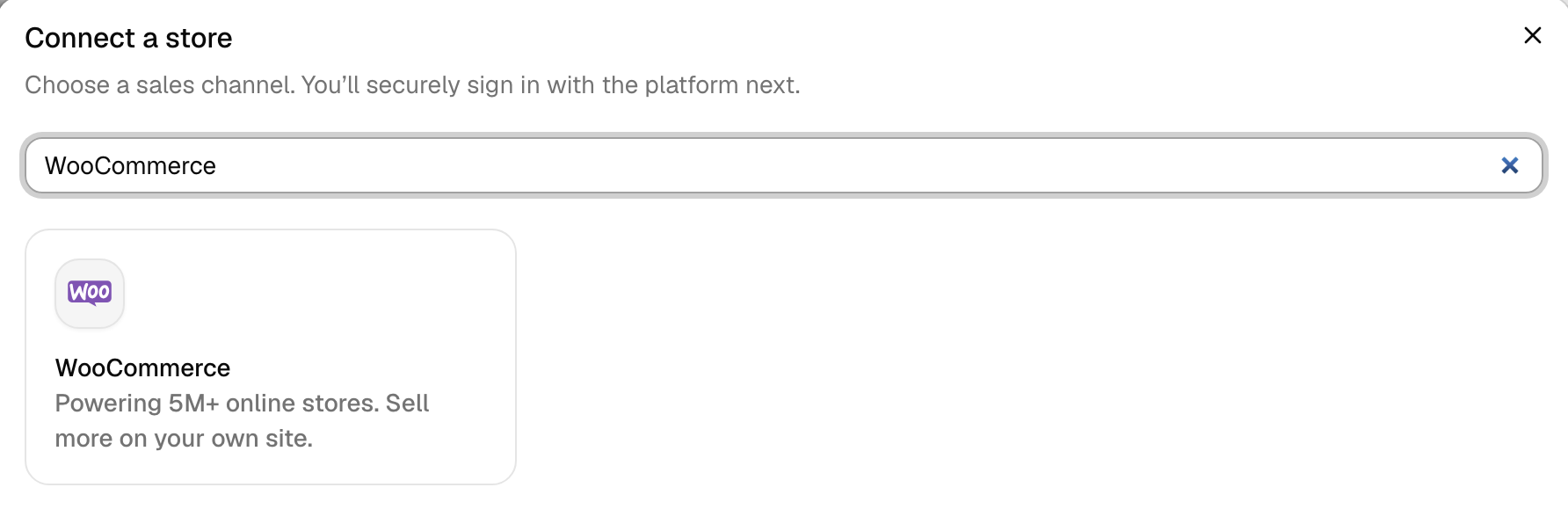
- In Connect a store, pick WooCommerce. Type your site’s address in Website URL, such as
https://example.com, and click Continue to WooCommerce. If the shop lives in a folder, include it:https://example.com/shop. - WooCommerce opens its approval page on your site. Log in to WordPress if it asks. It shows QuickSync asking for Read/Write access. Click Approve within 10 minutes of starting.
- WooCommerce sends you back to QuickSync. The store’s card says Connecting while we read your store, then Connected.
Behind the scenes, we add our webhooks to your site so WooCommerce can tell us what’s changed. Then we read your attributes, categories and every product. Connecting doesn’t change your products. We don’t copy past orders either.
If it won’t connect
| What you see | What to do |
|---|---|
| Please provide a valid shop name | QuickSync couldn’t read the address. Type your site’s full address, such as https://example.com. |
| … didn’t send us its API keys, so nothing was connected | WooCommerce didn’t send the key. Set Permalinks to anything but Plain, check the site loads over https, and connect again. |
| WooCommerce says An error occurred in the request and at the time were unable to send the consumer data | You approved, but we refused the key. The usual causes: no country or currency under WooCommerce, Settings, General; a firewall blocking /wp-json/; more than 10 minutes since you started; or a site that already belongs to another QuickSync account. Fix the cause, then start again from Add a store. |
| This WooCommerce store is already connected with an account | The site belongs to another QuickSync account. Sign in to that account, or disconnect the site there first. |
What syncs
| What | WooCommerce |
|---|---|
| Stock to and from WooCommerce | Yes, both ways, for products and variations that track stock |
| Product details into WooCommerce | Yes, from your main store. Pro and above |
| WooCommerce as the main store | Yes |
| Orders from WooCommerce | Yes, once an order is Processing. Pro and above |
| WooCommerce as the packing store | Yes, on accounts created at quicksync.pro or billed through Clover |
| Tracking into WooCommerce orders | With the Shipment Tracking extension, when Shopify ships the whole order |
| Tracking from WooCommerce to other stores | With the Shipment Tracking extension, when WooCommerce packs |
| How fast | As it happens, through WooCommerce webhooks. No backup check for stock |
Stock. WooCommerce keeps one count per product or variation, so we’ll sync each site as one location. We don’t read stock from multi-location plugins. If your other store has several warehouses, choose the one that feeds WooCommerce under Settings, Connect locations.
Products. With product syncing on, we copy your main store’s titles, descriptions, prices, images, variants, tags, weight and dimensions into WooCommerce. If WooCommerce is the main store, the same details flow out of it. Before we create a product in WooCommerce, we look for one with the same SKU. If there’s one, we link to it instead of adding a copy. If WooCommerce isn’t your main store, we replace edits made there the next time that product changes in your main store.
Orders. We copy a WooCommerce order when it reaches Processing. Pending payment, On hold and Failed orders wait. We skip an order that jumps from On hold straight to Completed. Move it to Processing first. If you set a WooCommerce order to Cancelled or Refunded, we mark it cancelled in QuickSync, but that doesn’t reach its copy in your packing store right away. Cancel that one yourself. Cancellations and refunds has the rule for every store.
When WooCommerce packs. Orders from your other stores arrive as paid orders, with the customer’s addresses, any shipping charge as a Flat Rate line, and the note “Order from QuickSync”. Every item has to match one WooCommerce product or variation by SKU, or we don’t create the order. If you complete the original order in its own store, we mark the copy Completed. If someone cancels the original order, we leave the copy open. Cancelling in WooCommerce can put stock back, so cancel it yourself and check the count.
Tracking. Tracking travels through WooCommerce’s Shipment Tracking extension in both directions. The Shipment Tracking extension explains when we read it and when we write it.
Speed. WooCommerce tells us about each change through webhooks, so a sale reaches us as it happens. There’s no backup check for stock. A stock change WooCommerce never reports doesn’t reach us. How fast changes arrive compares every store.
WooCommerce rules
| What | Rule |
|---|---|
| SKU | Up to 300 characters, and unique on the site. WooCommerce rejects a second product with the same SKU. |
| Title | Up to 120 characters. We cut anything longer. |
| Variants | Up to 100 per product. A product with more doesn’t copy to WooCommerce. |
| Product type | We don’t turn a simple product into a variable one, or back. The product shows WooCommerce product structure needs review. |
| Images | We send up to 100 per product and one per variation. We keep JPEG, PNG and GIF, and convert WebP, AVIF, HEIC and other formats to JPEG. |
| Prices | We read the price a buyer pays, which is the sale price during a sale, and the regular price as the compare-at price. |
| Category | One category, named after the product type. |
| Drafts | Create as draft applies to products we create. Later updates follow your main store’s status. |
| Statuses | Published is Active, Draft is Draft, Pending Review is Inactive and Private is Archived. |
| Stock below zero | We don’t send a negative count. WooCommerce gets 0. |
| Not synced | Short descriptions, vendors, barcodes and SEO fields. |
Reconnect or switch site
If WooCommerce stops accepting our requests, we email you, but the store’s card under Settings, Stores still says Connected. Click Add a store, pick WooCommerce, enter the same Website URL and approve again. We keep the same store and its products. At your plan’s store limit, contact support instead.
| Error | Usual cause | Fix |
|---|---|---|
| 401 Unauthorised | WooCommerce no longer accepts our key. Someone deleted it, or the host strips the login from our requests. | Reconnect. If it comes back, ask your host to let REST API requests through. |
| 403 Forbidden | A firewall or security plugin blocked us. | Allow requests to /wp-json/ in that plugin or at your host, then reconnect. |
| 404 on the REST route | A plugin is blocking the REST API. WooCommerce Shipping and WooCommerce Shipping & Tax are known causes. | Turn plugins off one at a time until syncing works, then ask that plugin’s support. |
| 500 errors or timeouts | Your server ran out of memory or time, often on a big catalogue. | Ask your host to raise the PHP memory and time limits. |
| New products rejected | WooCommerce’s product lookup table is out of date. | In WordPress, open WooCommerce, Status, Tools and run Regenerate product lookup tables. |
Switch to another site. One WooCommerce site belongs to one QuickSync account. Disconnect the old site, then connect the new one. You can connect more than one site to the same account.
Disconnect. Disconnecting stops all syncing for that site. Open the three-dot menu on the store’s card, click Disconnect, then Disconnect store. We remove our webhooks from your site. The API key stays under WooCommerce, Settings, Advanced, REST API, where you can delete it. If your account started from the WooCommerce sign-in, that store has no Disconnect. Removing it would delete your whole QuickSync account.
Before you deactivate the QuickSync Connector plugin. If your WordPress site runs our QuickSync Connector plugin, deactivating it deletes the store in QuickSync. If WooCommerce is where your account started, it deletes your whole QuickSync account: every store, product, order and login.
Common questions
Do I need WooCommerce API keys or the Legacy REST API?
No. QuickSync doesn’t ask for a consumer key or secret, and there’s nowhere to paste one. You approve access on WooCommerce’s own screen, and WooCommerce creates a Read/Write key and sends it to us. You don’t need the Legacy REST API either, because we use the standard REST API at /wp-json/wc/v3/. If approval fails, check that permalinks aren’t Plain and the site loads over https.
Does QuickSync support multiple WooCommerce locations?
No. WooCommerce keeps one stock count per product or variation. So we sync each WooCommerce site as a single location, even with a multi-location plugin on it. If your other store has several warehouses, choose the one that feeds WooCommerce under Settings, Connect locations. WooCommerce then shows that warehouse’s count, not the total of all of them.
Why didn’t a WooCommerce stock change reach my other stores?
We hear about WooCommerce changes only through its webhooks. There’s no backup check. If WooCommerce switched our webhooks off after failed deliveries, or a plugin changed stock without WooCommerce reporting it, the change doesn’t reach us. A job switches disabled webhooks back on every 6 hours, but we don’t replay what we missed. Check that Stock management is on, then save the product again to send it.
Why is my WooCommerce product not syncing?
Open it on the Products page. Its status names the reason. For WooCommerce the usual causes are a missing or duplicate SKU, Stock management turned off, which shows as No inventory found, or more than 100 variants. A listing that would have to switch between simple and variable shows WooCommerce product structure needs review. Fix that one by hand in WooCommerce.
Why aren’t my WooCommerce orders syncing?
Check four things. Order syncing needs Pro or above and a packing store. We copy an order once it’s Processing, so Pending payment and On hold orders wait. We skip one that jumps from On hold to Completed. Every item needs a SKU that matches a product in your packing store. And WooCommerce has to deliver its order webhook. If it switched ours off, a job switches them back on every 6 hours.
Can WooCommerce be my packing store?
Yes, if you created your account at quicksync.pro or pay through Clover. Orders from your other stores then arrive in WooCommerce as paid orders, matched by SKU. Install the Shipment Tracking extension so the tracking you add can go back to each original order. Accounts billed through the Shopify App Store, Wix or WooCommerce.com can’t pick it: setup leaves it out, and the Order routing window marks it Not supported.
Next step
If orders will pass through WooCommerce, read The Shipment Tracking extension next. Tracking depends on it. Once both stores show Connected, Set up your first sync walks through each setup screen.