QuickSync connects your Square POS with all your other sales channels and keeps your products, inventory, and orders in sync automatically. Once set up, everything updates in real time across all your connected platforms without any manual work needed from your side.
How to Sync Square Account with QuickSync? #
Before you begin, make sure you have an active QuickSync account. You can sign up at quicksync.pro by clicking Sign Up. Once your account is ready, follow these steps to connect your Square store:
1. Setup & Authentication #
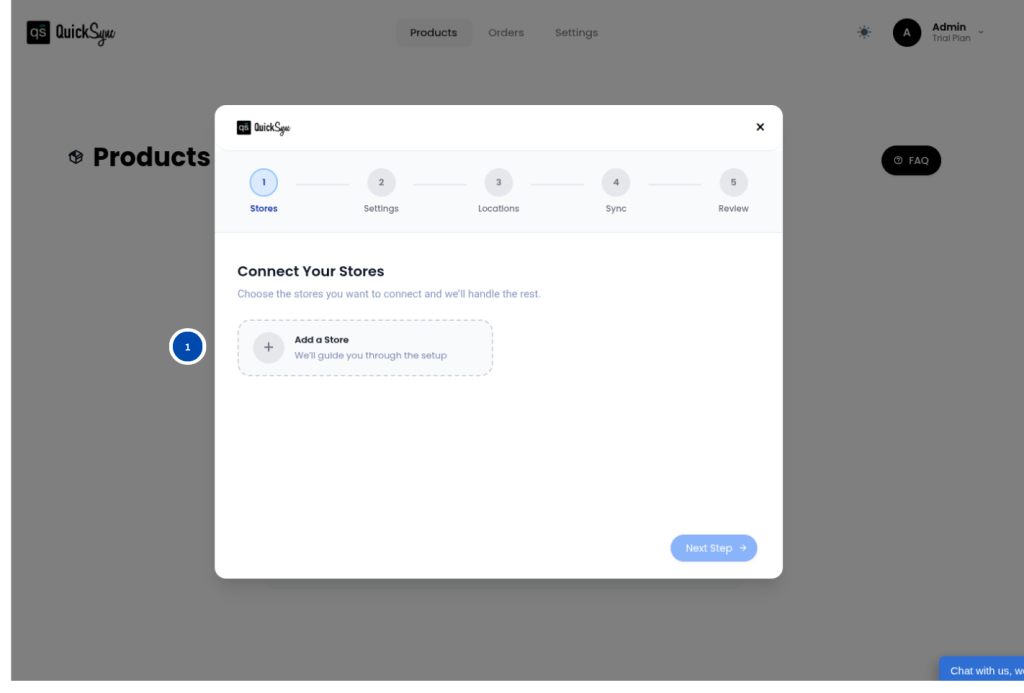
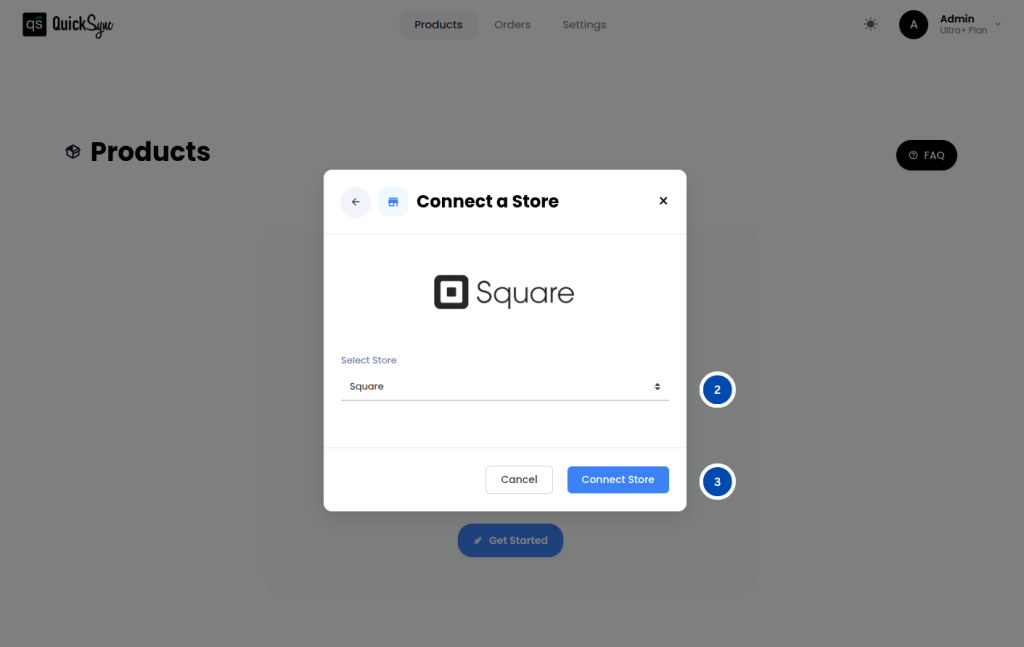
- Log in to your QuickSync Dashboard and go to Sync Products, then Add a Store.
- Select Square.
- Click Connect Store and log in to your Square account.
- Approve the requested permissions for products, inventory, customers, and orders.
- Once authorized, QuickSync will automatically begin the initial import of your locations and catalogue. You’ll see a progress bar in the dashboard while this runs.
2. Features Supported #
With QuickSync and Square connected, you can sync inventory, products, and orders seamlessly across your store using a full of dedicated features.
Inventory Sync #
QuickSync keeps your Square inventory accurate across all connected channels in real time.
- Real-Time Stock Updates: Whenever a sale happens on any connected channel, your Square inventory updates automatically, so your stock is always correct everywhere you sell.
- Multi-Location Support: QuickSync supports inventory sync across multiple Square locations, so stock levels stay accurate no matter where you sell from.
- Negative Inventory: QuickSync supports negative inventory values, so your stock stays tracked and updated even when it goes below zero.
Product Sync #
QuickSync syncs your full product catalogue to Square accurately and automatically.
- Product & Variant Sync: QuickSync syncs all your product details and variant combinations accurately to Square, so every option your customer sees is always up to date.
- Images: QuickSync syncs up to 100 product images to Square so your listings always have complete and accurate visuals.
- SKU Sync: QuickSync syncs all your SKUs accurately across your connected channels, so every product is correctly tracked.
- Variant Sync: QuickSync supports syncing up to 250 variants per product to Square, so even your most complex product catalogues are covered.
Order Sync #
QuickSync centralizes all your incoming orders into Square for easy management and fulfillment.
- Order Syncing: QuickSync automatically routes orders from all your connected channels into Square, so your in-store staff can fulfill them directly from the POS.
- Customer Data Access: QuickSync gives you full access to customer details on every order, so you can manage and fulfill them without switching between platforms.
- Order Cancellations: Cancellations of orders made on any connected channel are synced to Square automatically.
- Tracking & Carrier Sync: Once an order is fulfilled, QuickSync automatically sends the tracking number and carrier name back to the original sales channel so your customer receives the correct shipping update.
For more details, please go through the syncing reference table.
3. Special Settings / Toggles #
QuickSync offers additional features for your Square integration, giving you more control over how your products and orders are managed. Here is how QuickSync handles it:
Use Square as Fulfillment Store: You can set Square as your fulfillment store when turning on Order Syncing. Once enabled, orders from all your other connected channels will be pushed into Square, so your in-store staff can fulfill them directly from the POS.
Default Tax Rate: QuickSync lets you set a default tax rate to apply when exporting products marked as taxable to Square. This rate is taken directly from your Square account, so it always stays accurate.
Only Export to Connected Locations: When this setting is enabled, QuickSync will only export products and push inventory updates to the specific Square locations you have connected. This is useful if you manage multiple Square locations but only want to sync inventory to selected ones.
4. Pricing & Billing #
QuickSync for Square integration follows the standard subscription plans. Billing is managed through the QuickSync website. Please note that although QuickSync is listed on the Square App Marketplace, billing is not handled through Square. All payments go through the QuickSync website directly. You can review or update your plan anytime from your QuickSync dashboard.
5. Change Logs #
| Date | API | Region | Notes |
|---|---|---|---|


