Managing orders across multiple sales channels can quickly become complex. When orders arrive from different platforms, it can be difficult for teams to keep fulfillment organized and efficient.
QuickSync’s Clover Order Fulfillment feature helps solve this by allowing you to use Clover POS as your central fulfillment hub. Orders from connected sales channels such as Shopify, WooCommerce, TikTok, and others automatically sync to Clover, allowing your team to manage and process them in one place.
This centralizes order management, reduces manual work, and helps create a smoother and more efficient fulfillment process across all your sales channels.
Why Use Clover for Order Fulfillment? #
Many businesses sell across multiple platforms while managing fulfillment from a single physical location or POS system. Without automation, this often requires manually copying orders between systems.
With Clover order fulfillment through QuickSync, every order from your connected channels is automatically sent to Clover for processing.
This allows your team to:
• Process all orders in one system
• Reduce manual order entry errors
• Maintain consistent reporting inside Clover
• Speed up packing, shipping, and fulfillment
How to Enable Clover Order Fulfillment #
Setting up Clover as your fulfillment store only takes a few simple steps.
Step 1: Enable Order Syncing #
Go to Dashboard → Order Syncing and toggle the feature ON. Then select Clover as your Fulfillment Store.
Once enabled, QuickSync will automatically start sending new orders from your connected sales channels to Clover.
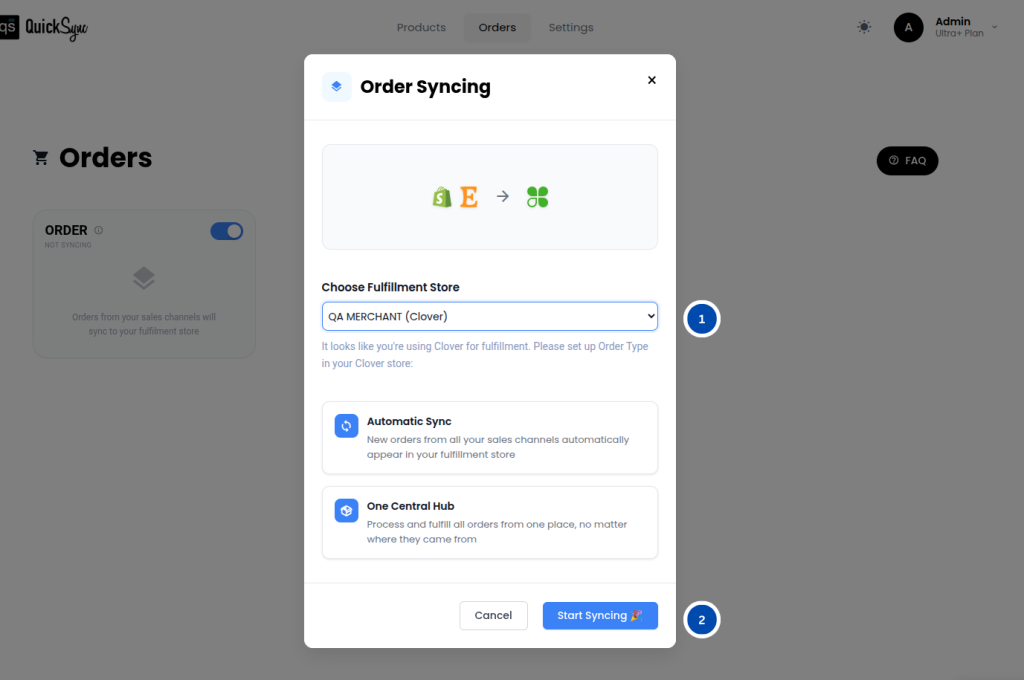
Step 2: Create an Order Type in Clover #
Clover requires a dedicated Order Type so QuickSync can correctly create and organize incoming orders.
Create a new Order Type inside your Clover dashboard and assign it for synced orders. This ensures all incoming orders are categorized properly within Clover.
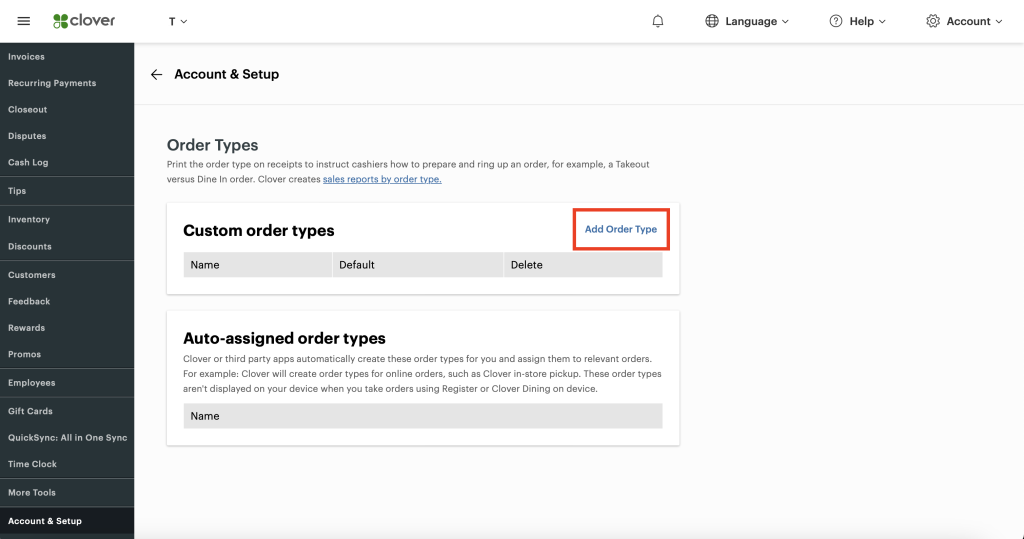
Step 3: Start Syncing Orders #
After completing the setup, QuickSync will begin automatically syncing orders to your Clover account.
Every new order from your connected stores will appear inside Clover and be ready for processing.
What Order Information Is Synced to Clover? #
QuickSync sends the complete order details to Clover so your POS system reflects the full order breakdown.
The following information is synced:
• Product line items and quantities
• Order ID
• Order notes
• Source store name (where the order came from)
• Shipping charges
• Taxes
• Tips
• Service charges
• Duties
• Additional fees
• Discounts
This ensures your Clover receipts, reports, and financial data remain accurate and complete.
How Synced Orders Appear in Clover #
Once an order is synced, it appears in Clover just like any normal POS order.
Your staff can:
• View the order details
• Print receipts
• Prepare items for shipping
• Complete fulfillment
There are no extra steps required. Orders can be processed using your standard Clover workflow.
What Happens If an Order Is Cancelled? #
Currently, Clover does not support true order cancellation through its API.
To handle cancellations correctly, QuickSync uses a safe workaround.
When an order is cancelled:
• “(Cancelled)” is added to the order name in Clover
• All line items are removed from the order
This prevents the order from being mistakenly fulfilled while still keeping a clear record inside Clover.
Important Notes #
Before using Clover order fulfillment, keep the following points in mind:
Only future orders are synced.
Orders created before enabling order syncing will not be imported into Clover.
To ensure accurate syncing, always enable the feature before new orders start coming in.
Common Use Cases #
- Centralized Order Processing: Businesses selling on multiple platforms can route every order into Clover and process everything from one POS system.
- Marketplace + POS Selling: Merchants selling on Shopify, WooCommerce, or TikTok can use Clover as their fulfillment hub to manage online and in-store orders together.
- Warehouse-Based Fulfillment: If your warehouse team works directly inside Clover, QuickSync ensures that all online orders automatically appear there for faster packing and shipping.
Frequently Asked Questions #
Need Help? #
If you need assistance setting up Clover order fulfillment, the QuickSync support team is ready to help.
Simply reach out to us at support@quicksync.pro, including your account email and connected store details, so the support team can resolve your issue quickly.


