Running a modern business often means selling across multiple platforms such as an online store, POS system, and marketplaces. Managing inventory, products, and orders across these channels manually can quickly become overwhelming.
QuickSync simplifies this process with three powerful Multi-channel syncing features:
- Inventory Syncing – Keeps stock levels accurate across all connected channels.
- Product Syncing – Ensures product details stay consistent everywhere you sell.
- Order Syncing – Centralizes orders into one store for easier fulfillment.
These syncing types work together to help businesses manage multi-channel sales efficiently while eliminating manual work and costly errors.
Inventory Syncing #
QuickSync’s Inventory Syncing keeps your stock levels automatically updated across all connected stores. Whenever a product is sold or adjusted on one platform, the inventory is instantly updated everywhere else.
This ensures customers always see accurate stock availability, helping you prevent overselling and maintain customer trust.
Key Points of Inventory Syncing #
Key Points #
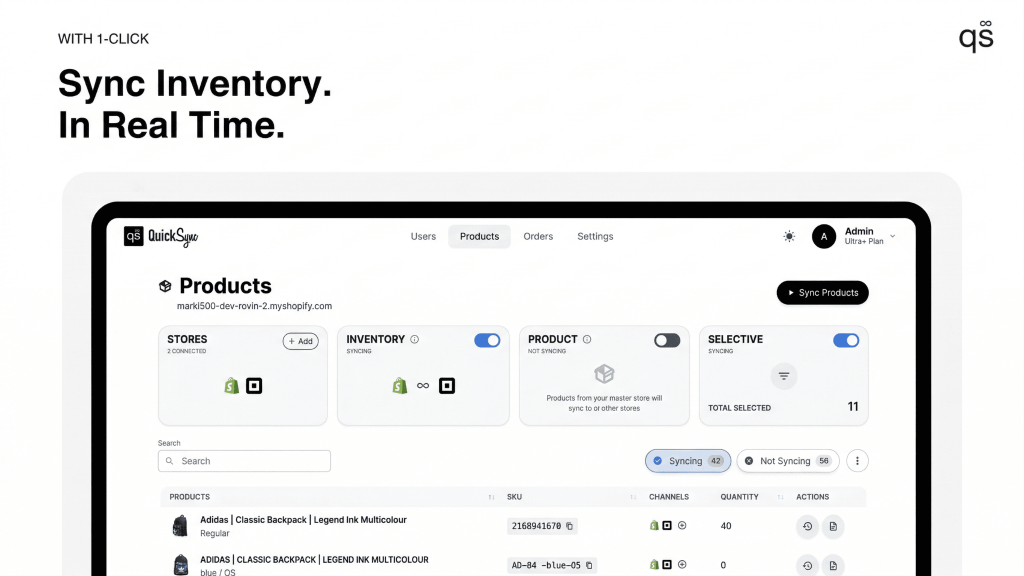
Real-Time Inventory Updates: #
Whenever an item is sold or its quantity changes in any connected store, such as Shopify, Square, Clover, or WooCommerce, QuickSync immediately updates stock levels across all platforms.
Multi-Location Inventory Support: #
QuickSync supports inventory tracking across multiple warehouses, retail outlets, and fulfillment centers, giving you a complete overview of stock across locations.
How Inventory Syncing Works #
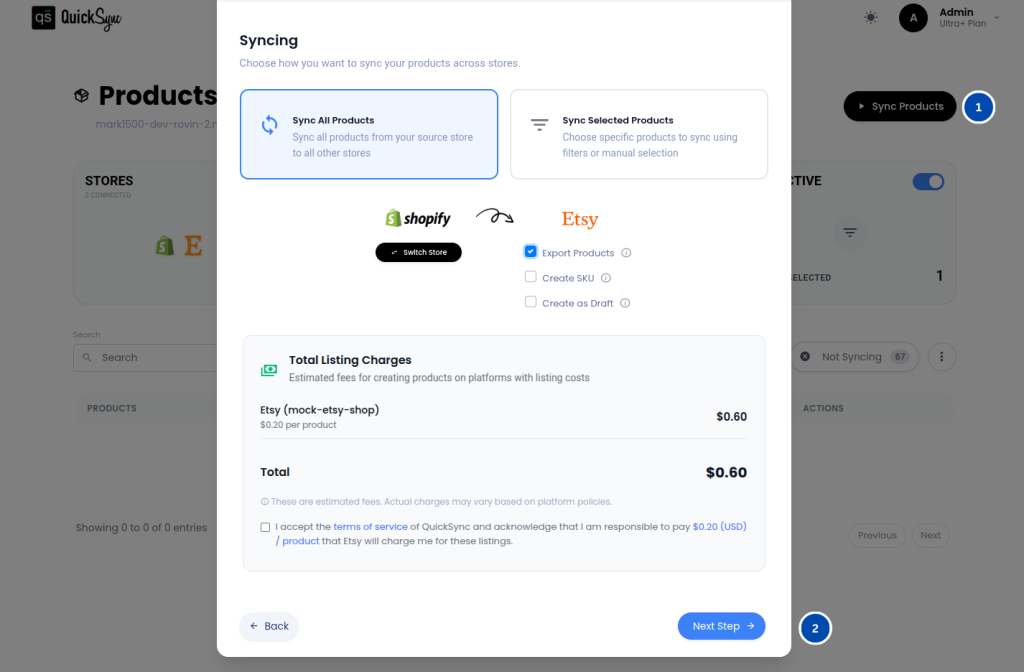
1. Connect Your Sales Channels: #
Start by connecting the platforms where you sell, such as Shopify, Square, Clover, WooCommerce, and others.
2. Choose a Source Store: #
After connecting your stores, select a Source Store.
What is a Source Store? #
A source store acts as the starting point for inventory data. QuickSync uses the inventory values from this store to ensure all other channels begin with the same accurate stock levels.
Example
Product A inventory:
- Etsy: 10 units
- Shopify: 5 units
If Etsy is selected as the Source Store, Shopify’s inventory will automatically update to 10 units once syncing begins.
You can switch the source store at any time if needed.
3. Choose Sync Options: #
Optional settings include:
- Export Products – Send selected products from the source store to other channels.
- Create SKU Automatically – If a product has no SKU, QuickSync can generate one during export.
- Create as Draft – Export products as drafts so they remain hidden until published.
If products already exist on both platforms, QuickSync automatically links them using matching SKUs.
4. Start Syncing: #
Click Start Syncing to begin the process. QuickSync will export the selected products and display real-time progress. You’ll also receive an email once syncing is complete.
5. Automatic Inventory Updates: #
After syncing begins, any change in stock, such as sales or manual adjustments, will automatically update across all connected platforms.
Note: During syncing, avoid modifying products directly in your sales channels to prevent inventory discrepancies.
Popular Use Cases #
Pop-up Events: #
Businesses hosting temporary retail events can connect their POS system with their online store. Every sale at the event automatically updates the central inventory.
POS + Online Store: #
Retailers using a POS system like Clover or Square alongside an online store can keep stock perfectly aligned across both platforms.
Online Store + Marketplace: #
Merchants selling on platforms such as Shopify while also listing products on marketplaces like Etsy or eBay can maintain accurate inventory across all channels.
Multiple Retail Chains: #
Brands managing multiple store locations can maintain a single source of truth for inventory across all branches.
Product Syncing #
QuickSync’s Product Syncing ensures that product information stays consistent across all your sales channels.
Whenever you update product details such as price, description, images, or variants, QuickSync automatically applies the same changes to every connected store or marketplace.
This eliminates the need to manually update product information on multiple platforms.
Key Points of Product Syncing #
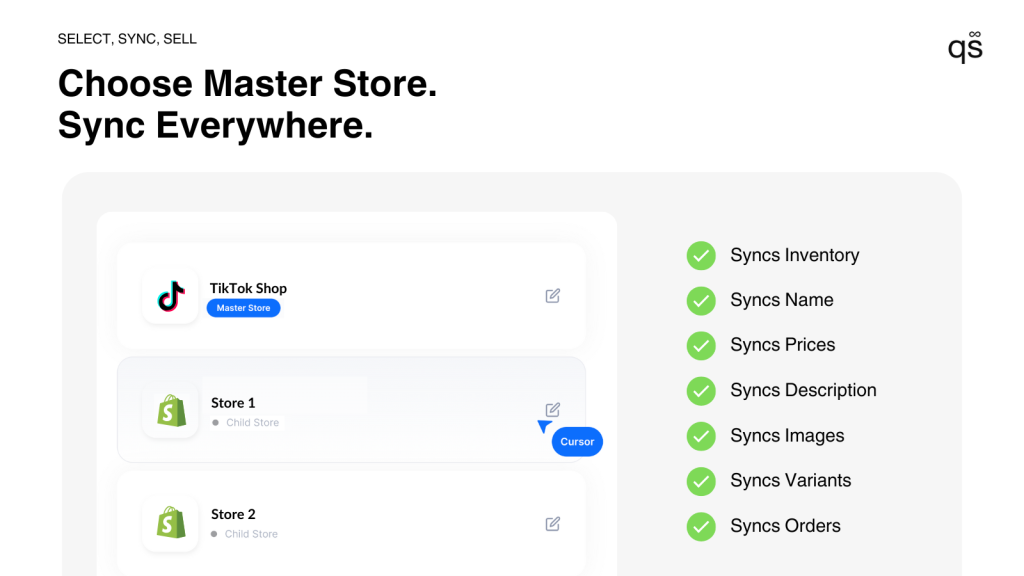
- Choose a Master Store
- Pick one store as your master store.
- Any add, edit, or delete of a product or variant in the master store is instantly pushed to all connected sales channels.
What is Master Store
It is the single source of truth for your product data inside QuickSync. You pick one connected store as the master, and QuickSync automatically distributes any product updates from that store to all the others.
- Real-time Updates
- QuickSync syncs these key fields in real time:
- Product title, description, and images
- Price, variants, and variant attributes
- Other core product details (SKU, tags, options, etc.)
- QuickSync syncs these key fields in real time:
Tip: To check the exact fields we can sync in a sales channel, please refer to the Syncing Reference Table
3. Optional Settings
You can also enable these additional settings when turning on Product Syncing from the dashboard
- Create SKU – If you want QuickSync to automatically generate a sku when exporting to connected sales channels, then enable this option.
- Create as Draft – If you want to review new products before customers see them, enable this option.
4. Seamless Multi-Channel Management
- Whether you sell across Shopify, Square, Etsy, eBay, or multiple POS locations, QuickSync keeps every product consistent, no matter how many sales channels you manage.
How It Works #
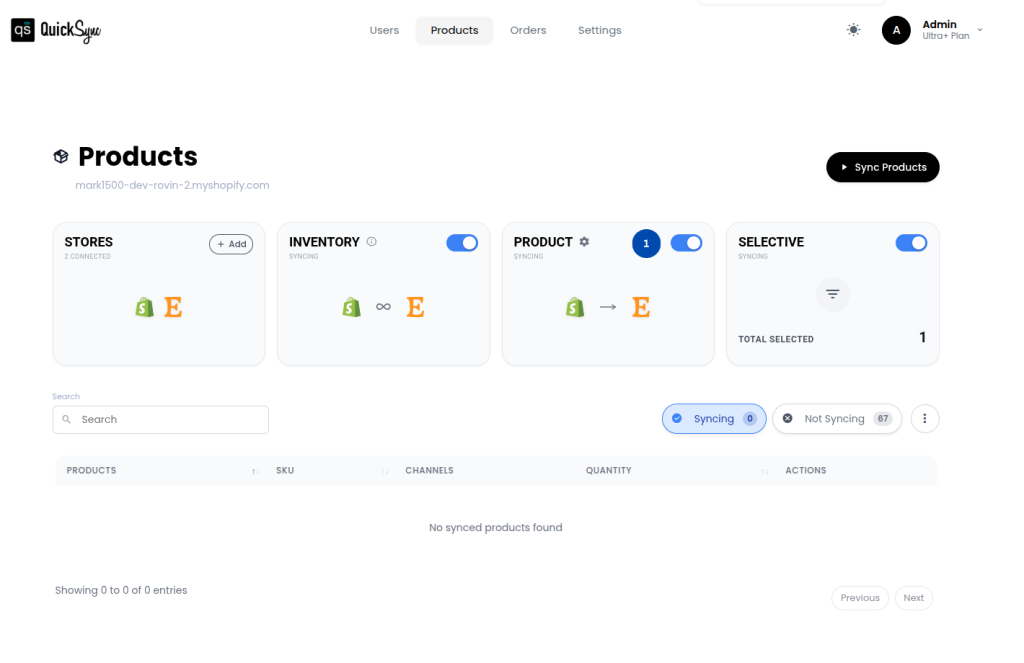
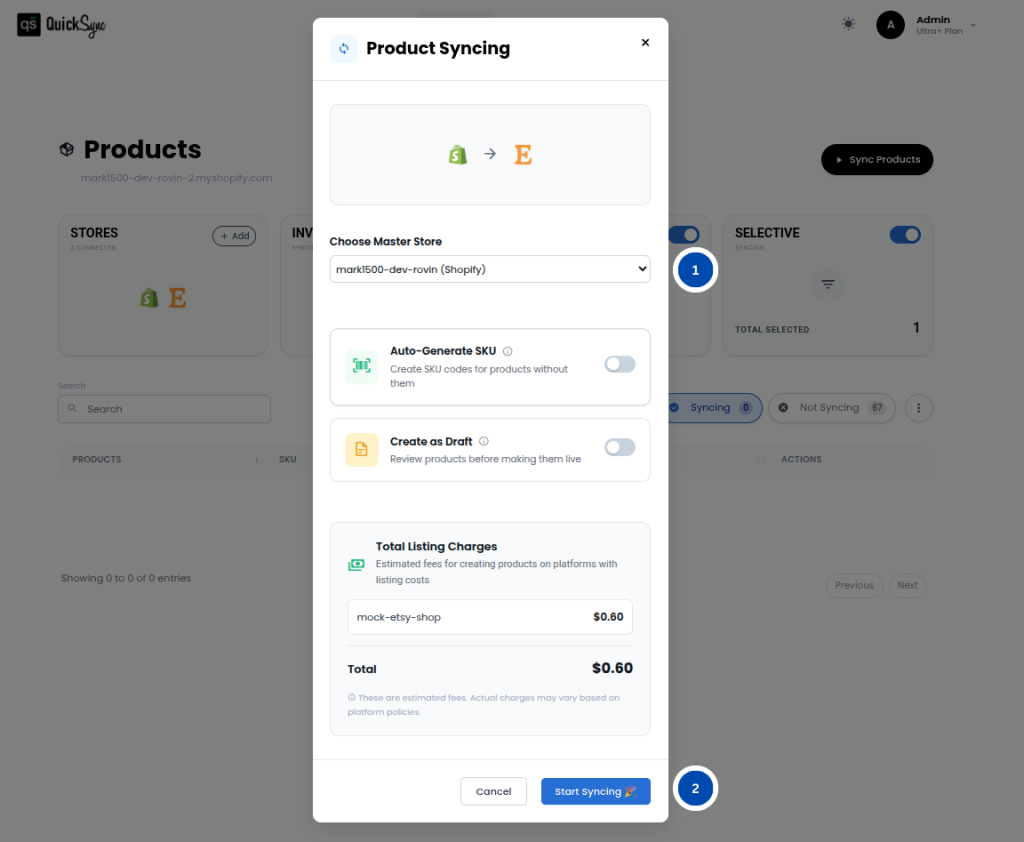
1. Connect Your Sales Channels: #
Add the platforms you want to sync, such as Shopify, Square, Clover, WooCommerce, and others.
2. Enable Product Syncing: #
Turn on Product Syncing from the QuickSync dashboard.
3. Start Syncing: #
Click Start Syncing to begin. You can also enable optional settings like automatic SKU creation or draft product creation.
4. Automatic Product Updates: #
Once syncing is active, any product addition, update, or deletion in the master store will automatically sync across all connected channels.
Popular Use Cases #
Multi-Store Retailers #
Businesses operating multiple online stores can ensure product information stays consistent across all storefronts.
Marketplace Expansion #
Merchants listing products on marketplaces like Etsy or eBay can manage products from one central store, eliminating duplicate work.
POS + Online Store #
Retailers using both physical POS systems and ecommerce stores can keep product details identical across platforms.
Seasonal or Flash Sales #
When running promotions, merchants can update pricing and product information once, and QuickSync will instantly apply the changes across all channels.
Rapid Product Launches #
Businesses launching new product lines can create products once in the master store and automatically generate drafts across all other stores.
Order Syncing #
QuickSync’s Order Syncing centralizes order management by automatically sending orders from multiple sales channels to a single fulfillment store.
This makes it easier for businesses to manage shipping, tracking, and order updates from one place.
Key Points of Order Syncing #
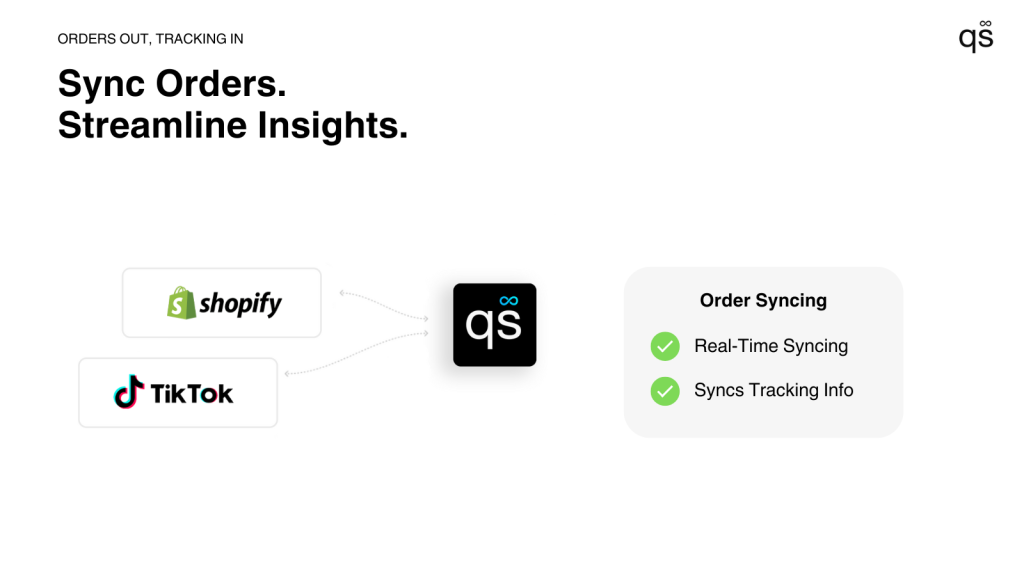
- Centralized Fulfillment:
- Choose one store as the fulfillment store.
- Every order placed on any connected sales channel is automatically sent there for processing.
- Real-Time Order Syncing:
- The moment an order is created in any store, QuickSync instantly syncs it to the fulfillment store for seamless processing.
- Status & Tracking Synchronization:
- Order Cancellations: If an order is cancelled in the original channel, the cancellation is automatically reflected in the fulfillment store.
- Shipping & Fulfillment Updates: When a tracking number or carrier is added, QuickSync pushes these updates back to all connected sales channels so customers always see the correct status.
- Error Handling & Retry Logic:
- Built-in safeguards automatically retry failed sync attempts and log issues for quick review.
How It Works #
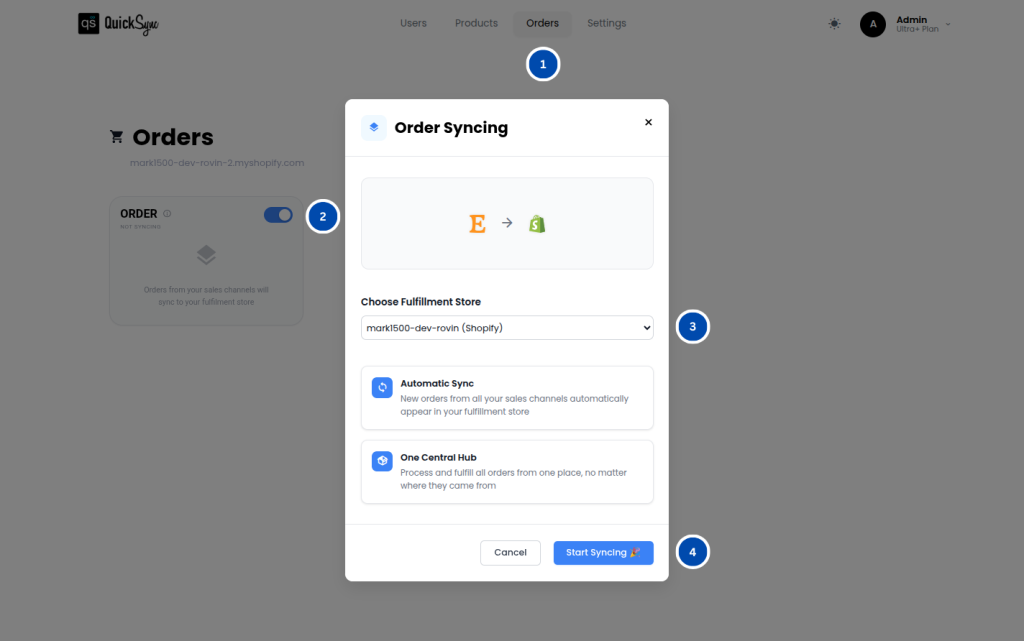
1. Connect Your Sales Channels: #
Add your sales channel, such as Shopify, Square, Clover, WooCommerce, etc.
2. Enable Order Syncing: #
Once connected, toggle the Order Syncing option in the dashboard.
3. Choose a Fulfillment Store: #
Select the store where all incoming orders will be routed for processing.
4. Start Syncing: #
Click Start Syncing to activate order synchronization across all connected channels.
Once enabled, every new order will automatically appear in the fulfillment store for processing.
Popular Use Cases #
Centralized Warehouse: #
Businesses selling on multiple platforms can route all orders to a single warehouse for fulfillment.
Multi-Store Brands: #
Brands with regional stores can centralize order processing to maintain consistent shipping operations.
Marketplace + POS: #
Merchants selling through marketplaces and physical POS systems can route all orders to one store for easier management.
High-Volume Seasonal Sales: #
During busy periods like holiday sales or promotions, QuickSync’s automated syncing helps manage large volumes of orders without manual effort.
Need Help? #
If you need assistance setting up syncing or managing your integrations, the QuickSync support team is here to help. You can contact our support team for technical assistance at support@quicksync.pro.
Our team will help ensure your inventory, products, and orders stay perfectly synced across all your sales channels.


