Clover POS integration allows businesses to automatically sync products, inventory, and orders between Clover and their online store. By connecting Clover POS with QuickSync, companies can streamline inventory management, maintain accurate stock levels, and ensure real-time updates across their entire point-of-sale system.
- By linking Clover with your eCommerce platform, you eliminate manual data entry, reduce the risk of overselling, and ultimately enhance the customer experience.
- This integration helps businesses maintain accurate inventory levels while ensuring smooth payment processing and centralized POS system management.
1. Setup & Authentication #
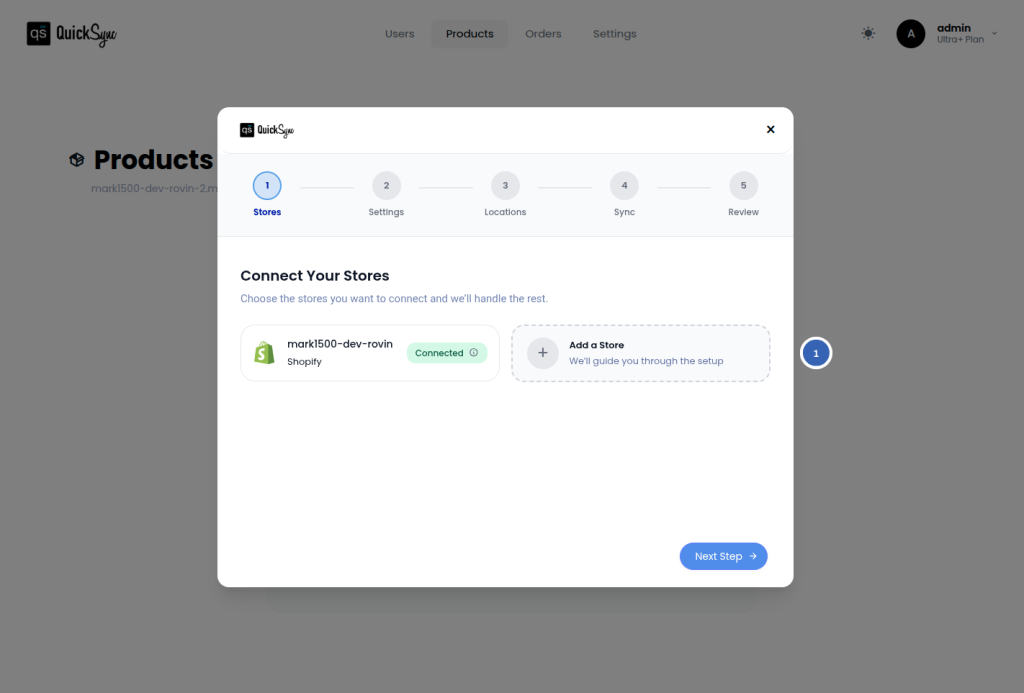
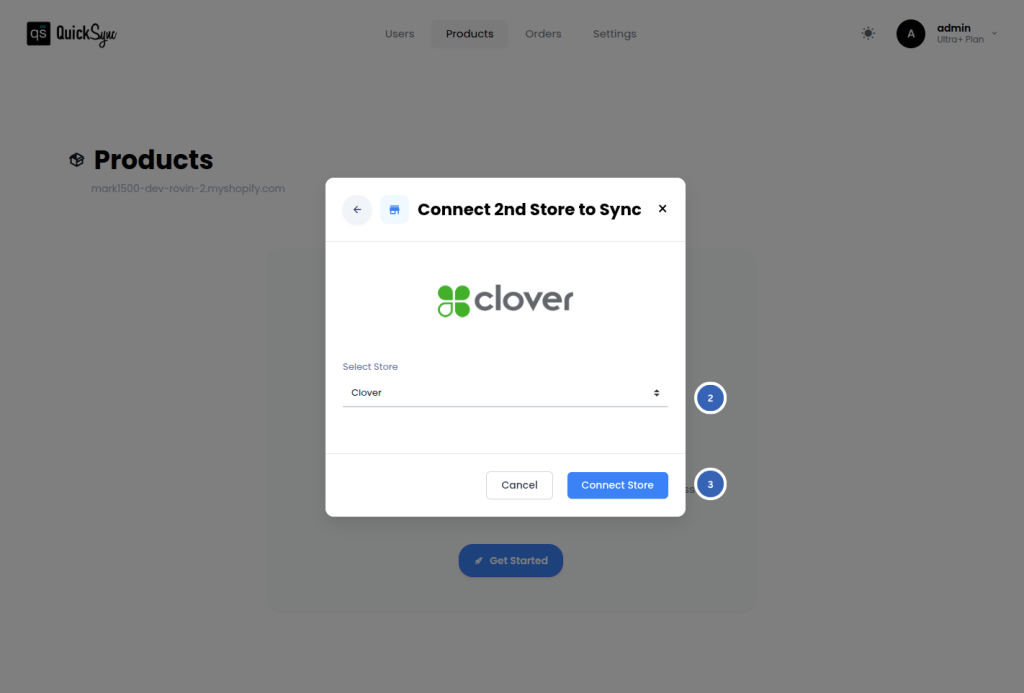
To begin, follow these steps: #
- Go to Dashboard → Add a store
- From the dropdown select
- Clover (For United States / Canada based accounts)
- Clover EU (For European union based accounts)
- Click Connect Store and log in to your Clover merchant account to authorize the connection
After successfully connecting, products, inventory, and orders will begin syncing automatically. A live progress bar on your dashboard allows you to track the integration status in real time.
2. Key Features of Clover POS Integration #
The core functionality includes:
- Product synchronization
- Real-time inventory updates
- Order syncing between platforms
- Automatic order classification
- Centralized POS system management
These key features help maintain accurate inventory levels while supporting efficient payment processing within your Clover POS system.
To better understand how syncing manages products, inventory, and orders, review the detailed Clover POS integration syncing reference table.
3. Special Requirements and Clover POS Integration Settings #
Understanding Order Types in Clover POS Integration #
- To sync orders to Clover through Clover POS integration, an Order Type must be configured for external orders. This helps Clover correctly classify and process incoming orders (such as Delivery or Takeout)
Order Type in Clover POS Integration:
An Order Type is a label in Clover that determines how an order is classified and processed. For example, orders can be marked as Dine-In, Takeout, or Delivery depending on how they are fulfilled.
If an external Order Type is not set, orders synced through Clover POS integration may fail to be classified properly in Clover. Configuring the correct Order Type helps maintain accurate reporting, ensures seamless order processing, and reduces the risk of synchronization errors.
Clover as a Fulfillment Store #
- When using Clover POS integration for order syncing, please note:
- When using Clover POS integration, orders can be automatically created inside Clover once they are placed in your online store. Through the integration, orders can also be marked as completed or canceled directly within Clover.
- However, it’s important to note that Clover POS integration does not support pushing tracking numbers or shipping carrier updates back to your source store. The integration focuses on order creation and status management within Clover.
Learn more about how orders are handled in Clover POS integration in the detailed Order Fulfillment guide.
4. Pricing & Billing #
Billing for Clover POS integration is determined by the platform through which the user installs or registers, either via the Clover App Store, Clover EU App Store, or the QuickSync website.
| Country | Available Billing Handler(s) | Notes |
|---|---|---|
| United States | via QuickSync Website or via Clover App Store | Preferred method is QuickSync for faster refund handling. |
| Canada | via QuickSync Website or via Clover App Store | Preferred method is QuickSync for faster refund handling. |
| Ireland | via QuickSync Website or via Clover EU App Store | Preferred method is QuickSync for faster refund handling. |
| United Kingdoms | via QuickSync Website or via Clover EU App Store | Preferred method is QuickSync for faster refund handling. |
| Austria, Netherlands, Germany | via QuickSync Website | If you installed QuickSync through the Clover EU App Store, you must uninstall the app and re-register through our website to activate billing for Clover POS integration. |
As of September 2025, Clover EU does not support billing users in these countries for Clover POS integration. To avoid interruptions during setup, please sign up directly through the QuickSync website to activate billing successfully.
Choosing the correct billing method ensures uninterrupted access to Clover POS integration features.
5. Change Logs #
| Date | API / Region | Change | Notes |
|---|---|---|---|


