
Before you can start listing products on eBay, you need to set up three business policies for your seller account. These policies tell your buyers how their order will be shipped, how they can pay, and whether returns are accepted. Setting them up correctly from the start ensures your listings go live without any issues and gives your buyers a clear understanding of what to expect when they purchase from your store.
To start selling on eBay, you first have to set up 3 eBay business policies –
- Shipping / Fulfillment Policy: This lets the buyer know how long it will take to ship an item and what shipping options are available.
- Payment Policy: This lets the buyer know which payment methods you accept.
- Return Policy: This lets the buyer know whether returns are accepted and what the conditions are.
Why Are eBay Business Policies Required? #
eBay introduced business policies to make selling more consistent and professional. Instead of setting up shipping, payment, and return details separately for every single listing, eBay sellers create them once as a policy and apply them across all their listings automatically. This saves merchants a lot of time and ensures every listing on their store has the same accurate information. It also helps QuickSync export your products to eBay smoothly since these eBay business policies need to be in place before any listing can go live.
How to Set up Shipping Policy on eBay? #
Your shipping policy is one of the most important policies on your eBay store. It tells buyers upfront how long it will take for their order to be prepared and shipped, what shipping options they can choose from, and whether free shipping is available. Buyers often check this before placing an order, so it is important to fill it in accurately.
To get started, go to your eBay Business Policies page and click Create Policy → Shipping.
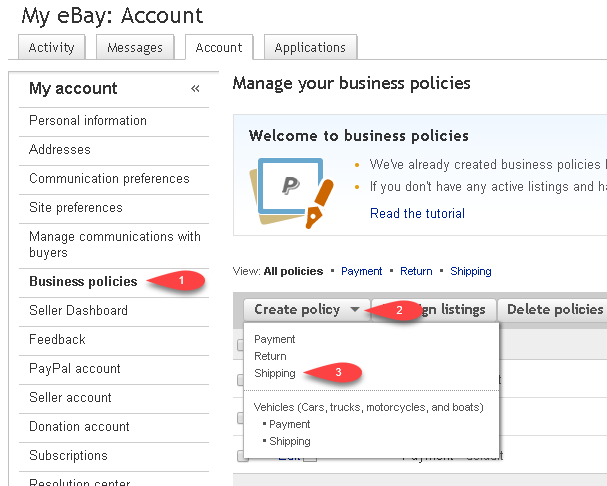
Step 1: First, enter a name and description for your policy:
- Name: QS Shipping Policy
- Description: This is a standard shipping policy
Step 2: Next, configure your shipping details:
- You should select your preferred shipping type. Choose from Flat Shipping Rate, Calculated Shipping Rate, or Freight, depending on how you charge for shipping.
- Then select the shipping services you want to offer your buyers. You can add multiple options, such as standard and express shipping.
- After that, set your Handling Time so buyers know how many days it takes you to prepare an order before it ships. Also, set your Handling Cost and choose whether you want to offer free shipping.
Step 3: You should then decide whether you want to sell internationally. If yes, enable the eBay International Shipping program to reach buyers outside your country.
Step 4: Once done, check the box next to Set as default shipping policy so this policy applies to all your listings automatically without you having to select it each time.
Step 5: Finally, click Save to complete your shipping policy.
How to Set up eBay Payment Policy? #
Your payment policy lets buyers know which payment methods you accept in your store. eBay handles most payments through its managed payments system, but you still need to have a payment policy in place before your listings can go live. Setting it up takes just a few minutes.
To get started, go to your eBay Business Policies page and click Create Policy → Payment.
Step 1: First, enter a name and description for your policy:
- Description: This is a standard payment policy
- Name: QS Payment Policy
Step 2: Next, select the payment methods you want to accept from your buyers.
Step 3: Once done, check the box next to Set as default payment policy so this policy applies to all your listings automatically.
Step 4: Finally, click Save to complete your payment policy.
How to Set Up a Return Policy on eBay? #
Your return policy tells buyers whether you accept returns, how long they have to return an item, and what the conditions are. Having a clear return policy builds trust with buyers and can improve your seller performance metrics on eBay.
To get started, go to your eBay Business Policies page and click Create Policy → Return.
Step 1: First, enter a name and description for your policy:
- Name: QS Return Policy
- Description: This is a standard return policy
Step 2:Next, choose whether you want to accept returns, set your preferred return period, and add any additional details about your return condition.
Step 3: Once done, check the box next to Set as default return policy so this policy applies to all your listings automatically.
Step 4: Finally, click Save to complete your return policy.