
QuickSync connects your QuickBooks Online account with all your connected sales channels and keeps your products, inventory, and sales in sync automatically. From syncing inventory quantities to creating sales receipts, invoices, payments, and refunds, QuickSync eliminates double entry and keeps your books accurate without any manual work needed from your side.
How to Sync QuickBooks Account with QuickSync? #
If you do not have a QuickSync account yet, visit quicksync.pro and click Sign Up to create one. Once your account is ready, follow these steps to connect your QuickBooks account:
1. Setup & Authentication #
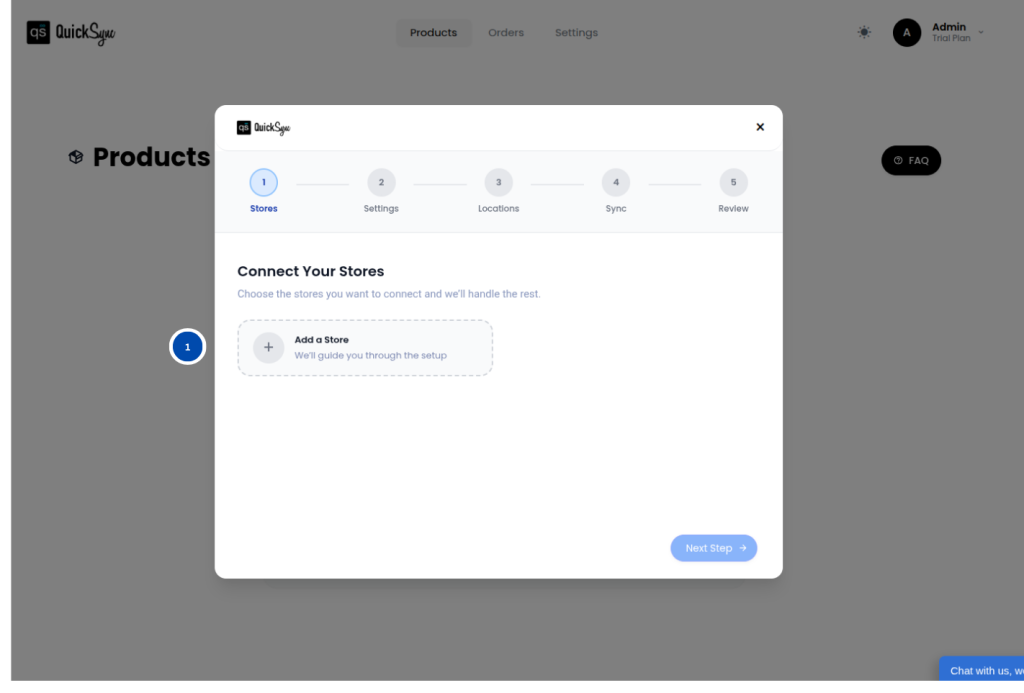
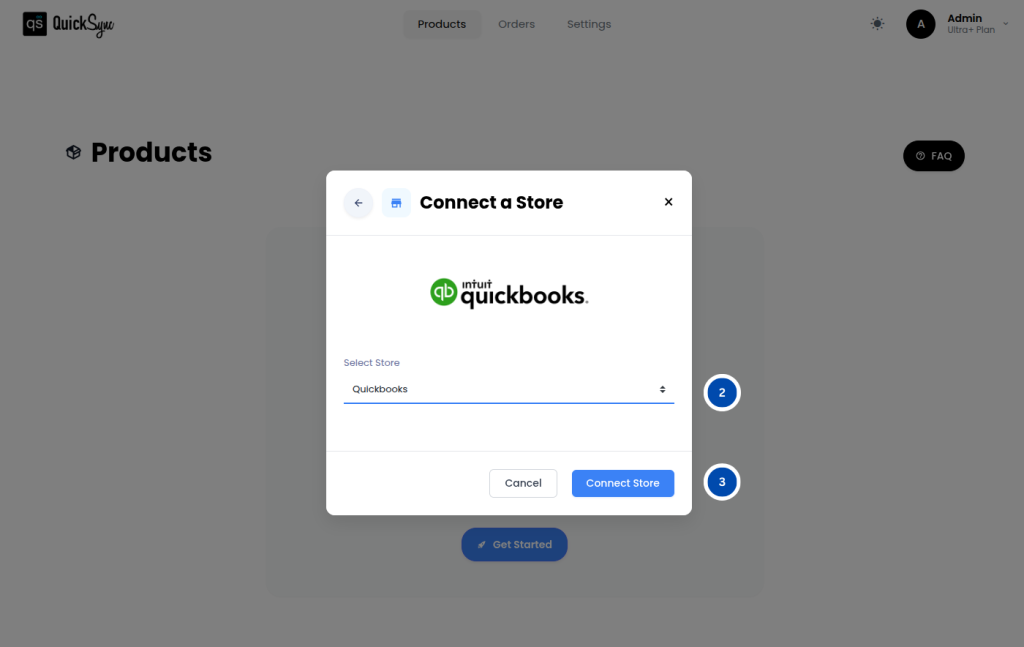
- Login into QuickSync Dashboard → Sync Products
- Then, go to Store → Add Store
- Select QuickBooks
- Click Connect a Store and log in to your QuickBooks account.
- Approve access for Items, Payments, and Accounting.
- Once approved, QuickSync will automatically begin importing your company information, home currency, chart of accounts, and existing items. You will see a progress bar in your dashboard while this is running. Wait for it to complete before moving to the next step.
2. Features Supported #
Once your QuickBooks account is connected, QuickSync supports the following syncing features. Here is what each one covers.
Inventory Sync #
QuickSync keeps your QuickBooks inventory accurate across all your connected channels without any manual updates needed.
- Real-Time Inventory Sync: QuickSync syncs inventory across all connected channels in real time, so stock levels in QuickBooks always reflect what is actually available across your store
- Inventory Range Support: QuickSync supports inventory quantities from a minimum of 0 to a maximum of 999,999 units, so you have full flexibility to manage stock levels of any size
Product Sync #
QuickSync syncs your product catalogue to QuickBooks so your items, variants, and SKUs are always accurate and up to date across all your connected channels.
- Product & Variant Sync: QuickSync syncs all your product details and up to 800 variants to QuickBooks per product, so even your most complex catalogues are accurate.
- SKU Sync: QuickSync syncs all your SKUs accurately to QuickBooks and automatically generates a SKU for any product that does not have one, so every item is correctly tracked.
- Images: QuickSync syncs your product images to QuickBooks so your item records always have accurate and complete visuals.
Order Sync #
QuickSync centralizes your order data in QuickBooks so your fulfillment stays accurate and up to date without any manual entry.
- Order Syncing: QuickSync automatically routes orders from all your connected channels into QuickBooks so you can track all your sales directly from one place
- Order Cancellations: QuickSync syncs order cancellations automatically, so when an order is cancelled on any connected channel, it is reflected in QuickBooks straight away
For more details, please go through the syncing reference table.
3. Special Settings / Toggles #
There are a few additional settings available inside your QuickBooks integration in QuickSync. Here is what they do and how each one works:
Use QuickBooks as a Fulfillment Store: You can set QuickBooks as your fulfillment store when turning on Order Syncing. Once enabled, orders from all your other connected channels will be pushed into QuickBooks so you can track and manage all your sales directly from your QuickBooks account.
Sales & Refunds: QuickSync automatically handles your sales and refund records inside QuickBooks, so your books stay accurate without any manual input needed.
- When an order is placed, QuickSync creates a Sales Receipt or Invoice with Payment in QuickBooks to reflect the order total accurately
- When an order is returned or cancelled, QuickSync creates a Refund Receipt in QuickBooks automatically, so your accounts always reflect the correct figures
To access these settings, go to Settings → Integrations → QuickBooks → Settings
4. Pricing & Billing #
QuickSync for QuickBooks integration follows the standard QuickSync subscription plans. Billing is managed through the QuickSync website. You can review or update your plan anytime from your QuickSync dashboard.
5. Change Logs #
| Date | API | Region | Notes |
|---|---|---|---|