
Location Connection in QuickSync allows you to sync inventory between specific locations across different sales channels. This means each warehouse, retail store, or fulfillment center can maintain accurate stock levels across platforms in real time.
Instead of managing inventory as a single global quantity, QuickSync lets you map individual locations together so inventory updates stay accurate at the location level.
For example, if your business operates both online stores and physical retail outlets, you can connect matching locations so inventory stays aligned everywhere.
Example:
- Miami Location (Shopify) connected with Miami Retail Location (Clover)
- California Location (Shopify) connected with California Retail Location (Clover)
When a sale happens at one location, QuickSync automatically updates the stock quantity across all connected locations in that group.
Why Location Connection Matters #
Many merchants operate with multiple inventory locations, which makes accurate stock management more complex. Common scenarios include:
Multiple Warehouses: #
Businesses often store inventory in different warehouses across regions. Without syncing, inventory levels can quickly become inconsistent.
Retail Stores + Online Store: #
Merchants selling both in physical retail locations and ecommerce platforms must keep inventory aligned to avoid selling items that are already out of stock.
Seasonal or Temporary Locations: #
Pop-up stores, event booths, and seasonal retail locations also require accurate inventory updates during high-volume sales periods.
Location Connection ensures each location always reflects the correct stock levels, reducing the risk of overselling and manual adjustments.
How It Works #
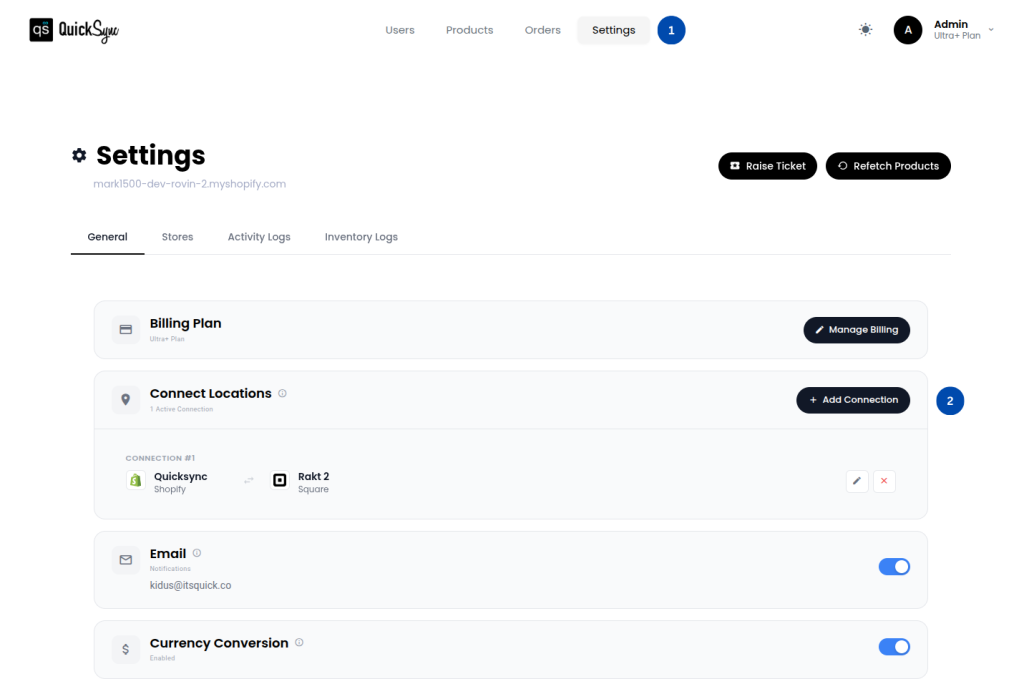
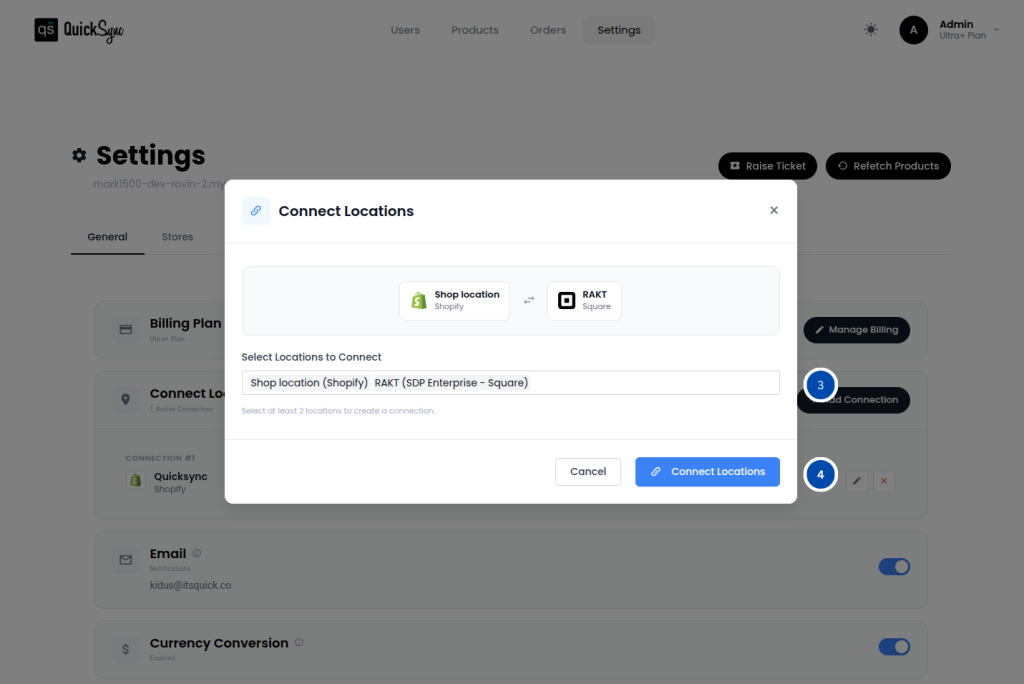
QuickSync makes it simple to connect and sync inventory between locations.
1. Connect Your Sales Channels: #
Start by connecting the platforms you want to sync, such as Shopify, Clover, WooCommerce, or other supported sales channels.
2. Create Location Connections: #
In the QuickSync dashboard, navigate to Settings → Connect Locations, and from there, you can create new location connections or remove existing ones.
3. Select Locations to Group: #
Choose the locations you want to sync together.
For example:
- Shopify location: “943 Block Street”
- Clover location: “Downtown Retail Store”
Once grouped, these locations become part of the same Location Connection.
4. Start Real-Time Inventory Sync: #
After saving the connection, QuickSync automatically listens for:
- Order events
- Stock adjustments
- Inventory updates
Whenever inventory changes at one location, QuickSync instantly updates all other locations in that connection.
Key Features of Multi-location Sync #
- Location-Level Inventory Tracking – Maintain separate inventory counts for each warehouse, store, or fulfillment center while still syncing them across platforms.
- Real-Time Inventory Updates – When a product is sold or updated at one location, the stock level automatically updates across all connected locations.
- Flexible Location Grouping – Create multiple location connections to match how your business operates. For example, you can group locations by region, store type, or fulfillment workflow.
- Overselling Protection – QuickSync prevents overselling by ensuring that inventory quantities update immediately when stock reaches zero.
Important Note: #
You can also connect multiple locations from the same platform within a single location connection for more complex inventory setups.
Example:
- Miami Location (Shopify)
- Miami Retail District A (Clover)
- Miami Retail District B (Clover)
QuickSync will keep inventory synced across all locations inside that connection group.
Frequently Asked Questions- #
Need Help? #
If you have any questions about setting up Location Connections or syncing inventory across multiple locations, our support team is here to help.
Contact us at support@quicksync.co, and we will assist you as quickly as possible.