
A Clover Order Type is a label that defines how an order is categorized and processed within the Clover POS system. Common examples include:
- Dine-In
- Takeout
- Delivery
Each order type helps Clover determine how an order should be handled, including which workflows, taxes, or settings apply to that order.
When using QuickSync, a dedicated Order Type is required so the system can properly identify and manage orders that are synced from external sales channels.
Why QuickSync Requires a Clover Order Type #
QuickSync creates orders in your Clover account when customers place orders on connected platforms such as:
- Shopify
- WooCommerce
- TikTok Shop
- Other integrated sales channels
To keep these orders organized and prevent confusion with your regular in-store orders, QuickSync uses a separate order type (usually named “QuickSync”).
This helps ensure:
- Clear Order Organization: Synced orders remain separate from in-store POS orders.
- Accurate Reporting: Sales reports remain clean and easy to analyze.
- Reliable Order Syncing: QuickSync can quickly identify which orders belong to synced channels.
Using a dedicated Clover Order Type keeps your workflow organized and prevents mixing synced orders with normal POS transactions.
How to Create an Order Type in Clover #
Follow these simple steps to create a Clover Order Type for QuickSync.
Step 1: Open Clover Dashboard #
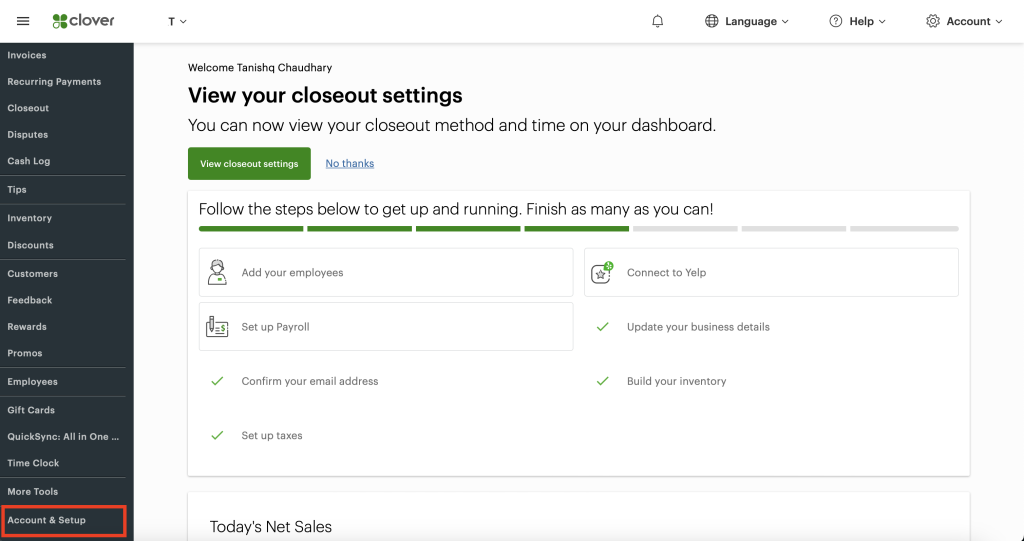
Log in to your Clover dashboard and on the left-hand menu, navigate to: Account & Setup
Step 2: Go to Order Types #
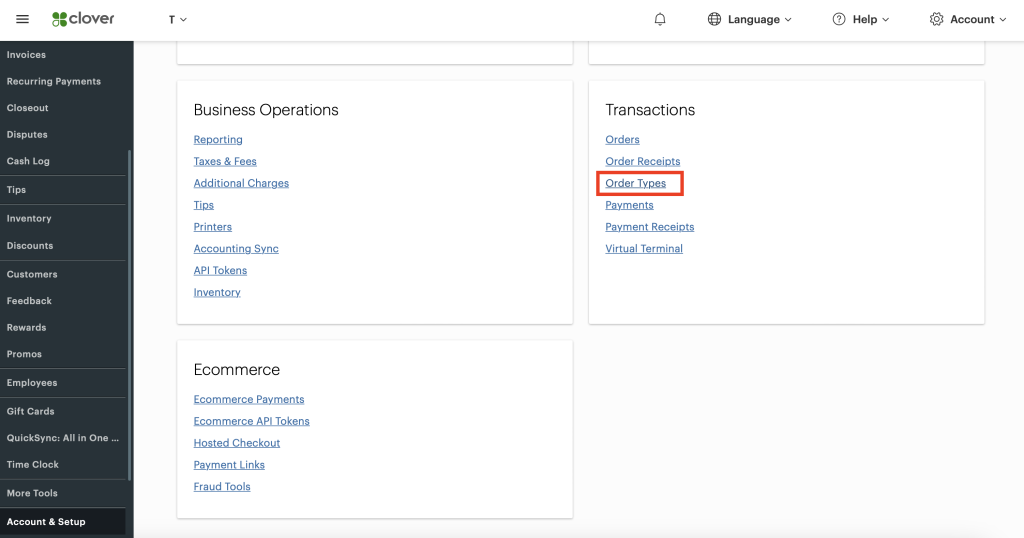
Inside the Transactions section, click: Order Types
This page displays all existing order types in your Clover account. Navigate to the Transactions section and click Order Types.
Step 3: Add a New Order Type #
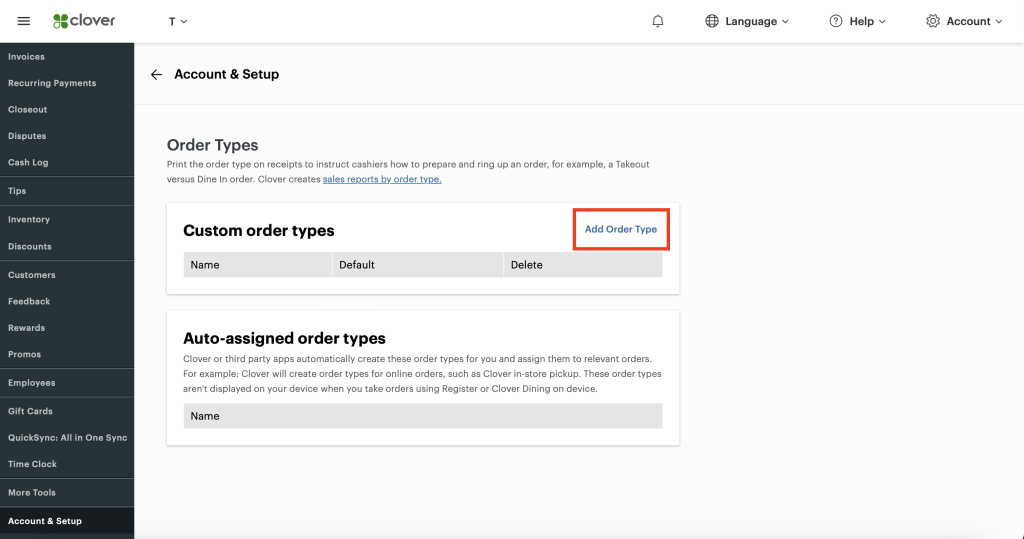
Click the “Add Order Type” button. A new form will appear where you can create a custom order type.
Step 4: Create the QuickSync Order Type #
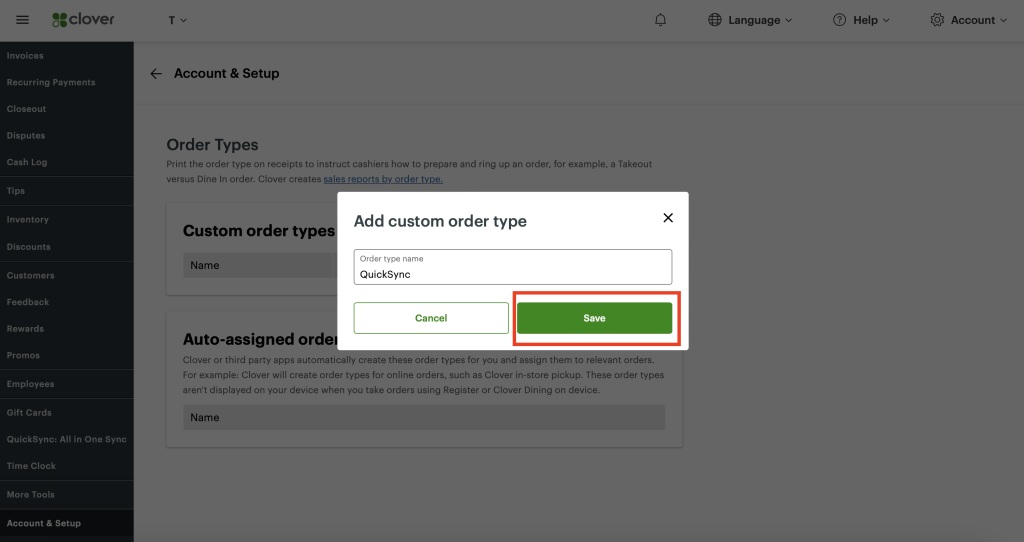
In the Name field, enter: QuickSync
Then click Save.
Your new Clover Order Type is now ready to be used for QuickSync order syncing.
How QuickSync Uses the Clover Order Type #
Once the order type is created and order syncing is enabled:
- Orders from connected sales channels are automatically created in Clover.
- These orders are assigned to the QuickSync Order Type.
- Your staff can process them just like regular Clover orders.
This keeps synced orders organized and easy to manage.
How QuickSync Uses the Clover Order Type #
Once the order type is created and order syncing is enabled:
- Orders from connected sales channels are automatically created in Clover.
- These orders are assigned to the QuickSync Order Type.
- Your staff can process them just like regular Clover orders.
This keeps synced orders organized and easy to manage.
Frequently Asked Questions- #
Need Help? #
If you need assistance setting up Clover Order Type for QuickSync, our support team is here to help.
Contact us at support@quicksync.pro, and we’ll assist you as quickly as possible.