
QuickSync connects with WooCommerce to keep your products, inventory, and orders in sync across all your other connected sales channels. Once you have set up QuickSync, everything updates automatically, so you never have to manually edit stock levels or copy order details between platforms.
1. How to Connect WooCommerce Account with QuickSync #
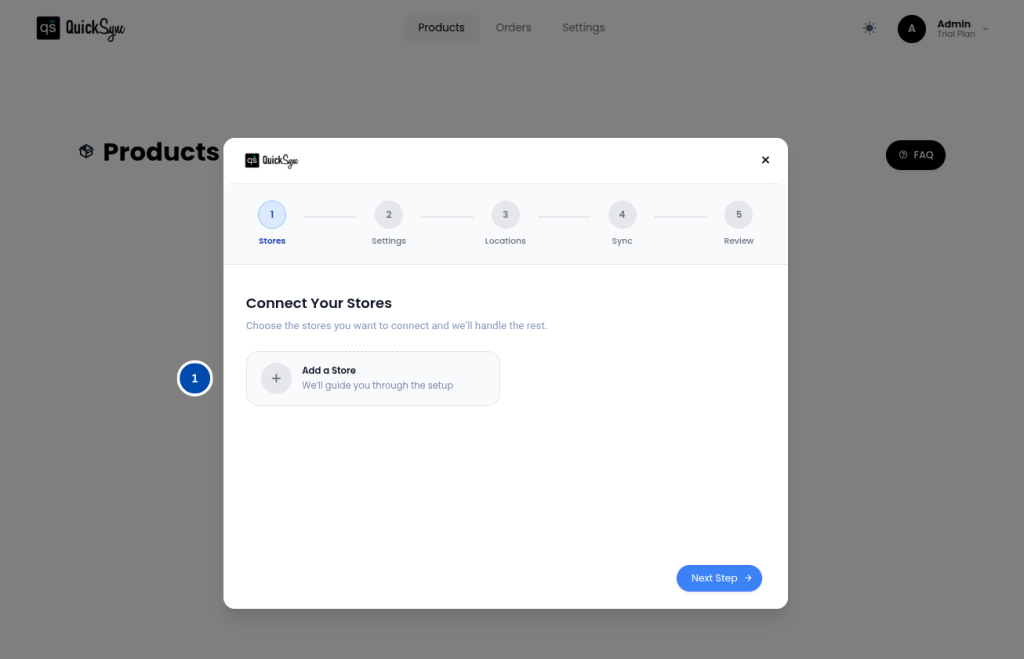
Before you begin, make sure you have an active QuickSync account.
You can sign up in two ways: either by visiting quicksync.pro and clicking Sign Up, or directly from your WooCommerce store by installing the QuickSync plugin from the WooCommerce marketplace.
Once your account is ready, follow these steps to connect your WooCommerce store:
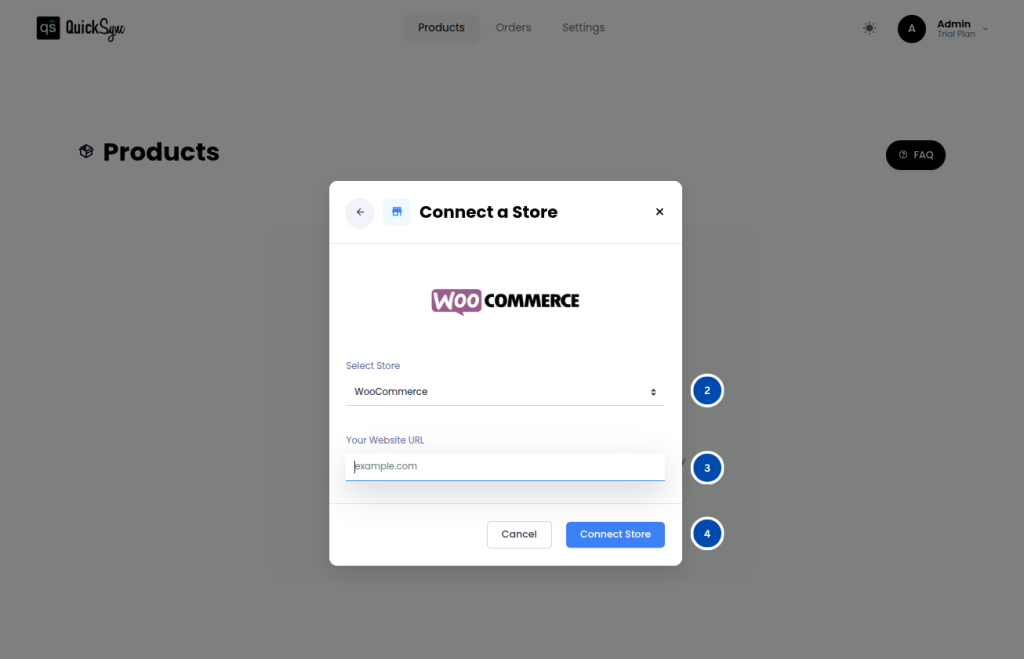
- Go to Dashboard → Add a Store → Select WooCommerce
- Enter your store URL (for example: http://www.yourstore.com)
- Click Connect a Store and approve the access request. This allows QuickSync to manage your products, images, inventory, and orders on your behalf.
- Once approved, QuickSync will automatically import your store data, including your settings, categories, attributes, and products.
- You will see a progress bar in your dashboard while this is running. Wait for it to complete, and your WooCommerce store will be ready to use.
2. Integration Features Supported by QuickSync #
Once your WooCommerce store is connected, QuickSync will sync the following:
Inventory Sync: QuickSync keeps your stock levels accurate across all connected channels in real time.
- Real-Time Stock Updates: QuickSync updates stock levels in real time across all connected channels
- Multi-Location Support: We support WooCommerce inventory management across multiple warehouse or store locations
- Negative Inventory: We support negative inventory values
Product Sync: QuickSync syncs your full product catalog to WooCommerce accurately and automatically.
- Product & Variant Sync: QuickSync can sync product details and all variant combinations accurately
- Image Sync: QuickSync also supports syncing of product images.
Order Sync: QuickSync centralizes all your incoming orders into WooCommerce for easy fulfillment.
- Tracking & Carrier Sync: QuickSync syncs tracking numbers and carrier names back to the original sales channel
- Order Routing: We route incoming orders from all connected channels into WooCommerce for fulfillment
- Order Cancellations: We support cancellations made on any connected channel and are synced automatically
3. Special Settings / Toggles #
Order Fulfillment with Tracking
When setting up Order Syncing, you have the option to set WooCommerce as your fulfillment store. Once selected, all orders coming in from your other connected channels, such as Shopify, Etsy, Amazon, or eBay, will automatically be pushed into WooCommerce. This means you can manage and fulfill all your orders from WooCommerce without having to log into each platform separately.
To enable this, go to Dashboard → Order Syncing → Select WooCommerce as your Fulfillment Store
Please note that to push the carrier name and tracking number to WooCommerce and have orders automatically marked as Completed, you must have the WooCommerce Shipment Tracking plugin installed and active on your WooCommerce store. Without this plugin, tracking information will not be passed through, and orders will need to be marked as completed manually.
4. Pricing & Billing #
QuickSync follows its standard subscription plans for WooCommerce users. Your billing method depends on where you originally signed up. If you signed up through the QuickSync website, your subscription is billed through the QuickSync dashboard directly. If you signed up through WooCommerce, your billing is managed through your WooCommerce account.
5. Change Logs #
| Date | API | Region | Notes |
|---|---|---|---|