This page explains everything you need to know about QuickSync cancellation and refund policy, including how to cancel your subscription and how to request a refund.
The cancellation process depends on where you originally installed QuickSync. Please follow the correct instructions based on your installation source to avoid billing confusion.
Important: Where You Installed QuickSync Matters #
Your cancellation steps depend on how you signed up:
- If you signed up directly on the QuickSync website, you can cancel inside your QuickSync dashboard.
- If you installed QuickSync through Shopify, WooCommerce, Clover, or another app marketplace, you must cancel directly from that platform.
For app store installations, simply removing the app from your store will automatically cancel your subscription and stop future billing.
How to Cancel Your QuickSync Subscription (Website Users) #
If you signed up through the QuickSync website, follow these steps:
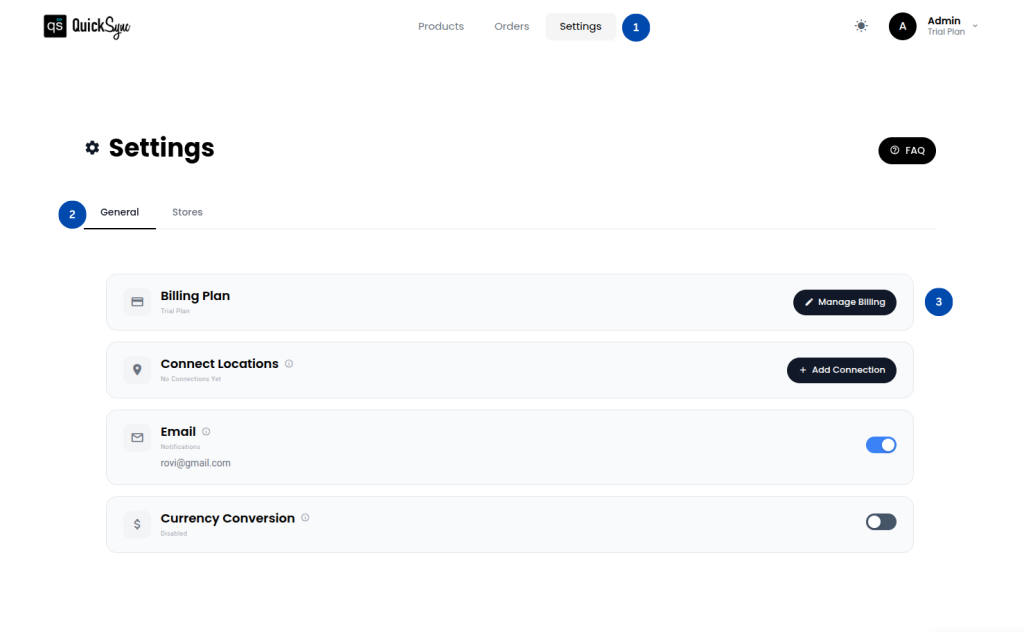
Step 1 #
Go to QuickSync Dashboard → Settings → Billing Plans
Step 2 #
Click on Manage Subscription
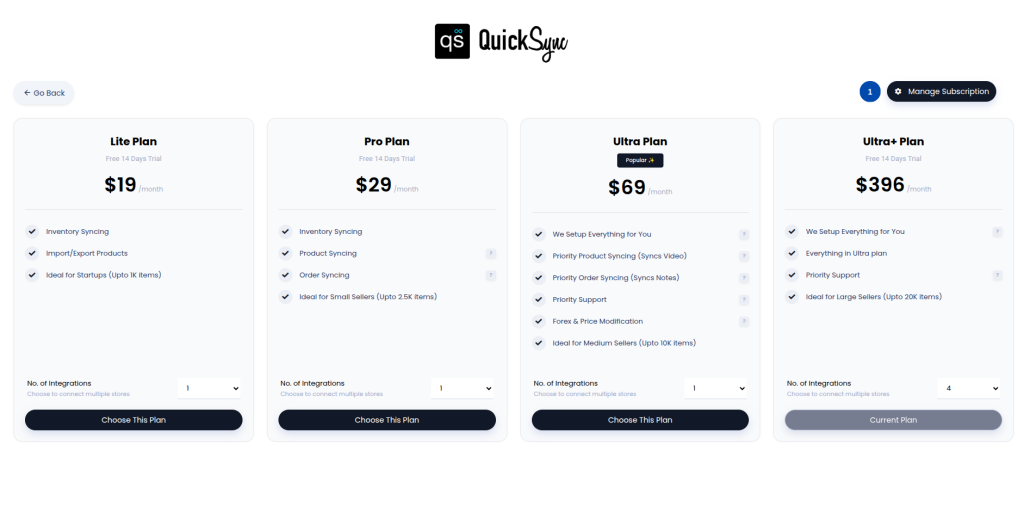
Step 3 #
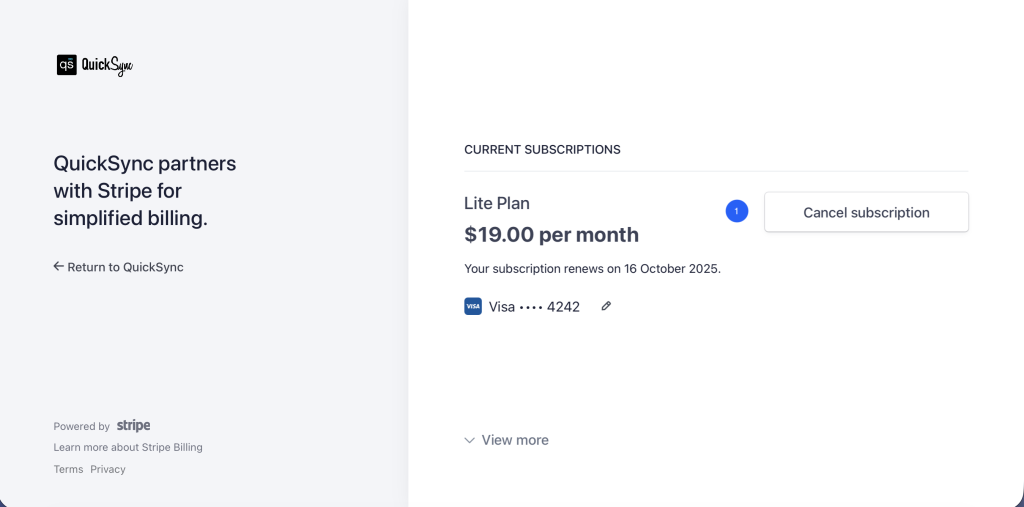
Click on the cancel subscription button on the right side.
Once canceled:
- Your subscription will not renew again.
- You will continue to have access until the end of your current billing cycle.
- No future charges will be applied after the billing period ends.
Your access remains active until your paid period expires.
How to Cancel via Shopify, WooCommerce, Clover, or Other App Stores #
If you installed QuickSync through an app store, cancellation must be completed within that platform.
Shopify #
Go to your Shopify Admin → Apps → Remove QuickSync.
WooCommerce #
Cancel the subscription through your WooCommerce billing or marketplace section.
Clover #
Remove QuickSync from your Clover dashboard.
Once the app is removed, your subscription is automatically canceled, and no future charges will occur.
If you are unsure where you installed QuickSync, check where your billing charge appears. That is your billing platform.
How to Request a Refund #
If you believe you are eligible for a refund, you can submit a request by emailing:
support@quicksync.pro
Please include the following details for faster processing:
- Your QuickSync account email
- Date of transaction
- Installation source (Website, Shopify, WooCommerce, Clover, etc.)
- Reason for refund request
Our support team will review your request and respond as soon as possible.
If you signed up through an app store, please mention that in your email. Some refunds may need to be processed directly through the billing platform.
Refund Processing Timelines #
Refund processing time depends on your QuickSync billing method:
- Website or Square billing: 3–5 business days
- Shopify or WooCommerce billing: 5–7 business days
- Clover billing: Up to 30 days
Please note that banks may take additional time to reflect the refund in your account.
Need Help? #
If you have any questions regarding QuickSync cancellation and refunds, our support team is here to help.
Contact us at support@quicksync.pro, and we’ll assist you as quickly as possible.


