QuickSync’s product syncing feature ensures that all your product details remain consistent across every connected sales channel. With QuickSync product sync, you can manage products from one master store and automatically update titles, descriptions, prices, images, and variants across all other stores and marketplaces.
Instead of manually updating products in multiple places, you only need to update them once. QuickSync will instantly distribute the changes everywhere, saving time and preventing inconsistent product information.
Key Points #
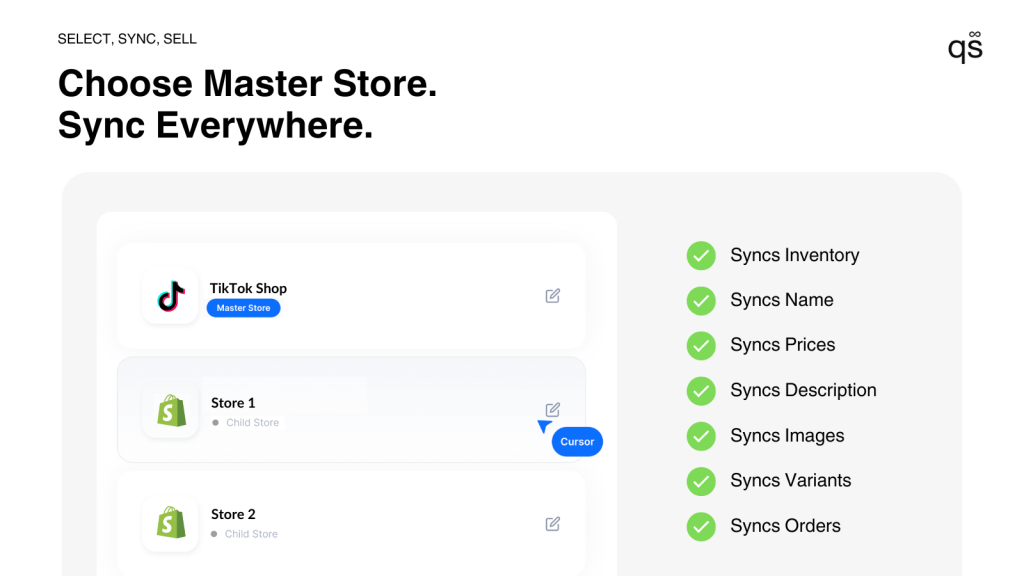
Choose a Master Store #
To enable QuickSync product sync, you first need to select a master store. The master store acts as the primary source for your product information.
Whenever a product or variant is created, edited, or deleted in this store, QuickSync automatically updates all connected sales channels.
What is a Master Store? #
A master store is the single source of truth for your product data within QuickSync.
Once selected, any product updates made in the master store will automatically sync across all connected platforms. This ensures every store displays the same accurate product information.
Real-Time Product Updates #
With QuickSync product sync, key product fields are updated in real time across all your connected stores and marketplaces.
The following product details can be synced automatically:
- Product titles
- Descriptions
- Product images
- Prices
- Variants and variant attributes
- SKUs and product options
- Tags and additional product information
This ensures your customers always see the same product details, no matter where they shop.
Tip: To see exactly which fields can be synced for each sales channel, refer to the Syncing Reference Table.
Optional Settings #
When enabling product syncing, you can activate additional options from the dashboard to make product management even easier.
Create SKU: If a product does not have a SKU in the master store, QuickSync can automatically generate one when exporting the product to other connected stores.
Create as Draft: If you want to review products before they go live, you can enable the Create as Draft option. This will create the product in draft mode on the destination store so you can check it before publishing.
These options provide additional control when syncing products across multiple sales channels.
How QuickSync Product Sync Works #
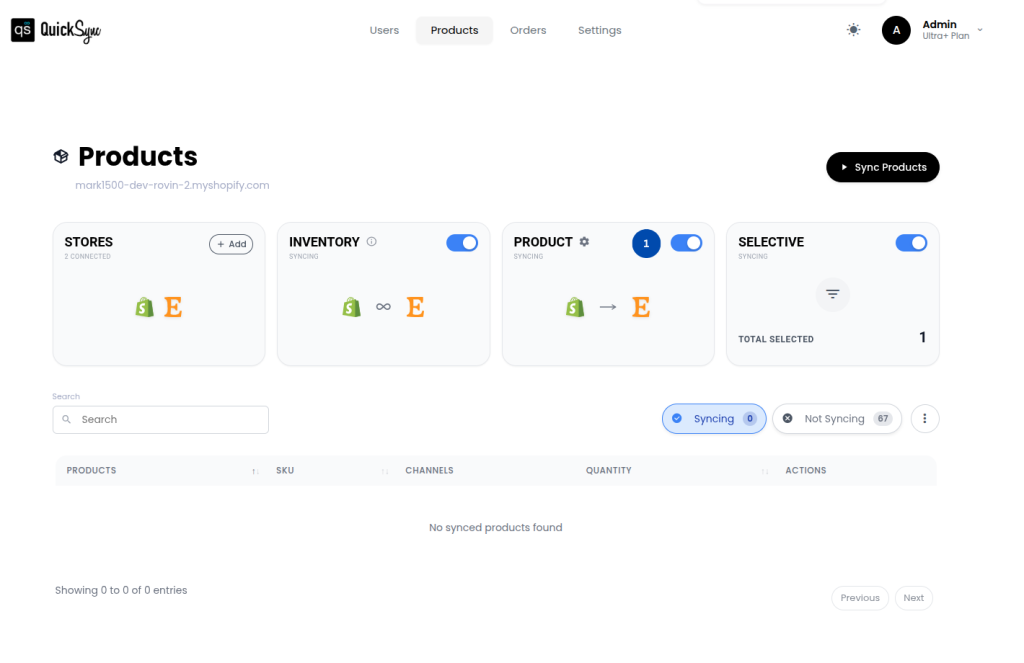
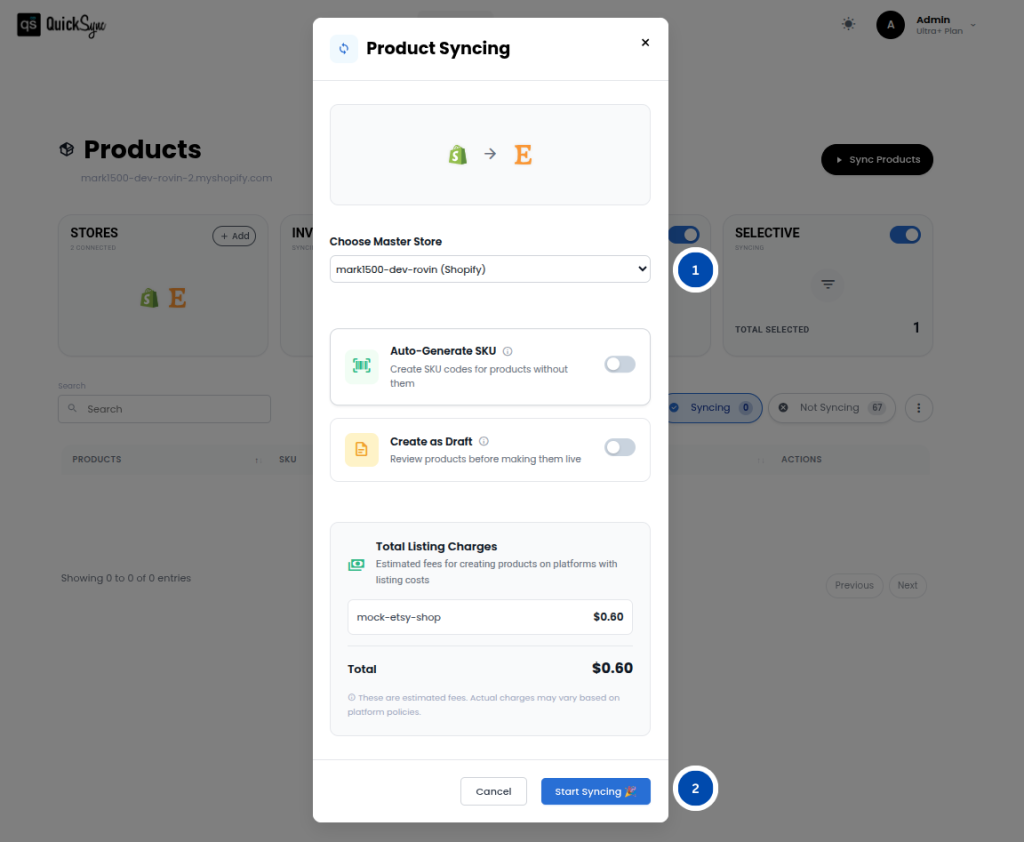
Setting up QuickSync product sync is simple and only takes a few steps.
1. Connect Your Sales Channels: #
Start by connecting the stores or marketplaces you want to manage. QuickSync supports integrations such as:
- Shopify
- Square
- Clover
- WooCommerce
- Etsy
- eBay
- Other supported marketplaces
2. Enable Product Syncing: #
After connecting your stores, open the QuickSync dashboard and enable the Product Syncing option.
3. Start Syncing Products: #
Click Start Syncing to activate QuickSync product sync. You can also enable optional features such as Create SKU or Create as Draft if needed.
4. Automatic Product Synchronization: #
Once enabled, any product changes made in the master store, such as adding a new product, editing details, or updating variants, will automatically sync to all connected sales channels.
This keeps your entire product catalog aligned without manual updates.
Popular Use Cases #
1. Multi-Store Retailers: #
Many brands operate multiple online stores, such as two Shopify stores or a Shopify store combined with a WooCommerce store. With QuickSync product sync, product details like price, images, descriptions, and variants remain identical across all storefronts.
2. Marketplace Expansion: #
Merchants expanding to marketplaces such as eBay or Etsy often want to manage their products from a single platform. QuickSync allows them to update product information in the master store while automatically syncing those changes to all connected marketplaces.
3. POS + Online Store: #
Retailers frequently sell both online and through a physical POS system such as Clover or Square. QuickSync product sync ensures product information like titles, images, and prices stays consistent across both online and in-store systems.
4. Seasonal or Flash Sales: #
During seasonal promotions or flash sales, merchants may need to update prices or product descriptions across multiple stores quickly. QuickSync instantly syncs those updates across all channels, ensuring every platform displays the same promotional information.
5. Rapid Product Launches: #
When launching new products, merchants can create them once in the master store and automatically push them to other connected stores.
Using the Create as Draft option, teams can review the products before publishing them live on each channel.
Need Help With QuickSync Product Sync? #
If you have any questions about QuickSync product sync or need assistance syncing your product information across multiple sales channels, our support team is here to help.
Whether you need help choosing a master store, configuring product syncing settings, or troubleshooting product synchronization issues, we’ll guide you through the process.
Contact our support team at support@quicksync.pro, and we’ll assist you as quickly as possible.


