QuickSync connects your TikTok Shop directly with all your other sales channels, so everything stays in sync automatically. Once connected, QuickSync handles real-time syncing of your inventory, products, orders, and media, including images and videos, with no manual updates needed from your side. Any change you make on your connected store is reflected on TikTok straight away.
How to connect TikTok’s Seller Account with QuickSync? #
Before you begin, make sure you have an active QuickSync account. You can sign up at quicksync.pro by clicking Sign Up. Once your account is ready, follow these steps to connect your TikTok Shop:
1: Setup & Authentication #
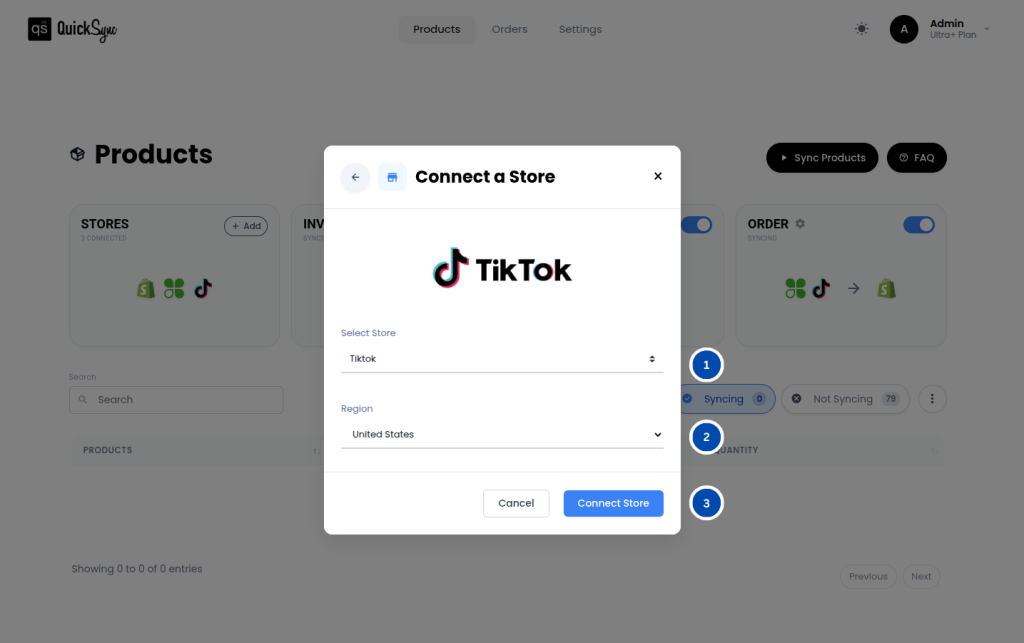
- Log in to your QuickSync Dashboard and go to Sync Products,
- Go to Store→ Add a store
- Select TikTok.
- Choose your region between the United States and the rest of the World based on your TikTok Seller Center account.
- Click Connect Store and log in to your TikTok Seller Center account. Approve the requested permissions for products, orders, and inventory.
- Once approved, QuickSync will automatically start importing your store data, including locations and products. You will see a progress bar in your dashboard while this is running. Simply wait for it to complete.
2. Review Settings #
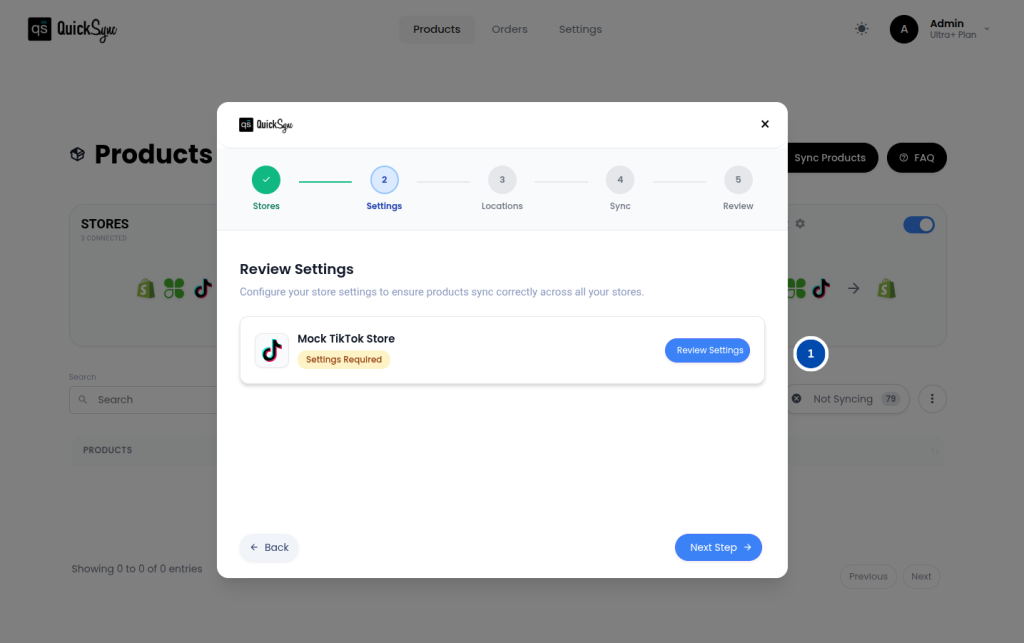
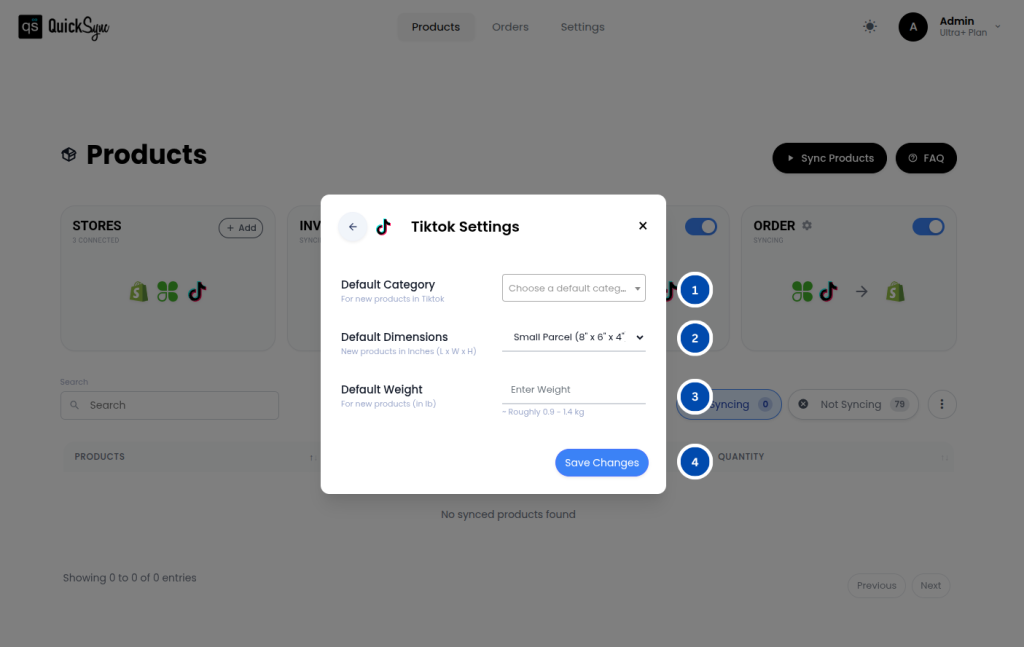
- After the initial data import completes, the dashboard automatically displays a “Review Settings” popup.
- Select a Default Category
- Choose a backup category for new products in TikTok.
- If automatic category detection fails, products will be created in this default category until you update them.
- Select the Default Dimensions
- Choose a default package size for new products in inches(L × W × H):
- Small Parcel – 8” × 6” × 4”
- Medium Box – 12” × 12” × 8”
- Large Box – 18” × 18” × 16”
- XL Box – 24” × 24” × 24”
- Custom – Enter your own Length, Width, Height (in inches)
- These dimensions are required by TikTok’s logistics system for calculating shipping costs.
- Choose a default package size for new products in inches(L × W × H):
- Default Weight
- Enter the default product weight in pounds (lb) for new products.
- Minimum: 0.1 lb, Maximum: 220 lb.
- Click on Save Changes
Once these defaults are saved, QuickSync will apply them to every new product you export to TikTok unless the product record itself already includes its own category, dimensions, or weight.
3. What Get’s Synced with QuickSync TikTok Integration #
With QuickSync’s TikTok integration, you get access to a full range of syncing features covering inventory, products, orders, media, and more. Here is what each one does for your store.
Inventory Sync #
QuickSync keeps your stock levels accurate in real-time across all connected channels whenever a sale is made on TikTok or any other connected platform.
- Real-Time Inventory Sync: Inventory syncs automatically across TikTok and all connected channels the moment a sale happens
- Negative Inventory: QuickSync supports negative inventory values, too, so when your inventory goes to zero, you can
Product Sync #
QuickSync syncs your full product catalog to TikTok accurately and automatically, so your listings are always up to date.
- Product & Variant Sync: All your product details and variant combinations sync accurately to TikTok, so every option your customer sees is correct.
- Images: QuickSync syncs your product images to TikTok and supports up to 9 images per product, so your listings always look their best.
- Video: QuickSync syncs product videos to TikTok as well and supports up to 1 video per product to give your customers a better view of what they are buying.
- SKU Sync: All your SKUs sync accurately across your connected channels, so every product is tracked and identified correctly everywhere you sell. If any of your product is missing a SKU, QuickSync will auto-generate a SKU for it for correct mapping.
Order Sync #
QuickSync brings all your incoming TikTok orders into one place so you can manage everything without jumping between platforms.
- Tracking & Carrier Sync: Once an order is fulfilled, the tracking number and carrier name are synced back to TikTok automatically.
- Order Routing: Incoming TikTok orders are routed into your chosen fulfillment store inside QuickSync.
- Customer Data Access: QuickSync gives you access to customer details so you can fulfill orders without logging into TikTok Seller Center separately.
For more details, please go through Syncing reference table.
4. Special Settings / Toggles #
QuickSync includes a few additional settings for your TikTok integration that give you more control over how your products are listed and managed.
- Video Syncing: QuickSync supports syncing product videos to TikTok Shop. This feature is available in specific plans. Check your current plan or contact our support team to confirm if it is included.
- AI Aspect Recommendation: When exporting products to TikTok in specific categories, TikTok requires mandatory product details called aspects, such as Color, Material, Size, and Country of Origin. QuickSync automatically recommends these values using AI based on your product data, so you do not have to fill them in manually.
- Add Size Chart: If you sell clothing or apparel products, TikTok requires a size chart to be attached to your listings. QuickSync lets you upload and manage your size chart directly from your dashboard.
- Auto Export Products: TikTok limits new sellers to 100 product listings per day. With Auto Export Products enabled, QuickSync automatically exports up to 100 products per day in the background until your entire catalog is live on TikTok, no manual effort needed.
5. Pricing & Billing #
QuickSync for TikTok integration is available on all standard QuickSync subscription plans. Your billing is managed through the QuickSync website. You can check or update your plan anytime from your QuickSync dashboard.
6. Change Logs #
| Date | API | Region | Notes |
|---|---|---|---|


