QuickSync connects your Squarespace store with your other sales channels and keeps your products, inventory, and orders in sync automatically. Once set up, any changes made to your connected store are reflected in Squarespace without any manual work.
How to Sync Squarespace Account with QuickSync? #
Before you begin, make sure you have an active QuickSync account. You can sign up at quicksync.pro by clicking Sign Up. Once your account is ready, follow these steps to connect your Squarespace store:
1. Setup & Authentication #
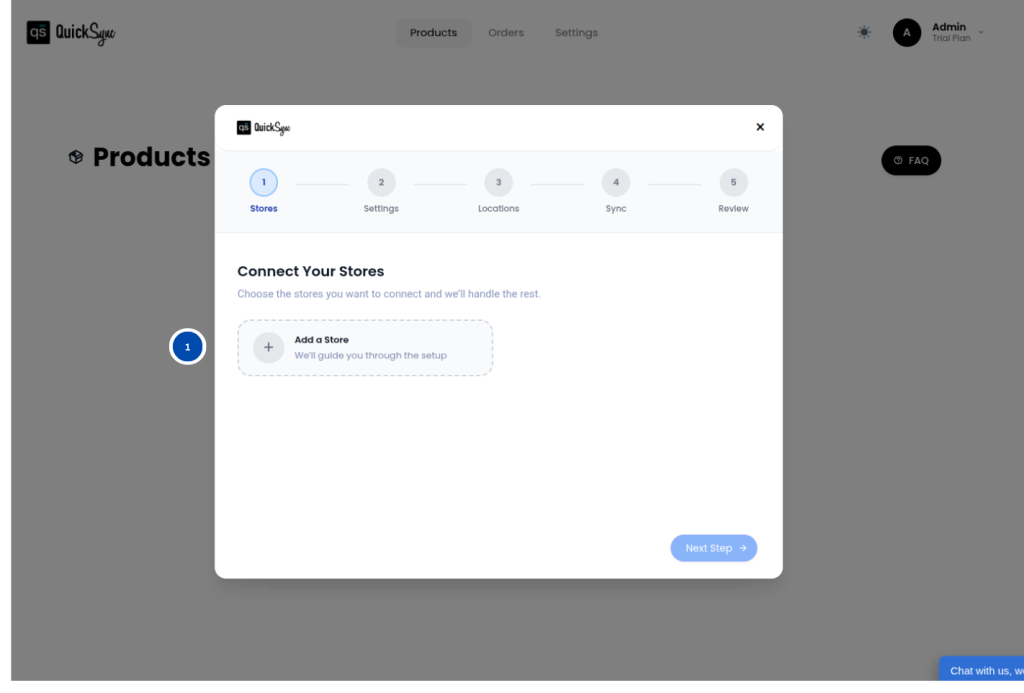
- Log in to your QuickSync Dashboard and go to Sync Products.
- Go to Store→ Add a store
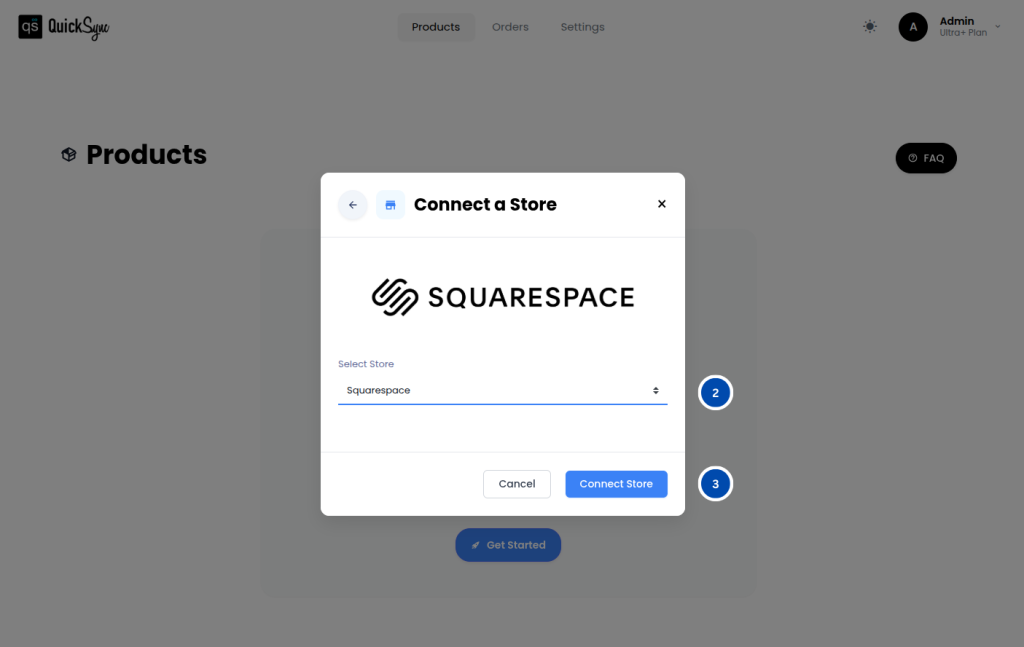
- Select Squarespace
- Click Connect a Store and log in to your Squarespace account.
- Approve permissions for products, images, inventory, and orders.
- Once approved, QuickSync will automatically begin importing your site information, Store Pages, and product catalog. You will see a progress bar in your dashboard while this is running. Wait for it to complete before moving to the next step.
2. Review Settings #
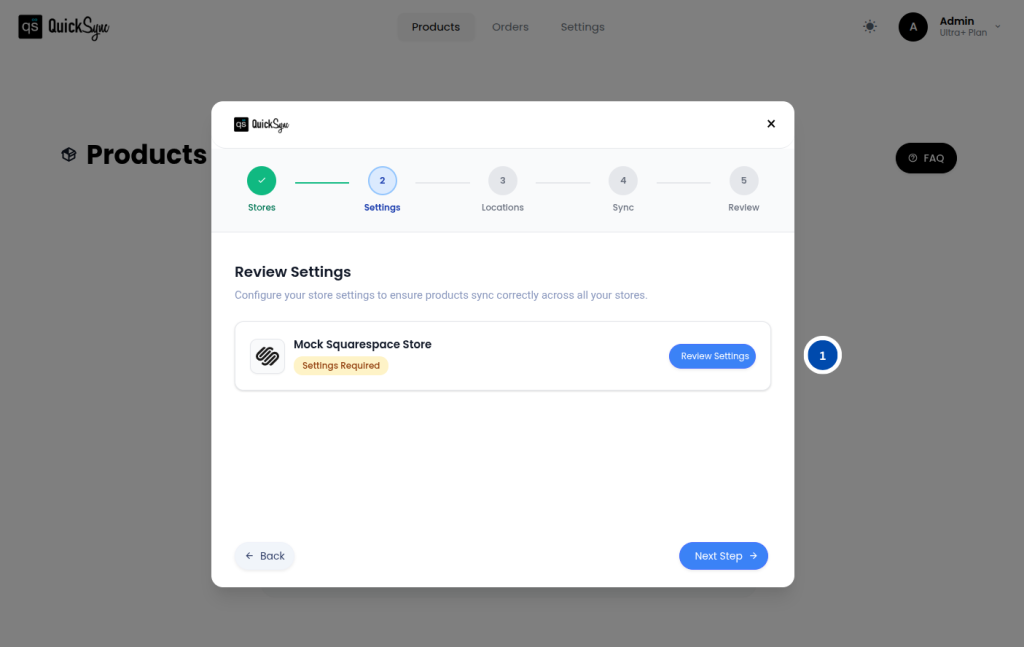
- Once the initial data import is complete, QuickSync will display a Review Settings pop-up automatically. You need to complete this step before any products can be exported to Squarespace.
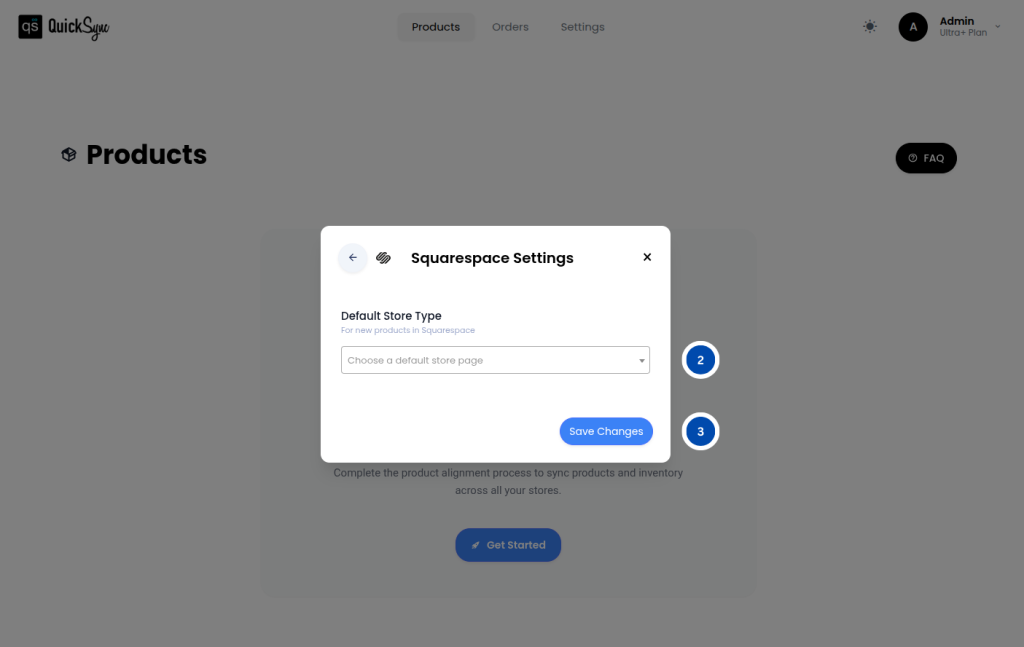
- Inside the pop-up, select a Default Store Page. Squarespace requires every product to be assigned to a Store Page before it can go live. The page you select here will be applied to all new products exported to Squarespace as a default.
Once you have made your selection, click Save Changes to complete the setup.
3. Syncing Features Offered by QuickSync for Squarespace Integration #
With QuickSync’s Squarespace integration, you get access to a full range of syncing features covering inventory, products, and orders. Here is what each one does for your store.
Inventory Sync #
QuickSync keeps your Squarespace stock levels accurate across all connected channels. Stock we send to Squarespace is written within seconds. A stock change you make inside Squarespace is picked up on a two-minute check, because Squarespace notifies us about new orders but not about stock edits.
- Automatic Stock Updates: Stock levels update automatically across all connected channels whenever a sale is made on any platform
- Inventory Range Support: QuickSync supports inventory quantities from a minimum of 0 to a maximum of 999,999 units, giving you full flexibility to manage stock levels of any size.
Product Sync #
QuickSync syncs your full product catalog to Squarespace automatically.
- Product & Variant Sync: QuickSync syncs all your product details and variant combinations accurately to Squarespace, so every option your customer sees is always up to date
- Images: QuickSync syncs up to 100 product images to Squarespace so your listings always have complete and accurate visuals across all your connected channels
- Variant Images: QuickSync syncs variant-specific images as well, and up to 1 image per variant is supported, so customers can see exactly what each option looks like
- SKU Sync: QuickSync syncs all your SKUs accurately across your connected channels, so every product is correctly tracked and identified everywhere you sell
- Retail Price & Compare At Price: Both retail price and compare at price sync to Squarespace, so your pricing stays consistent across all channels
Order Sync #
QuickSync routes all incoming Squarespace orders into your chosen fulfillment store for central management.
- Order Routing: QuickSync automatically routes all orders placed on Squarespace into your chosen fulfillment store so you can manage and process everything from one place without logging into Squarespace separately
- Tracking & Carrier Sync: Once an order is fulfilled, QuickSync automatically sends the tracking number and carrier name back to Squarespace so your customer receives the correct shipping update straight away
For more details, please review the QuickSync syncing reference table.
4. Special Settings / Toggles #
QuickSync offers a special default store page setup feature:
- If your Squarespace website has exactly one Store Page, QuickSync will assign it automatically, and you will not need to select one manually
- If your website has no Store Pages or more than one, you will need to select a default Store Page from the pop-up before continuing.
5. Pricing & Billing #
QuickSync Squarespace integration billing follows the standard QuickSync subscription plans. Billing is managed through the QuickSync website. You can review or update your plan anytime from your QuickSync dashboard.wr
6. Change Logs #
| Date | API | Region | Notes |
|---|---|---|---|


